Windows suddenly shows my external hard drive as RAW, and I can’t open it or access important files on it. Disk Management sees the drive, but it wants me to format it first, and I’m worried that will erase my data. I need safe RAW drive recovery tips for Windows, including what to try first and what to avoid.
I ran into this more than once, and the first time I saw a drive flip to RAW, I figured it was done for. It wasn’t. RAW in Windows usually means the file system stopped making sense to the OS, so your files are still sitting there, but Windows no longer knows how to read the partition.
Stuff I’ve seen cause it:
1. power cut during a write
2. pulling an external drive too soon
3. damaged NTFS or exFAT metadata
4. weak sectors building up
5. malware
6. busted partition table
7. a drive starting to fail
What I’d sort out first is simple. Is this a file system mess, or is the hardware going bad?
If your drive shows up in Disk Management, displays the right size, stays connected, and isn’t making clicky or grinding sounds, I’d treat it like a logical issue first and do recovery myself.
If it drops off randomly, shows up one minute and vanishes the next, makes odd noises, or SMART is full of errors, I’d stop messing with it. Scanning a failing drive over and over is how people turn a bad situation into a worse one. If the data matters, I’d hand it to a recovery shop at that point.
When the drive seems stable, I would not start by trying to repair RAW. I’d pull the files off first.
What worked best for me was Disk Drill. On RAW volumes, it tends to check for leftover file system structures first. Sometimes enough of NTFS or exFAT is still there for a cleaner recovery. If those parts are too damaged, it falls back to file signatures and scans the disk for known file types.
The flow is pretty plain:
1. Install Disk Drill on a different disk, not the RAW one.
2. Pick the RAW drive or RAW partition.
3. Hit Search for Lost Data. If it’s an external drive, use Universal Scan when it asks. Small exception, if you’re pulling fragmented video from cameras or drones, Advanced Camera Recovery usually does better.
4. Let the scan finish. Don’t cut it off halfway unless the drive starts acting weird.
5. Preview what it found.
6. Recover everything to another drive.
I’d only touch repairs after checking a few recovered files. Open documents. Play videos. Spot check photos. Make sure the recovery isn’t fake-good.
If the partition used NTFS before all this, CHKDSK sometimes fixes boot sector damage or file system corruption. I still wouldn’t run it first. It writes changes to the disk, and I don’t like doing surgery before I’ve copied the patient. If CHKDSK does nothing, or the file system wasn’t NTFS in the first place, I’d move to TestDisk.
If neither one brings the partition back, I’d quit chasing it. Rebuild the partition in Disk Management, do a quick format, then copy your recovered files back over. 
Do not format it. Windows says RAW when it stops reading the file system, not when your files are gone. Big diff.
I agree with @mikeappsreviewer on one part, stop any writing to the drive. I disagree a bit on waiting too long before making an image. If the data matters, clone the drive first, then work from the clone. Tools like HDD Raw Copy Tool or dmde image mode are safer than poking the original disk all day. If the drive has weak sectors, one clean pass beats 5 rescans. That part gets missed a lot.
What I’d do:
1. Try a new USB cable and port.
2. Check SMART with CrystalDiskInfo.
3. If SMART looks bad, stop.
4. If stable, make a byte for byte image.
5. Run recovery on the image, not the source.
For RAW drive recovery on Windows, Disk Drill is fine for pulling files from a damaged file system. Save recovered data somewhere else. Then test a few files before you wipe anything.
Avoid chkdsk at the start. Avoid format. Avoid copying files onto the RAW disk. Avoid “quick fixes” from random YouTube dudes. This vid on recovering data from a corrupted drive on Windows is more on point.
If the goal is to recover files from a damaged or unreadable drive, image first, recover second, repair last. Thats the safer order.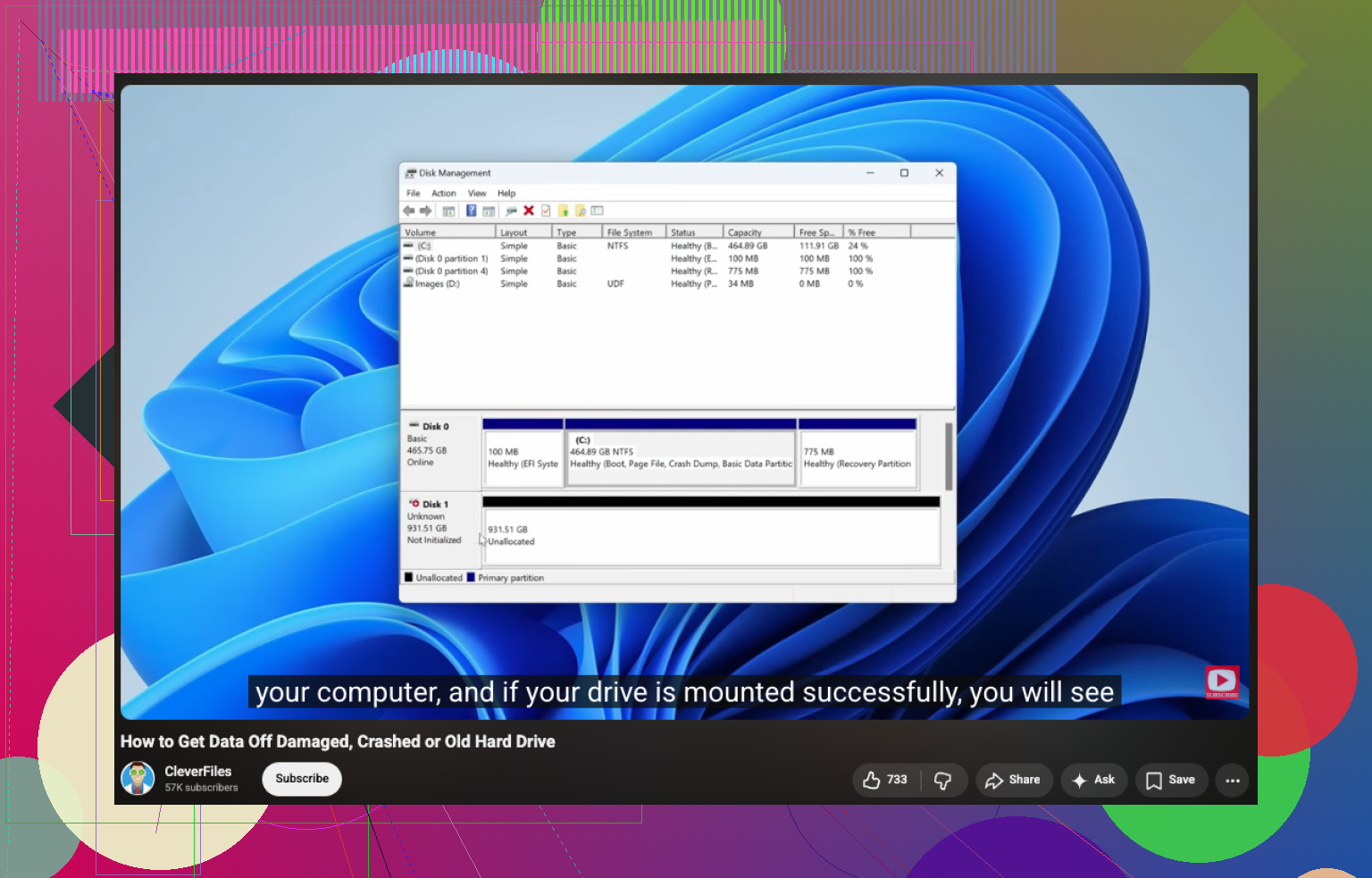
Don’t format it. That popup is Windows basically shrugging and saying “I can see a disk, but not a file system.”
I mostly agree with @mikeappsreviewer and @nachtdromer, but I’m a little less enthusiastic about trying fixes on the original drive even after a quick file check. If the files matter, treat the disk like evidence, not a workshop project.
My order would be:
1. Stop using the drive completely.
2. Try a different cable, port, and even another PC.
3. Check whether the drive reports the correct capacity in Disk Management.
4. Look in Event Viewer for disk errors. If you see I/O or controller errors, that leans hardware.
5. If the enclosure is suspicious, test the bare drive internally or with another SATA-to-USB adapter.
One thing people skip: sometimes the RAW problem is the USB bridge, not the actual disk. I’ve seen externals look dead, then mount fine once removed from a flaky enclosure. Bit annoying, but real.
For file recovery, Disk Drill is a solid Windows RAW drive recovery option because it can often read past the damaged file system enough to pull data without modifying the source. I’d still recover to another disk only. Not the same one. Ever.
What to avoid:
- format
- chkdsk as a first move
- “initialize disk” if prompted
- copying anything onto it
- repeated rescans if the drive starts lagging or disconnecting
If you want a simple walkthrough, this is a decent RAW drive recovery guide for Windows.
If the drive clicks, disappears, or gets painfully slow, stop DIY stuff. That’s where people make it wayyy worse.
One small disagreement with @nachtdromer and @sognonotturno: I would not trust SMART too much as a gatekeeper. Some dying USB drives still show “good” SMART through flaky bridges. So if the data is important, judge behavior too: freezes, retries, disconnects, weirdly slow reads, file list hangs.
My extra tip: check the partition layout with something read-only first. DMDE or even Windows `diskpart` with just `list disk` and `list volume` can tell you whether this is a lost partition problem versus a mangled file system problem. If the partition type itself is wrong or missing, recovery strategy changes.
Also, if BitLocker was ever enabled, RAW can simply mean Windows is seeing the encrypted volume incorrectly. Before doing anything clever, check whether the drive used encryption or came from another machine/NAS.
Disk Drill is decent here because it’s easy to preview files before recovery.
Pros:
- simple UI
- good for logical damage
- previews help verify recoverability
- works well when the partition shows RAW
Cons:
- deep scans can take ages
- signature recovery may lose folders/names
- not ideal for a physically unstable drive
- paid recovery limits can be annoying depending on edition
So yeah, my order would be: identify if it’s enclosure, partition, encryption, or file system damage, then recover to another disk with something like Disk Drill. Repair attempts come later, if at all. And if the drive starts stalling, stop before you turn a recoverable RAW disk into a dead one.