My iPad has a lot of free storage, but it’s still running really slow when I open apps, browse the web, and switch between screens. I already checked storage because I thought that was the problem, so now I’m not sure what’s causing the lag or how to fix it. I need help figuring out why my iPad is slow despite having enough storage left.
I ran into the same mess on my iPad, and at first I misread the problem. Storage looked 'fine' because the bar was not maxed out. Meanwhile apps took a few seconds to respond, then dumped me back to the Home Screen. It felt random. It was not random.
What tripped me up was how picky iPadOS gets once storage starts filling up. Since iPadOS 16, Apple uses Virtual Memory Swap on supported iPads. Your storage gets used like extra memory during heavier tasks. So even if you still see a few gigabytes free, performance starts falling off once storage is packed too tight. Around 80 percent full, things got ugly on mine. Apple says you should keep at least 1GB open so the system can function, but from what I saw, 1GB is nowhere near enough if you want apps to stop choking and closing.
I went through the normal Settings cleanup first. I shut off Background App Refresh. I turned on Reduce Motion in Accessibility. Those helped a bit with battery drain and made the interface feel less busy, sure. Still, it did not fix the root issue. If the iPad is short on working room, those tweaks are cleanup around the edges.
The real problem on mine was hidden junk. Not fake junk, more like stuff I forgot existed. Thousands of screenshots. Duplicate-looking photos. Random burst shots. Big video files buried in places I never opened. I cleared Safari history and website data in Settings too, and you should do that, because browser junk builds up fast. It still barely moved the needle.
I do not trust most cleaning apps. A lot of them are paywall traps or they wave giant 'scan complete' screens at you and ask for money. I tried Clever Cleaner because it was free and, for once, did what it said. No ads. No fee popping up after the scan. What helped me most was file size visibility. I could see what was large before deleting anything.
The part I kept using was the Heavies section. It sorted media by size, which made the worst offenders obvious fast. I found a screen recording over 4GB I had no memory of saving. Then the Similars section grouped near-identical photos and blurry junk shots. Doing it by hand would've taken forever. I cleared around 15GB in maybe ten minutes. One thing I liked, and I checked this before trusting it, was on-device processing. My photos were not being shipped off somewhere else.
Once I got storage back under roughly that 80 percent mark, the iPad stopped falling apart. Apps opened normally again. Crashes stopped. The difference was immediate on mine.
If you clean storage and it still drags, look at the battery next. Older batteries struggle with peak power draw, and Apple has talked about performance throttling on aging devices to avoid shutdowns. If your iPad is 4 or 5 years old, age matters here. In Settings, check Battery usage and see what is draining it, even though iPads still do not show Maximum Capacity the way iPhones do. Annoying, yep.
Also, if the lag started right after a big iPadOS update, wait a day before you panic. Mine always feels off for hours after updating. It does background indexing and other cleanup, and performance dips while all of that finishes.
If I were you, I’d start with storage first, because in my case and from what I’ve seen, mystery app crashes usually came from there. If cleaning up does not settle it down, force restart the iPad. Hold the power button and the Home button, or power plus volume on newer models, until the Apple logo shows up. Sometimes that clears the temporary garbage and gets things stable again.
Free storage is only one piece of it. I half disagree with @mikeappsreviewer on the storage angle being the first thing every time. If you already have plenty free, I’d look at three other spots first.
1. Safari.
If web browsing is slow, Safari is often the culprit. Too many tabs, bloated website data, content blockers fighting each other. Close tabs. Remove old extensions. Restart Safari. I’ve seen one bad extension make an iPad feel broken.
2. Low RAM pressure.
Older iPads hit memory limits fast, even with empty storage. This shows up as app reloads when you switch screens. It’s a hardware limit, not a storage one. A12 and older chips feel this more.
3. Battery and heat.
If your iPad gets warm, iPadOS slows things down. Charging while browsing makes it worse. Cheap chargers do this too. If lag happens mostly when plugged in, test it unplugged.
Also check:
Settings, General, VPN & Device Management.
Remove old VPN profiles or security apps. Those slow web traffic a lot more than people think.
If your Photos library is messy, Clever Cleaner is still worth a look for large files and duplicates. And this Clever Cleaner review for freeing up iPhone and iPad storage is a solid read.
One more thing. If pages lag, but apps don’t, it’s your browser or network. If everything lags, it’s the device. Small diff, big clue. Thsi helped me narrow it down on mine.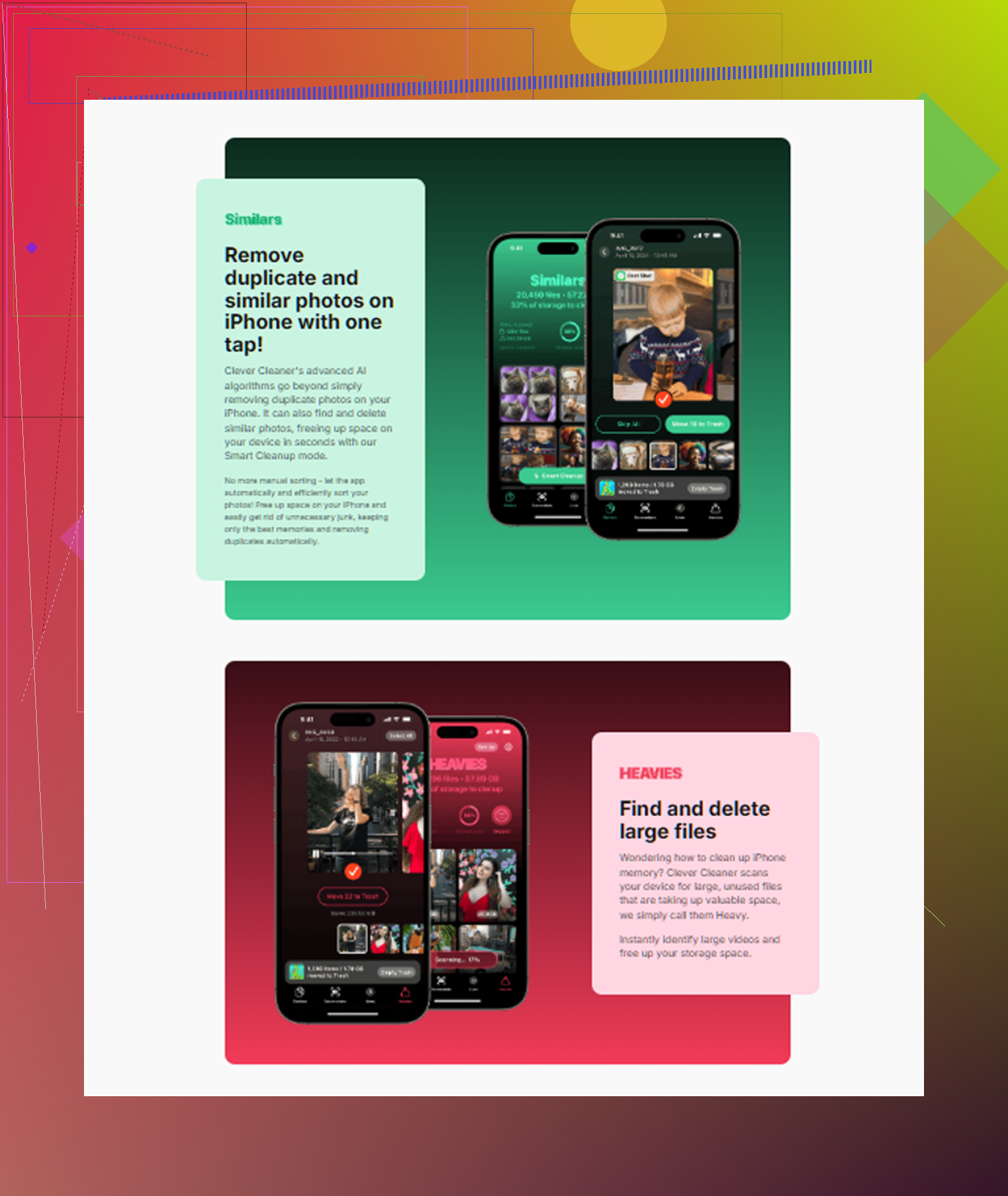
Storage gets blamed for everything, but I’m a little closer to @himmelsjager on this one. If you truly have plenty free, the slowdown is often one of these:
- iPadOS is stuck doing background stuff after an update
- one app is misbehaving and eating RAM/CPU
- battery temp throttling
- bad network settings making “slowness” feel system-wide
What I’d check that they didn’t really get into:
1. Analytics data
Settings > Privacy & Security > Analytics & Improvements > Analytics Data
If you see the same app name crashing over and over, that app may be the real problem, not the whole iPad.
2. Reset network settings
If Safari, App Store, YouTube, cloud sync, etc are laggy, this can help more than people expect.
Settings > General > Transfer or Reset iPad > Reset > Reset Network Settings
3. Turn off Low Power Mode if it’s on
People forget this one. It can make stuff feel weirdly sluggish.
4. Check available RAM behavior indirectly
Open 4 to 5 normal apps, then go back to the first. If it constantly reloads, that’s more of a memory/age issue than storage.
5. Offload or reinstall one problem app
Sometimes one bloated app cache goes nuts. Delete and reinstall it. Insta, Chrome, and some streaming apps are repeat offenders in my expereince.
Also, if your Photos app is huge, Clever Cleaner is actually useful for trimming large videos, duplicates, and similar shots without a lot of manual digging. This see how Clever Cleaner speeds up iPhone and iPad cleanup in 30 seconds clip gives a quick overview.
If the iPad is older though, blunt answer: sometimes it’s just aging hardware. Plenty of storage does not magically make an old chip fast agian.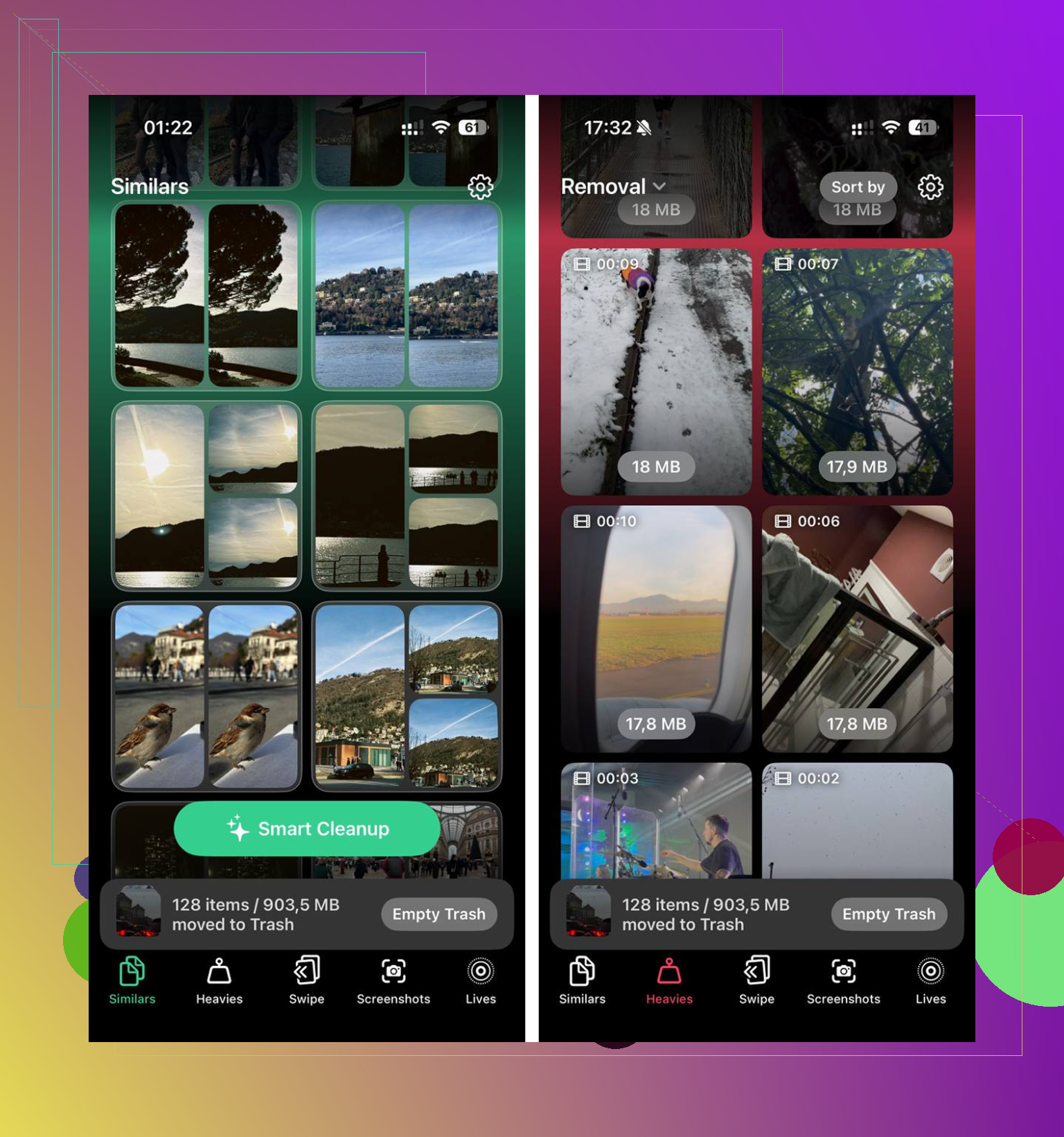
I’d look at one thing nobody has really hit hard yet: **accessibility/display settings and widget overload**.
If your iPad is slow when switching screens, opening folders, pulling Spotlight, or going back Home, sometimes it’s not “storage” or even “Safari”. It’s the UI stack getting bogged down by too much live stuff:
- too many Home Screen widgets
- Smart Stacks refreshing constantly
- heavy wallpapers with Perspective/blur effects
- lots of notifications constantly waking apps
- keyboard lag from third-party keyboards
That’s why I only half-buy the “storage first” angle from @mikeappsreviewer in every case. @himmelsjager and @boswandelaar are closer if you already have real free space left.
Things I’d test that are different from the usual checklist:
1. **Remove most widgets for a day**
Weather, news, stocks, photo widgets, and calendar stacks can cause weird stutter on older iPads.
2. **Switch to Apple keyboard only**
Third-party keyboards can lag system-wide, especially in Safari, Notes, Mail.
3. **Turn off keyboard features briefly**
Settings > General > Keyboard
Disable Predictive, Slide to Type, dictation, then test.
4. **Check free storage in a more realistic way**
“Plenty left” can still mean the device is almost full if you have a small-capacity model. 8GB free on a 64GB iPad is not that roomy.
5. **Spotlight indexing lag**
If search, app launching, or Settings search is slow, indexing may be the issue. Leave it charging overnight on Wi-Fi.
6. **Background tabs in other browsers**
Chrome and some ad-heavy sites can make the whole device feel slower, not just the browser.
If your Photos library is huge, **Clever Cleaner** is fine for trimming it down fast.
**Pros:** simple, finds large videos/duplicates, easier than digging manually.
**Cons:** cleanup apps are never magic, photo suggestions still need human review, and if the slowdown is CPU/RAM related it won’t fix that.
Bluntly, if animations, keyboard, and app switching are slow even offline, that usually points to **aging hardware or iPadOS overhead**, not storage.