My iPhone storage is almost full, and I noticed apps are using way more space than I expected. Even after deleting photos and unused files, the app storage keeps growing, and I’m not sure if it’s from cache, data, or something else. I need help figuring out why my iPhone apps take up so much storage and how to free up space without losing important data.
I ran into the same thing on my iPhone, and yeah, the numbers in Settings looked off to me too. It feels simple until you open Storage and the categories don’t line up the way you expect.
When you go to Settings > General > iPhone Storage, iOS checks usage on the spot. What shows up under Applications usually includes the app itself, its installed resources, saved config files, login-related bits, language packs, and larger support assets. Games are a common one here since they often pull in extra files after install.
The split between Applications and App Data gets messy fast. The app size is the core package needed to run. App Data, often shown by Apple as Documents & Data, is your stuff inside the app. Downloads, chat logs, cached media, offline playlists, edited files, saved projects, all of it lands there. If you downloaded a bunch of videos before a trip, that space usually won’t sit in the base app size.
What threw me off was how bloated Applications looked even when I hadn’t installed much. From what I saw, part of it comes from cached resources and lazy cleanup. Social apps, streaming apps, and photo-heavy apps tend to pile up junk fast. Scroll for twenty minutes and they stash thumbnails, clips, and temp files all over the place. iOS does clear some of it when storage gets tight, but on my phone it didn’t do a great job.
Mine got slow once free space dropped hard. I noticed camera launch time got worse first. Then app switching felt sticky, and random little hangs started showing up. iPhones need breathing room for temp operations, updates, indexing, and media processing. When you get close to full, the whole thing starts dragging.
I tried the usual cleanup first. I offloaded apps I never touched. I cleared Safari website data. I removed a few large message attachments. It helped a little. The bigger issue, for me, was my Photos library. Too many duplicate shots, old screen recordings, and screenshots I forgot existed.
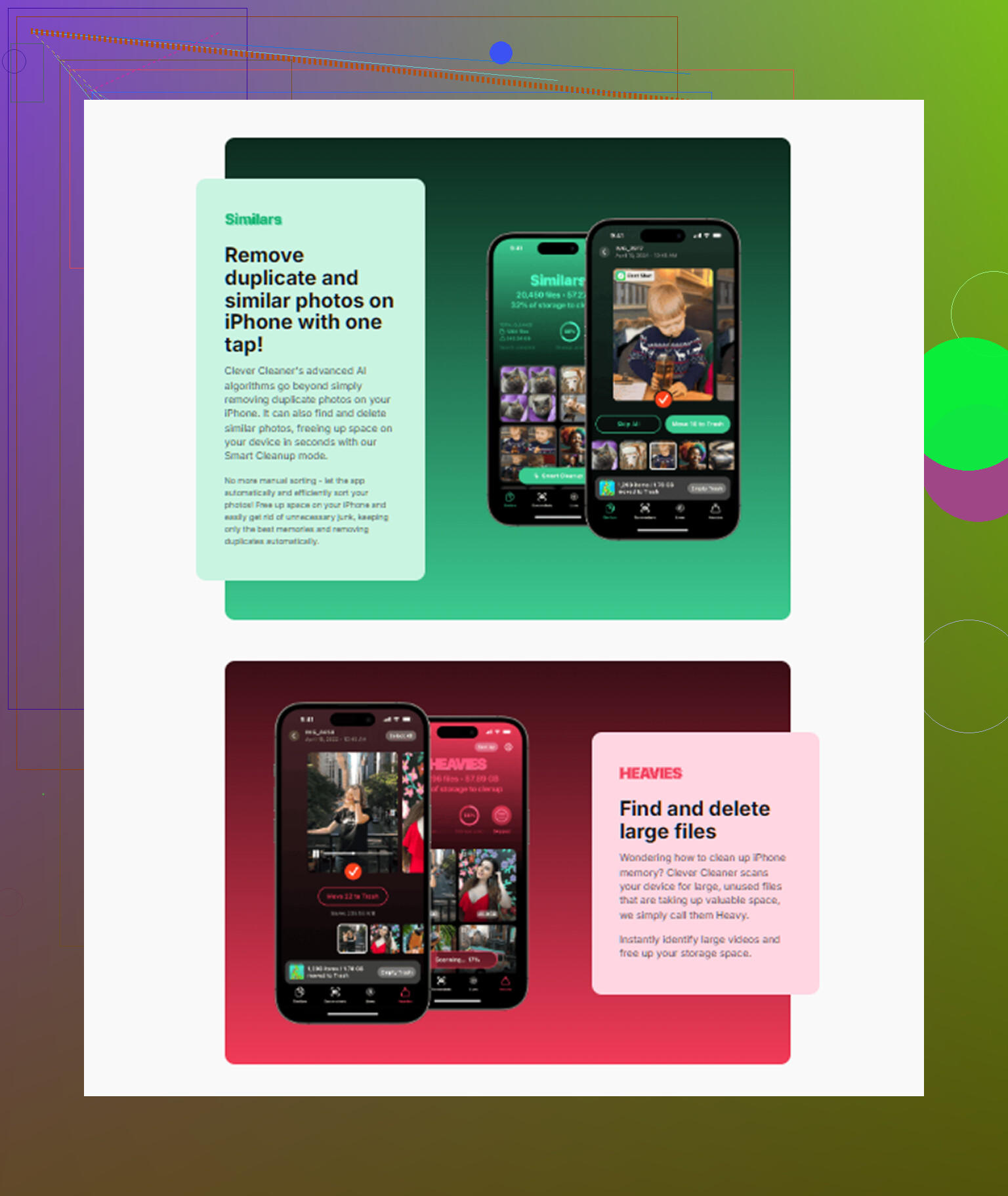
If your goal is to clean up media without poking around forever, I had decent results with Clever Cleaner. I’m not big on cleanup apps since most of them push subscriptions or drown you in ads, but this one didn’t hit me with either.
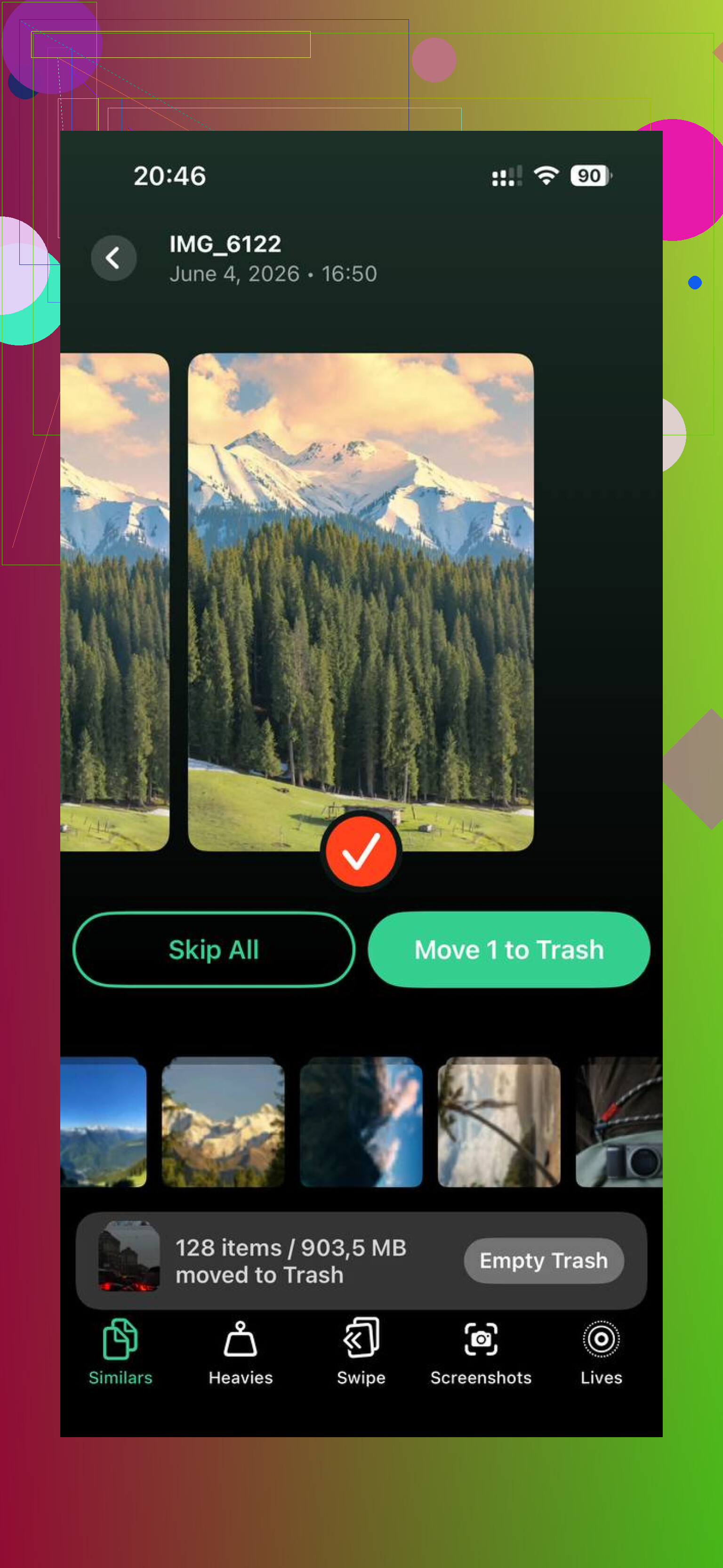
The part I used most was the Heavies section. It lays out the largest videos and images first, which made the obvious junk easy to spot. I found giant screen recordings I forgot to trim and a few long clips sitting there for no reason. The Similars section helped too. It grouped near-identical photos, and yeah, I had multiple versions of the same shot because I kept tapping the shutter without thinking. It also shows file sizes before you remove anything, which saved me some guesswork. From what I read and saw, the scanning stays on-device, which mattered to me.
After I cleared around 15 GB, the phone felt normal again. Less lag. Fewer pauses. The storage warning stopped popping up. If your Applications number keeps climbing, I’d start with the biggest apps in Settings, then go after your photo and video library. For me, the media mess was the main culprit by far.
What you see under Applications is often a mix, not a clean app-only number. iOS groups the app bundle with support files, embedded assets, updates, local databases, and temp items. Some apps keep huge SQLite files, message indexes, downloaded thumbnails, or offline content inside their own storage bucket. So the size looks wrong, but it’s often old data stuck inside the app.
I slightly disagree with @mikeappsreviewer on one part. iOS cleanup is not only “lazy”. A lot of apps are built to keep data until you remove the app. Instagram, TikTok, Spotify, YouTube, Podcasts, Maps, and chat apps are common offenders. A 300 MB app turning into 3 GB is not rare.
What works better:
- Open iPhone Storage, tap the biggest apps one by one.
- Check if the app has its own Clear Cache or Remove Downloads option.
- For apps with no cleanup button, delete and reinstall. Offload won’t fix bloated data as often as people think.
- Check Messages, WhatsApp, Telegram, Netflix, Spotify, and Safari first.
- Leave 10 to 15 percent free storage. iPhones get janky when you run them too full.
If your Photos app is still a mess, Clever Cleaner is worth a look for finding large videos and duplicates fast. Also, this Clever Cleaner for iPhone review and cleanup guide gives a decent overview. It helped me sort out what was eating space without guesssing.
A lot of that “Applications” number is basically a junk drawer, not just the app itself. That’s the part I think @mikeappsreviewer and @caminantenocturno are circling around, but iOS also does something annoying here: storage reporting is sometimes delayed or just plain weird after updates. So the total can look inflated for a while even after you delete stuff.
Also check for this specifically:
- failed iOS update files sitting in storage
- podcast/video/music downloads you forgot were set to automatic
- Messages attachments indexed under app-related space
- Safari reading list offline saves
- mail apps caching giant attachments foreverrr
One thing people miss is uninstalling an app does more than “clean cache”. Reinstalling can nuke corrupted local storage or old temp databases that never shrink. Some apps never give space back unless you fully remove them. That’s not you messing up, that’s just bad app behavior tbh.
I’d also look at Files app and On My iPhone, because some editors, scanners, and social apps dump exports there and it doesn’t feel obvious. Same with voice memo edits and GarageBand style project files.
If photos/videos are still mixed into the problem, Clever Cleaner is actually useful for finding huge media and duplicates fast without a lot of poking around. And if you want a better visual explainer, this full iPhone storage cleanup walkthrough is easier to follow than Apple’s menus IMO.
Short version: app size growth is usually cache, downloads, attachments, offline data, and bad cleanup behvior. Not just the app binary.
One angle I think @caminantenocturno, @viaggiatoresolare, and @mikeappsreviewer only touched lightly is indexing and leftovers from app updates. Sometimes an app is not just storing cache, it is keeping multiple generations of assets after several updates, especially games, editors, and messaging apps. iOS storage labels are messy enough that this can look like “Applications” growth even when the real culprit is old support data.
I’d actually push back a bit on the idea that reinstalling is always the best fix. For banking apps, 2FA-heavy apps, or anything with local drafts, that can be annoying or risky if you forgot what is stored only on-device. Before deleting, check whether the app is syncing everything to iCloud or its own account first.
Stuff people often miss:
- downloaded voice packs in translation or accessibility apps
- creator apps storing exported drafts locally
- old device backups from apps in Files
- message search indexes that stay huge even after deleting threads
- browser downloads outside Safari
Another useful test is this: restart the iPhone, wait a few minutes, then recheck Storage. Sometimes the numbers settle after the system recalculates. Not magic, but I’ve seen several GB “come back” that way.
If media clutter is mixed into the problem, Clever Cleaner is decent for spotting giant files fast.
Pros
- easy view of heavy photos/videos
- useful for duplicates and similar shots
- simple UI
Cons
- won’t fix bloated app databases
- cleanup suggestions still need human review
- less helpful if your problem is mostly Messages or streaming app data
So yeah, “Applications” is often a bucket of app + stale data + weird reporting, not the pure app size people expect.