A folder suddenly disappeared from my CF card after I moved it between devices, and it had important photos I need for work. The card still shows used space, but the files are gone and I’m afraid of making it worse. I need help with safe ways to recover lost CF card files and figure out what might have caused the missing folder.
I’ve run into this with CF cards a few times, and the part people mess up first is trying random repairs before pulling the files off. I’d stop treating the card like normal storage right now. Read-only mindset from here.
So, no new shots. No format. No repair tools. No saving anything back onto it. A CF card often looks empty when the files are still on the memory itself. What fails first is often the file system info, not the photo data. Once you write fresh data over old blocks, your odds drop fast.
Check the simple stuff first
Before running recovery, I’d do a plain hardware pass:
Use a real CF card reader, not the camera cable.
Try a different USB port.
If you have one, try another reader too.
See whether the card shows up in Disk Management on Windows or Disk Utility on Mac.
You do not need the card to open normally. If the system detects it and shows something close to the right capacity, recovery software usually still has a shot.
What I’d do next
If you do not have a backup, I’d skip the repair attempts and go straight to recovery software. My first pick for CF cards is Disk Drill.
Why I lean that way:
It’s easy to move through without much guesswork
It supports FAT32 and exFAT, which show up a lot on camera media
It handles RAW photos and larger video files decently
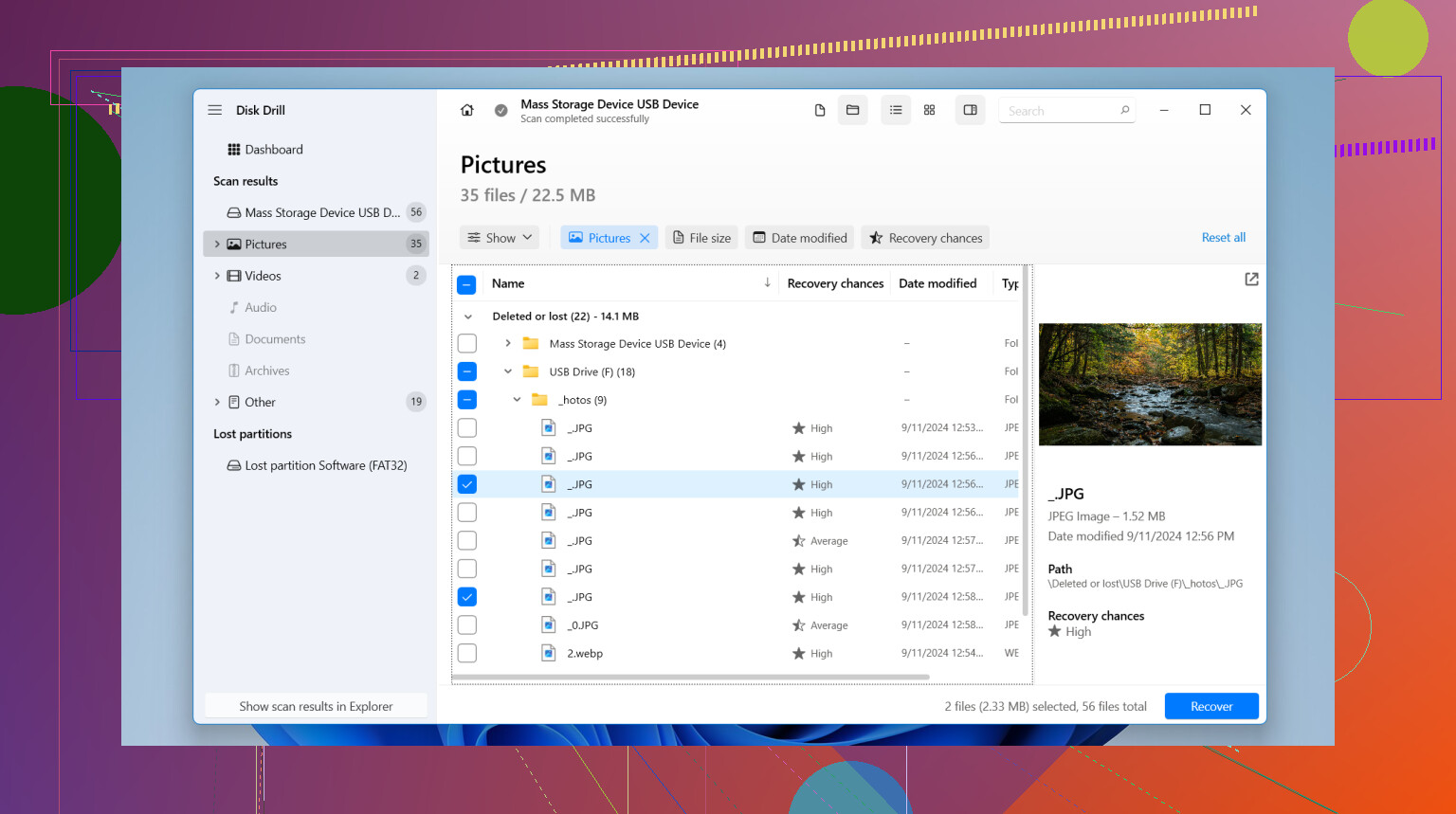
The preview feature helps you check whether the files are real before restoring a pile of junk
I’ve used tools where you recover 400 mystery files and half of them are broken. Preview saves time.
Steps I’d follow
- Take the CF card out and leave it out. Do not put it back in the camera until you’re done recovering files.
- Connect it through a card reader. Direct reader connection tends to behave better than using the camera as the middleman.
- Open Disk Drill and pick the CF card. Double check the device name and size so you do not scan your main drive by mistake.
- Create a byte-to-byte backup first if the card is flaky. If it disconnects, hangs, or reads weird, image it and work from the image instead.
- Run the full scan.
- Let it finish. Cutting it short can miss deleted files, lost entries, and reconstructed data.
- Preview files before recovery. Open a few photos or clips so you know the results are usable.
- Recover to another drive. Use your computer drive or an external disk. Do not write recovered files back to the CF card. I did this once years ago, bad idea.
Other tools people bring up
PhotoRec deserves a mention because it’s free and it pulls data from damaged file systems better than you’d expect. The tradeoff is mess. File names are often gone, folder structure is gone, and sorting the results gets annoying fast.
UFS Explorer is solid too, though I’d only point you there if you’re okay with more technical tools. It’s not hard in the abstract, but it feels less forgiving.
For a normal CF card recovery job, I’d still start with Disk Drill. Fewer wrong turns.
One thing not to do
If Windows or macOS pops up a format prompt, ignore it for now. That message means the system can’t read the card cleanly. It does not mean formatting is safe. Recover first, back everything up somewhere else, then deal with formatting later.
1 Like
Used space still showing is a good sign. It often means the directory entry got trashed, not the photo data.
I agree with @mikeappsreviewer on one part, stop writing to the card. I’d add one thing first, make an image of the CF card before you scan it. If the card is starting to fail, one clean pass is better than repeated scans. On Linux or Mac, ddrescue is great for this. On Windows, use any disk imaging tool you trust. Work from the image, not the card, if you have the space.
Also check for hidden files before recovery. On Windows, open CMD in the card and run:
attrib -h -r -s /s /d .
I’ve seen folders “disappear” from cameras after attributes got flipped.
If the folder got cross-linked or the FAT/exFAT table broke, CHKDSK is the thing people rush to. I would not do tht first. It sometimes renames recovered chains into .CHK files and makes the mess worse. Recover first, repair later.
If you want the fast route, Disk Drill is a solid pick for CF card recovery because it shows both lost partitions and file signatures, and the preview helps weed out corrupt RAWs before export. Save recovered files to your computer, not back to the card.
If software finds nothing useful and these are paid work photos, stop there and send it to a lab. Every extra read matters on old flash media.
Also, if you want a visual walkthrough, this step by step guide for recovering files from an SD card covers the same flow and the process is close enough for CF cards too.
Used space still showing is the part I actually like here. That usually means the data area is still there and the mess is more about indexing than true deletion. So yeah, @mikeappsreviewer and @mike34 are right about not using the card normally, but I’d push one extra check before doing any heavy scan.
Try mounting the CF card on a different OS if you can. Windows might act like the folder is gone while macOS or Linux can sometimes still read the directory enough to let you copy stuff manually. I’ve had cards look empty on one machine and totally normal on another. Weird, but it happens.
Also, if these are Canon or Nikon RAWs, check whether the files are being filtered out by Explorer or Finder due to bad extensions or damaged folder names. A file manager like Total Commander or FreeCommander can sometimes show stuff the default view hides. Not magic, just less “helpful.”
One place I slightly disagree with the usual advice: I would not start with attribute fixes unless you already confirmed the card is stable. Any command line write action, even minor, is still a write. If this is work material, I’d rather inspect first, then recover, then experiment later.
If you want the practical route, Disk Drill is still a solid option for CF card recovery because it can find both lost file records and signature-based photo data. The preview matters a lot with client work, esp if you need to know whether the RAWs open before restoring 20GB of junk. If the card starts disconnecting, stop messing with it and consider a pro lab.
Side note, this guide is for SD media but the process is basically the same and easy to follow:
how to recover deleted videos from an SD card step by step
Big thing is don’t let the camera “fix” the card. Cameras are realy good at making recovery harder.
I’m with @mike34, @nachtdromer, and @mikeappsreviewer on the big rule: stop using the card. But I’d add one thing they only touched indirectly: check the card’s health symptoms before doing a long scan.
If the CF card is unusually slow, disappears mid-read, or makes the reader reconnect, that points more to hardware trouble than simple file table damage. In that case, even a good recovery app is secondary to cloning the card first. If it reads normally and capacity looks right, chances are better this is just a broken directory entry.
One thing I would not rush into is CHKDSK or any “fix” prompt. People treat that like first aid, but on removable media it can turn a recoverable mess into a reorganized mess.
For software, Disk Drill is a reasonable pick here.
Pros
- easy previews for RAW/JPEG/video
- can find both deleted records and deeper carved files
- less intimidating than some forensic tools
Cons
- deep scans can return lots of renamed files
- not the cheapest option if you only need one recovery
- signature recovery may lose original folder structure
If preserving original names/folders matters more than ease of use, sometimes UFS Explorer or R-Studio can dig a bit more surgically, though they’re less friendly.
My order would be:
- Test read stability
- Image the card if possible
- Scan the image
- Recover to another drive
- Only then think about repairs or reformatting
If Disk Drill shows previews that actually open, that’s a very good sign. If previews are corrupt and the card is unstable, stop and consider a lab before the NAND gets worse.