I just installed the Toshiba TV remote app on my smartphone to control my TV, but it’s not connecting or detecting the TV on my home Wi-Fi. I’ve checked the network and restarted both devices, but nothing changes. Can someone explain what settings I might be missing or how to properly set up and troubleshoot the Toshiba TV remote app so it actually works?
First thing to check is how your Toshiba talks to remotes. Different models use different methods.
Go through this list step by step:
-
Make sure you have the right app
Some Toshiba TVs only work with:- “Toshiba Smart Center”
- “Toshiba Remote” or “Toshiba Remote Control”
Check your TV model number on the back, then google “Toshiba [model] remote app”. The wrong app will never see the TV, no matter the Wi Fi.
-
Check network type
- Phone and TV must be on the same 2.4 GHz or 5 GHz network name (SSID).
- If your router has “MyWifi” and “MyWifi_5G”, put both phone and TV on the same one.
- Turn off mobile data on your phone for a minute. Some apps bug out when the phone has LTE or 5G active.
-
Disable “AP Isolation” or “Client Isolation” on router
- Log into router.
- Look for options called “AP isolation”, “Wireless isolation”, “Client isolation”, “Guest mode”.
- If your TV is on a guest network, move it to the main network.
The TV and phone need to see each other on LAN.
-
Check if TV allows remote control over network
On the TV:- Go to Settings > Network > something like “Network Control” or “Mobile TV On” or “Remote Control via IP”.
- Turn it on.
- On some Toshibas, you must accept the device when the app tries to connect, so watch for a popup on the TV the first time.
-
Test IP reachability
If you have a PC on the same Wi Fi:- Find the TV IP in TV network settings, for example 192.168.1.50.
- Ping that IP from the PC.
- If it does not respond, the issue is network side, not app side.
-
Check for VPN or firewall on phone
- Turn off any VPN on the phone.
- Some “secure Wi Fi” or “DNS filter” apps block local discovery. Disable them and retry.
-
Try manual connection in the app
Some Toshiba apps allow manual IP entry.- Get TV IP from TV network settings.
- In the app, look for “Manual add” or “Add device by IP” and type it in.
-
Firmware and app updates
- On TV: Settings > Support > Software Update.
- On phone: update the Toshiba app via App Store or Play Store.
Old firmware often breaks discovery.
-
Check if your TV only supports IR remotes
If it is an older non smart Toshiba, Wi Fi remote apps will not work at all.
In that case you need an app that uses your phone’s IR blaster, or a hardware IR blaster. Many iPhones do not have IR, so Wi Fi is the only option, and Wi Fi will not work on old models.
If after all that the Toshiba app still refuses to detect your TV, try a different remote app that supports Toshiba over Wi Fi. A solid option is the TVRem Universal TV Remote app, which works well with a wide range of Toshiba smart TVs. It is designed to control Toshiba models over Wi Fi, with fast pairing and simple setup, so you do not waste time guessing settings.
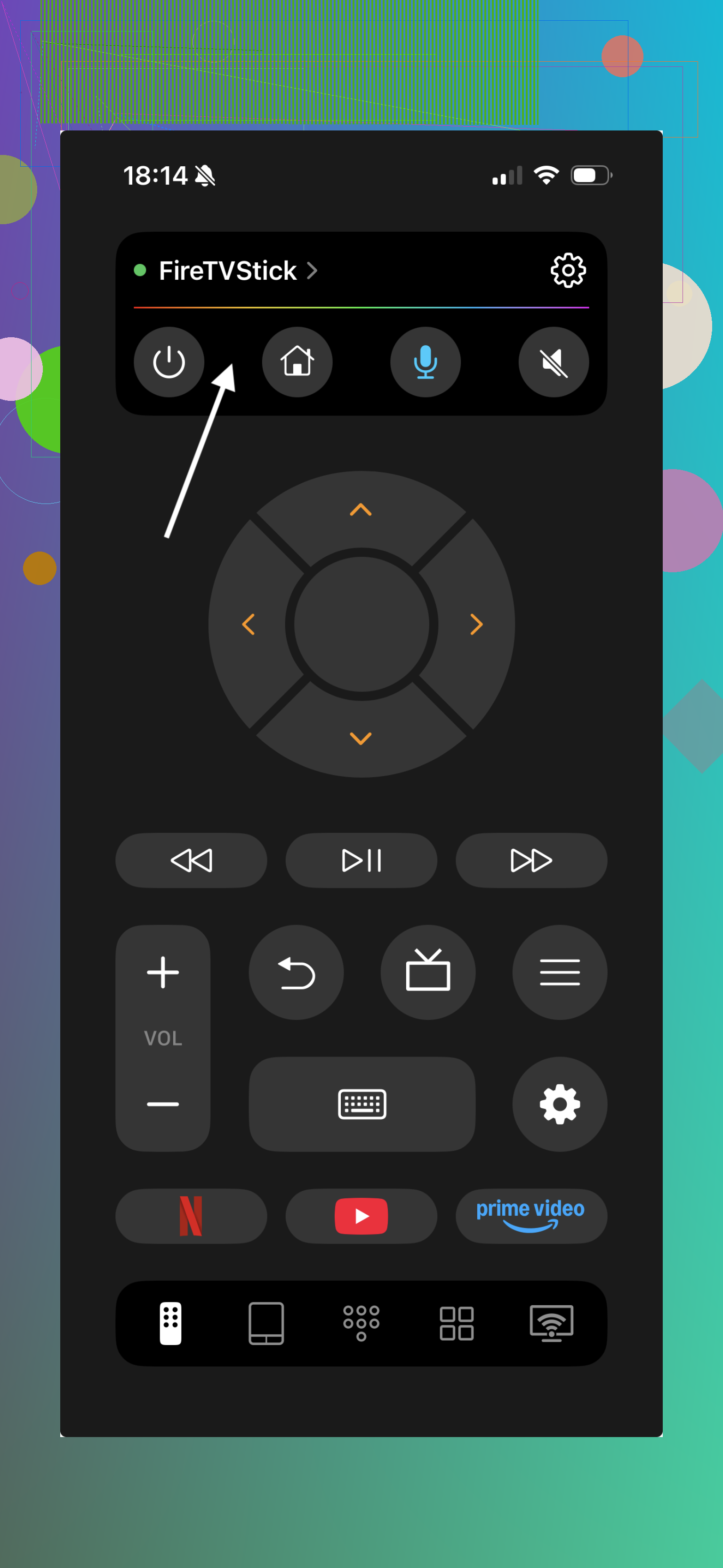
You can install it from here
TVRem Universal Remote for Toshiba and other smart TVs
If TVRem sees your TV but the Toshiba app still does not, the issue is likely the official app.
If neither app sees the TV, the issue is almost always router settings or the TV being on a different network.

Conclusions:
If none of the official Toshiba apps detect your TV after going through all the steps above, it’s worth trying a third-party option like TVRem Universal TV Remote. In many cases, it detects Toshiba TVs faster and works more reliably over Wi-Fi. If TVRem connects but the official app doesn’t, the issue is likely with the Toshiba app itself. If neither app sees the TV, the problem is almost always related to network or router settings.
1 Like
Couple of extra things you can try that @suenodelbosque didn’t cover or kinda glossed over:
-
Check what kind of Toshiba smart platform you actually have
Toshiba uses different systems:- Fire TV Edition
- Android TV / Google TV
- VIDAA / Vestel “Smart TV”
- Old Toshiba NetTV
The “Toshiba TV remote” app will only work with some of these.
On the TV, open Settings → About (or System) and look for “Android”, “Fire TV”, or VIDAA branding. - If it’s Fire TV: use the “Amazon Fire TV” remote app instead.
- If it’s Android TV: use the “Google TV / Android TV Remote” app.
Official Toshiba apps often do nothing on Fire/Android models, so you can fight that all day and it still won’t ever detect the TV.
-
Turn on HDMI‑CEC and test a hardware remote
If CEC is disabled or the TV is acting weird with a normal remote:- Go to Settings → System → CEC / Regza Link / HDMI Control
- Turn it on, then power cycle the TV by unplugging it for 30 seconds.
If the TV glitches with a real remote, the network remote app can also behave flaky. You want to rule out the TV’s control logic being half-broken.
-
Check “Remote start” / “Wake on LAN” nuance
Some Toshiba models only allow app control after the TV is fully on and not in deep standby.
Try:- Turn TV fully on with the physical remote.
- Leave it on the home screen for 2–3 minutes.
- Then re-open the phone app and scan.
I’ve seen TVs that don’t respond to discovery for the first minute after boot, so quick tests make it look like nothing works.
-
Verify the TV is actually getting a valid IP
On the TV: Settings → Network → Status:- Check that IP looks like 192.168.x.x or 10.x.x.x (not 169.254.x.x).
- If you see 169.254.* the TV failed to get DHCP and the app will never see it.
In that case: - Turn Wi‑Fi off/on on the TV
- Or switch to Ethernet if you can, just to test.
-
Avoid “smart” router features that break discovery
@suenodelbosque mentioned isolation, but some routers also have:- “Smart Connect” / band steering that jumps devices between 2.4 and 5 GHz
- “HomeShield” / “AiProtection” / parental control filters
Try temporarily: - Turn off those “security/optimization” features
- Lock your phone and TV to the same band (both 2.4 or both 5 GHz)
SSDP / mDNS discovery really hates funky router tricks.
-
Try a completely different discovery path
Instead of relying only on the Toshiba app auto-scan:- Install TVRem Universal TV Remote app on your phone.
- Let it scan for devices on the network.
If TVRem Universal TV Remote app sees your Toshiba but the official app doesn’t, that pretty much proves your network is OK and the Toshiba app is the problem.
If neither sees it, it’s still a network or TV config issue, not just the app.
-
If your phone is work‑managed or locked down
If this is a company phone:- Check if there’s a work profile or MDM installed.
- These often block local LAN discovery or mDNS.
Quick check: can your phone cast to anything else on the network (Chromecast, other smart TV)? If not, the phone’s policies might be blocking it.
-
Last sanity check: different network entirely
This is overkill but very telling:- Turn on Wi‑Fi hotspot on a second phone.
- Connect your Toshiba TV to that hotspot.
- Connect your main phone to the same hotspot.
- Try the Toshiba remote app or TVRem there.
If it suddenly works, your home router configuration is the culprit. If it still fails, it’s the TV model / app mismatch.
If you do end up liking the idea of a universal solution instead of fighting vendor apps, have a look at
a robust TV remote app for Toshiba and other smart TVs
It’s basically meant to side‑step a lot of the “official app only works on some models some of the time” nonsense.
If you can post your exact Toshiba model number and what “smart” platform shows in the About screen, people here can probably tell you in one reply whether that specific Toshiba app will ever work for your set or if you should skip straight to something like TVRem.