I tried deleting IINA from my Applications folder, but I’m still seeing leftover files and it sometimes shows up when opening certain media files. Can someone walk me through how to completely remove IINA and all its related files from my Mac, including any hidden folders or settings?
I hit the same wall with IINA a while ago.
Looked great, felt smooth, then after a few weeks it started to annoy me. In my case it stuttered on some HEVC files and once in a while it froze when I scrubbed around in long 4K videos. Battery use on my M1 Air also seemed higher than VLC with the same file. At some point I stopped fighting it and pulled it out by the roots.
Here is how I removed it fully, so you do not leave junk behind.
How I uninstalled IINA on macOS
-
Quit IINA completely
- If the window is closed, that does not mean it is gone.
- In the menu bar, click IINA → Quit.
- If it hangs, open Activity Monitor, search for “IINA”, select the process, click the X button, then Force Quit.
-
Delete the app from Applications
- Open Finder.
- Go to the Applications folder.
- Find IINA and drag it to Trash.
- Or right click → Move to Trash.
-
Remove leftover files in your Library
This is the part most people skip. IINA leaves config and cache files in your user Library.You have two ways to reach them.
Option A: Finder
-
In Finder, press Command + Shift + G.
-
Paste this path and hit Enter:
~/Library/Application Support/ -
Look for
com.colliderli.iinaand delete that folder. -
Press Command + Shift + G again, then go to:
~/Library/Caches/ -
Delete the
com.colliderli.iinafolder there too.
Option B: Terminal
Open Terminal and run:rm -rf ~/Library/Application\ Support/com.colliderli.iina
rm -rf ~/Library/Caches/com.colliderli.iinaDouble check you typed it correctly before you press Enter.
rm -rfdoes not forgive typos. -
-
Empty the Trash
- Right click the Trash icon.
- Click Empty Trash.
- That should remove IINA and its common leftovers.
Alternative players
After I dropped IINA, I bounced between a few players. Two stuck.
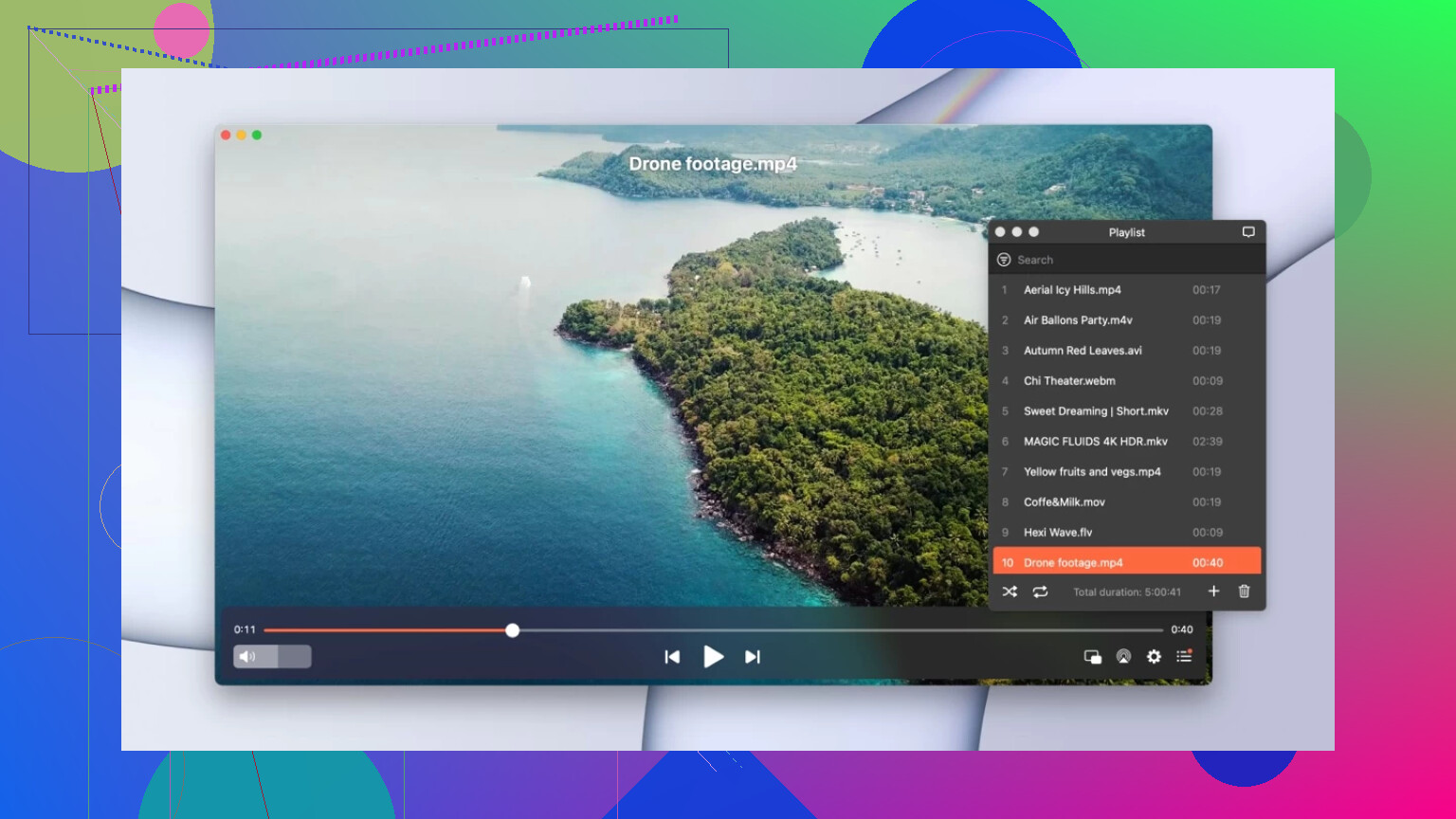
Elmedia Player
Elmedia feels closer to a “Mac-style” app. I tried it on an M1 Pro and an M2 Air.
What I noticed:
- Native Apple Silicon support
CPU use was lower than VLC for the same 4K H.265 file, about 18–22 percent instead of 25–30 percent on my M2 Air, measured via Activity Monitor. - HDR handling
HDR files looked less washed out on my external HDR monitor than in some other players with default settings. I still had to tweak macOS HDR settings, but the base result looked closer to what I expected. - Subtitle search
Built in OpenSubtitles integration meant I could right click, pick “Download subtitles”, and it would pull a matching SRT for most common movies and shows. This saved me from visiting random subtitle sites and cleaning file names.
Downsides I hit:
- Some advanced playback tweaks I was used to from mpv/IINA are buried or not present.
- The free version is enough for local playback, but some extras sit behind a paid tier.
VLC Media Player
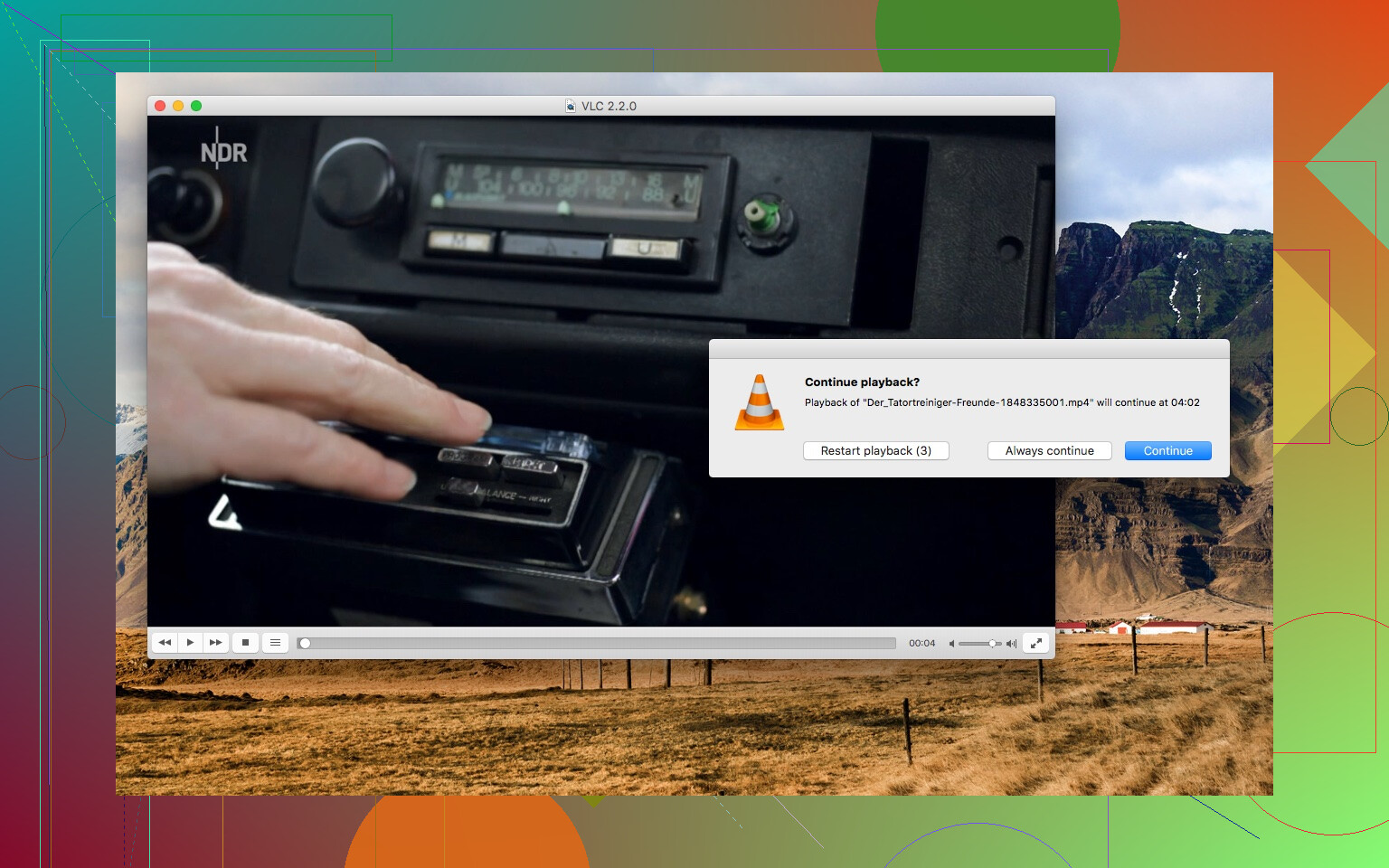
This one is boring in the best way.
What I use it for:
- “Weird” files
Old AVIs, odd codecs, half broken MP4s from cheap cameras. VLC played stuff that made IINA choke or showed glitches. - IPTV and network streams
Paste in a URL, it works. I pointed VLC at a local RTSP stream from a camera, and it handled it without extra setup. - File conversion
The Convert / Save feature is hidden in the menu, but it lets you transcode a file to a more manageable format. I used it to turn some ancient MPEG files into H.264 MP4 so other apps stopped complaining.
Things I do not love:
- The interface looks dated on macOS. If you care about “pretty”, it might annoy you.
- Some settings are deep in menus and the preferences window feels dense.
If your main issues with IINA were stability and battery on Apple Silicon, I would try Elmedia first and keep VLC installed as the backup tool for odd files and conversions.
If you only care about “plays everything and does not crash”, go straight to VLC and be done with it.
Either way, once you clear the Library folders above, IINA should be fully gone from your system.
2 Likes
You handled most of it already, you are just seeing file associations and a few stragglers.
@mikeappsreviewer covered the Library folders well. I would add these extra checks so macOS stops offering IINA for media files.
-
Check LaunchServices file associations
Sometimes macOS still thinks IINA is available.Open Terminal and run:
/System/Library/Frameworks/CoreServices.framework/Frameworks/LaunchServices.framework/Support/lsregister -kill -r -domain local -domain system -domain user
Then log out and back in, or reboot.
This refreshes what app opens which file type. -
Remove recent items and dock traces
- Apple menu → Recent Items → Clear Menu.
- If IINA is pinned in the Dock, right click its icon → Options → Remove from Dock.
- If you see a question mark icon in the Dock where IINA was, drag it out of the Dock.
-
Check “Open With” for a sample media file
Pick a video that used to open in IINA.- Right click the file.
- Click Get Info.
- In “Open with”, pick another player, for example VLC or Elmedia Player.
- Click “Change All…”.
Do this for main types you use, like .mp4, .mkv, .mov.
-
Search for any forgotten IINA files
Spotlight sometimes misses stuff.In Terminal:
mdfind ‘kMDItemCFBundleIdentifier == ‘com.colliderli.iina’’
If it prints paths, remove those manually with Finder or with
rmif you know what you are doing. -
Check LaunchAgents and LaunchDaemons
IINA usually does not drop services here, but I have seen leftovers on some setups.In Finder, go to:
- ~/Library/LaunchAgents
- /Library/LaunchAgents
- /Library/LaunchDaemons
Look for files with “iina” or “com.colliderli” in the name. If you see any, move them to Trash.
-
Clear Quick Look cache if previews still show IINA icon
Sometimes thumbnails stick.In Terminal:
qlmanage -r
qlmanage -r cacheThen log out or reboot.
On alternatives, I slightly disagree with @mikeappsreviewer on VLC as the main player for everything. It works, but on Apple Silicon I see better battery and smoother HEVC playback with Elmedia Player for normal local files. VLC stays on my Mac for weird formats and network streams, not for daily use.
If you set Elmedia Player as the default for your common formats, then refresh LaunchServices as above, IINA should stop showing up anywhere and your system will treat Elmedia Player as the main media handler.
Couple of extra angles you can try that @mikeappsreviewer and @stellacadente didn’t hit directly, especially since you’re still seeing IINA pop up.
- Check for the actual app bundle still ghost‑installed
Sometimes people have a second copy and forget:
- In Finder, search “IINA” with “This Mac” selected.
- Click the “+” button, set “Kind” to “Application”.
If you see another IINA outside /Applications (like in Downloads or a backup folder), delete that too. macOS will happily associate files with that stray copy.
- Remove plist preferences manually
Even after deleting support folders, prefs can make macOS remember IINA:
- In Finder → Go → Go to Folder:
~/Library/Preferences/
- Look for:
com.colliderli.iina.plistcom.colliderli.iina.helper.plist(if present)
Trash those, then log out / in.
- Check for Quick Actions & Finder extensions
IINA sometimes registers helper bits that keep the name around in menus.
- System Settings → Privacy & Security → Extensions (or “Extensions” / “Added Extensions” depending on macOS version).
- Look under “Finder extensions” / “Quick Actions”.
If anything referencing IINA is still listed, uncheck / remove it.
- Nuke file associations the lazy way
Instead of fixing each format manually like.mp4,.mkv, etc, you can do a quick sanity pass:
- Install your new main player first. Personally, Elmedia Player is a better “daily driver” than VLC on Apple Silicon for a lot of people, regardless of what marketing says.
- Open one of each main file type you use by explicitly choosing “Open With → Elmedia Player” and check “Always open with” when available.
macOS is dumb but not that dumb: after a few consistent choices it usually stops “offering” IINA unless something is truly broken.
- Check if IINA is still registered as a login item
Rare, but I’ve seen zombie helpers this way:
- System Settings → General → Login Items.
- Look under both “Open at Login” and “Allow in the Background”.
If anything IINA‑related is there, remove it.
- Deep search for leftovers using Terminal, but safer than
rm -rf
Since you already removed most things, use this only to find stuff:
mdfind iina | grep -i colliderli
or
mdfind 'iina' | head
Then open those paths in Finder and delete manually instead of going full keyboard commando. Less chance of wiping the wrong thing.
- If icons still show as IINA even after all that
Icon caches are sticky:
sudo find /private/var/folders -name com.apple.dock.iconcache -exec rm {} \;
sudo find /private/var/folders -name com.apple.iconservices -exec rm -rf {} \;
killall Dock
killall Finder
Restart after that. Slightly overkill, but it fixes stubborn icon ghosts.
On the “what next” part:
I’ll slightly push back on using VLC as the only solution. It’s solid, but if you care about smoother playback and battery life on a Mac, Elmedia Player tends to behave nicer in daily use, then keep VLC around just for weird files and conversions. That balance usually keeps people from repeating the “IINA looked nice but annoyed me later” cycle.