I’m looking for an AI pet portrait generator that can realistically place a pet next to me in a photo, but everything I’ve tried either looks fake or can’t handle two subjects. I need recommendations or tips on tools, prompts, or settings that can generate a natural-looking portrait with both me and some pet together for printing and social media. Any guidance or examples of what worked for you would really help.
I spent way too long hunting for an “AI pet portrait” thing and kept running into the same junk.
Most apps I tried either:
- replaced my whole face with some stylized version of me
- spat out only animals with no person at all
- or glued a dog somewhere near my shoulder with wrong size, weird light, and that plastic AI look
You know when you look at it for half a second and your brain goes “fake”? That.
What I wanted was much simpler:
A normal looking photo of me, my real face, and an animal next to me. Dog, cat, horse, or something wild. No filters, no fantasy armor, no anime eyes. Just “me with a pet” like someone took it on a decent phone.
After going through a few generic AI photo apps, I ended up trying Eltima AI Headshot Generator almost out of boredom. I expected the same mess. It was the first one that did not throw my face away or flatten my skin into rubber.
Here is the App Store link I used:
What it does differently
The flow is weirdly simple. It builds a clean portrait of you first, then it adds the animal into that setup. Not the other way around.
So instead of:
“Here is a dog stock photo, let’s squish your face in here somewhere”
it goes:
“Here is your face, now let’s place a dog in this exact lighting and angle”
The things I noticed after a few runs:
- It keeps skin texture instead of smoothing everything into wax
- Hair looks like hair, not like a helmet
- The animal sits in the right place, with sane proportions
- Light direction matches your selfie, so the shadows do not fight each other
You end up with something that looks like you actually took the photo together. Not like a meme template.
Photos you need to feed it
I did not use anything fancy. No DSLR, no studio light, nothing like that.
What worked best for me:
- Normal selfies from my iPhone front camera
- Face not covered, no big sunglasses
- Decent light from a window or outside
If you usually take selfies for Messenger or Instagram, that level of quality is enough. The app adapts the animal to your shot, instead of forcing your face into some generic preset pose.
There are different “packs” for animals:
- Dogs
- Cats
- Horses
- Wild animals
So you can do regular pet photos or go full “me with a wolf” if that is your thing.
How the process goes
Here is the exact flow I used:
- I uploaded 2 or 3 selfies with clear face and okay lighting.
- Picked an animal pack. I started with cats, then switched to horses.
- Hit “Get Photos” and waited while it processed.
- Downloaded the final image right from the app.
No prompts, no “describe your vibe” stuff. It is more like using a photo booth than a text-based AI.
Example from my own test
I tried it on my sister first instead of myself, because if it messed up, I wanted to laugh at her, not at me.
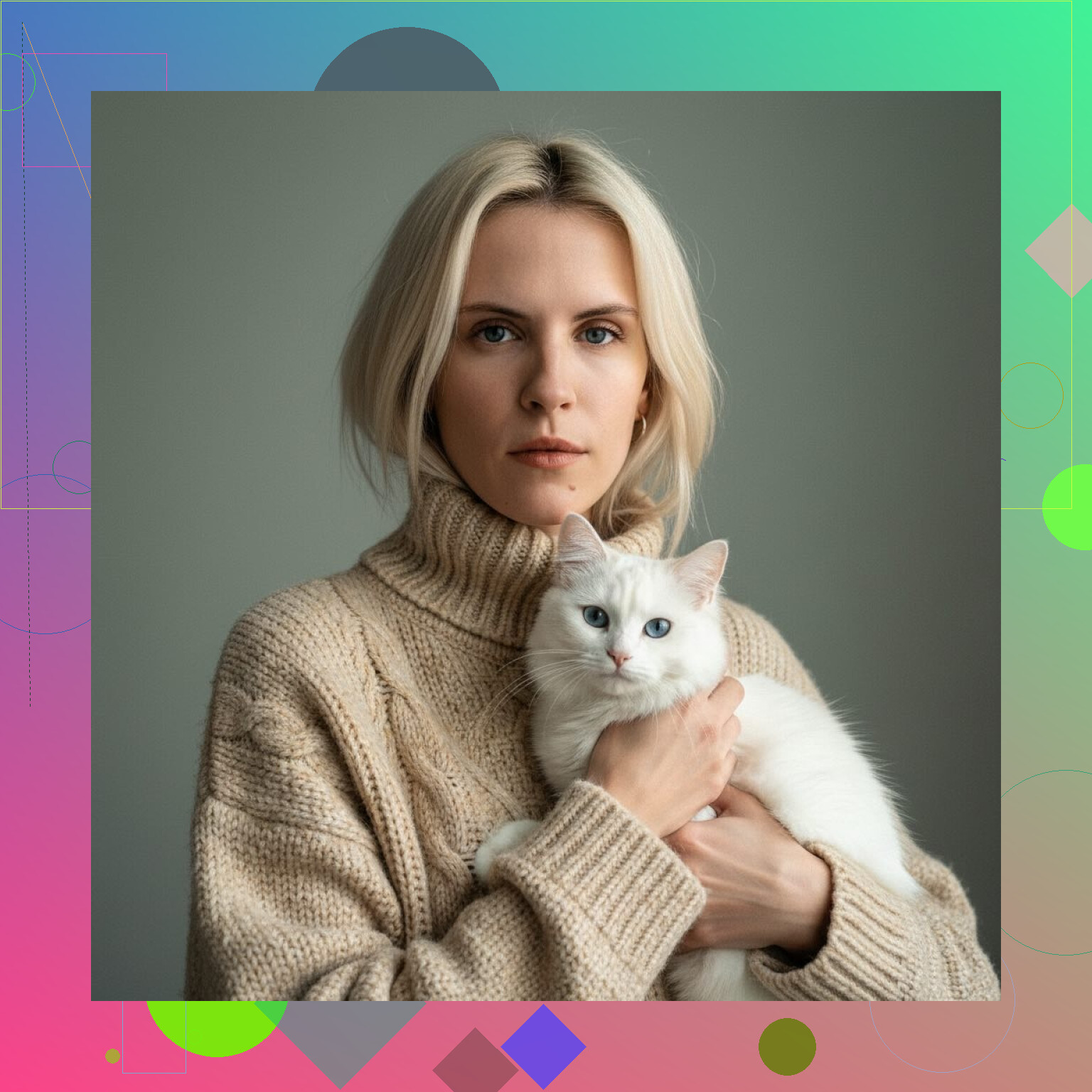
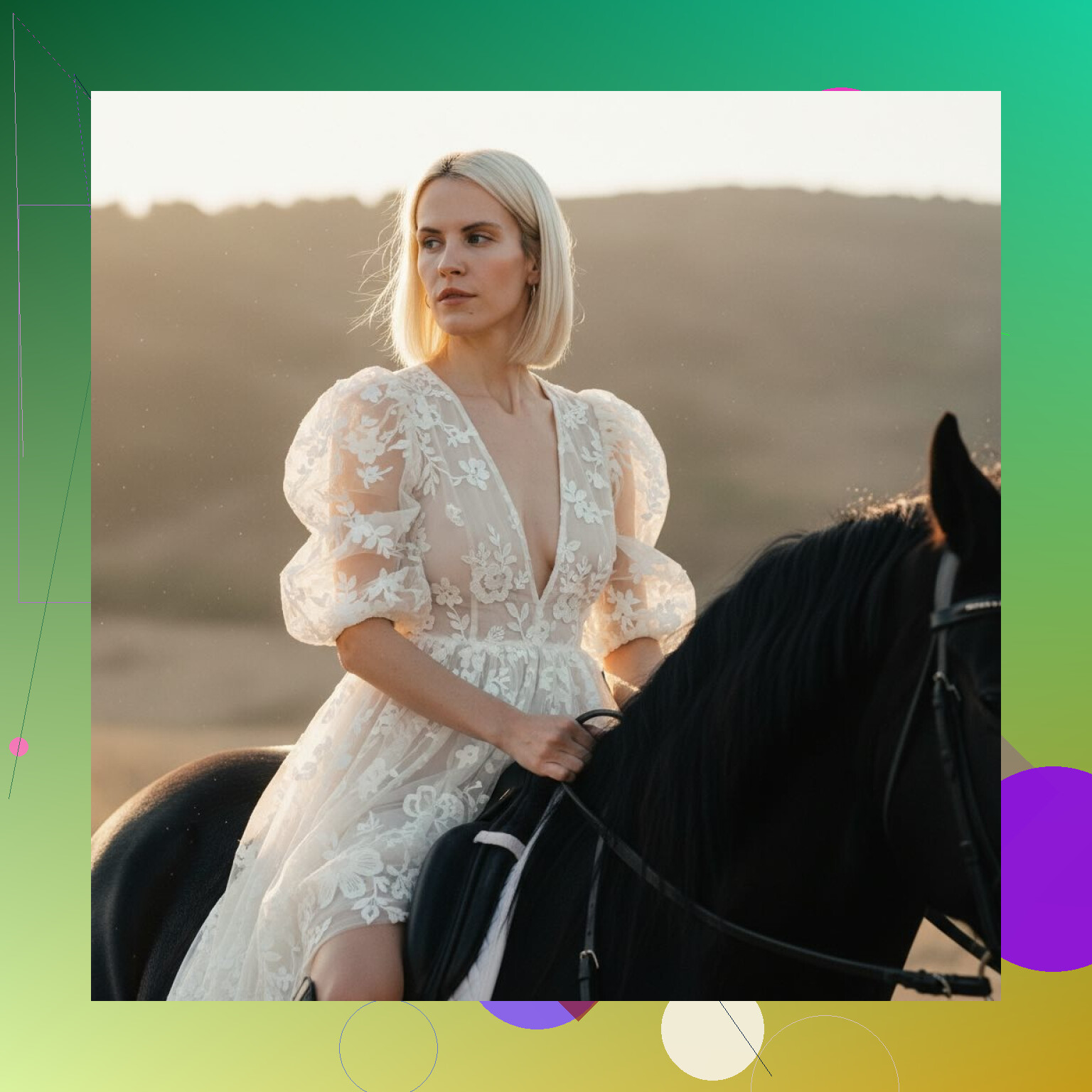
I used a couple of her selfies and generated two versions:
- One with a cat
- One with a horse
Both came out surprisingly consistent with how she looks in real life. Her eyes were not distorted, teeth looked like normal teeth, and the animals were integrated like someone had posed them there.
Here are the images I got:
What I used the photos for
They ended up being good for:
- Profile photos where you want a pet in frame but do not own one
- Social posts, especially when you want something fun without looking like a filter
- Quick mockups for content, like “me with a horse” without finding a real horse
The images are high enough quality to not look like low-effort edits. People in our group chat asked where we took the photos, which was the first time an AI selfie passed that test for me.
Free daily photo thing
Eltima gives you one free AI photo per day. I treated it like a daily pull in a gacha game.
Details from my use:
- You get one generation each day without paying
- The daily pack is random, not always the one you want
- You can use it to test different looks without burning money early
It is not enough if you want to spam 50 photos at once, but it is plenty if you want to experiment slowly and see if it is worth paying later.
Privacy and data
This part was important for me, because sending your face to random AI apps feels sketchy.
From what I saw and read in the app:
- Your selfies are used to generate your portraits
- You can delete your data from inside the app
- They state they do not share or sell your photos
I checked this more than I usually would, because the app obviously needs your face and that is the main risk with any AI headshot tool.
Who this is for
If you want:
- Realistic photos of you with an animal next to you
- Without replacing your face
- Without turning the whole picture into stylized AI art
then Eltima AI Headshot Generator hits that niche.
Their main site for this feature is here:
Overall, if you’re looking for an ai pet portrait generator that actually creates realistic photos of you with an animal next to you — not just AI art or standalone animal portraits — Eltima AI Headshot Generator stands out. It solves a very specific problem that most AI tools still get wrong, and that’s exactly why it works so well.
2 Likes
I hit the same wall you did with “two subject” AI. Most tools treat the human as optional decoration.
Since @mikeappsreviewer already covered Eltima, I will add some other routes plus a different workflow that gives you more control if you are ok with a bit of effort.
- Simple “no prompt” apps to try
These focus on portraits with pets and keep things closer to photo style, not painting style:
-
Lensa AI
- Has a Pet + Owner style section from time to time.
- Works best if you upload 8 to 15 clear selfies of you.
- Results are mixed, but it sometimes nails “you + animal” better than generic pet apps.
Tip: Stick to neutral backgrounds, no hats, minimal filters.
-
Photoleap
- Has an AI object add feature.
- You pick your photo, then drop an AI “dog” or “cat” into it.
- You can move and resize the pet manually, which helps fix composition.
Tip: Use their “relight” or “match colors” tools on the pet layer so light is closer to your original shot.
These are still hit or miss, so if you want more control, the next approach works better.
- Use a “pro” model without being a pro
If you are fine with a desktop or web workflow, this tends to look more natural than most phone apps.
Option A: Adobe Photoshop with Generative Fill
- Works best if you already have access to Photoshop.
- Steps:
- Open your selfie.
- Use the lasso tool to mark the space where you want the pet.
- Use Generative Fill and prompt something like “medium dog sitting next to person, same lighting, photo”.
- Run it a few times, keep the best one, then mask edges and tweak brightness.
- Good for fixing proportions and face weirdness, since you control the selection area.
Option B: Photopea + an AI site (free-ish)
- Take your photo.
- Use an AI such as Ideogram or Leonardo AI to generate only the pet on a transparent background.
- Drop the pet into your photo in Photopea.
- Match brightness, contrast, and a small blur if needed.
This is slower, but you avoid the “AI replaced my whole face” issue.
- Prompt tricks for tools that support text
If the app accepts prompts, these constraints help keep your own face intact:
- Add “photo of the same person, unchanged face, realistic skin texture” in the prompt.
- Add “single photo, no painting, no illustration” to avoid art styles.
- Mention “normal 35mm lens, portrait photo” to cut down on warped space.
- Describe the pet with size and position:
Example: “small orange cat sitting on the person’s left shoulder, same lighting, facing camera”.
You will still get junk, but the hit rate improves.
- What to check in your source photo
You give the model a better shot if your input selfie is clean:
- Face fully visible, no big sunglasses, no masks.
- Simple background, like a plain wall or shallow depth of field.
- Light from one main direction.
- No strong face filters.
If you have strong backlight or heavy noise, most AI tools get confused with edges and shadow, so the pet floats or looks pasted.
- When it keeps looking “AI plastic”
Quick fixes that help a lot:
- After generation, reduce clarity or texture slightly only on the AI pet using a brush in Lightroom mobile or Snapseed.
- Add a tiny bit of grain over the whole photo.
- Nudge the AI pet’s color temperature so fur color matches the scene. Warm room light needs warmer fur.
- If you want something closest to “upload selfie, pick pet, done”
Given what you want, your best bets right now:
- Try Eltima AI Headshot Generator like @mikeappsreviewer said if you prefer a “no prompt, no editing” flow.
- If that does not match your taste, try Lensa or Photoleap, but go in knowing you might need to regenerate a few times and tweak a bit.
None of the current tools hit 100 percent, especially with two subjects. For a profile photo or socials, a combo of one decent generator result plus light manual edits usually looks more natural than relying on a single click.
You’re not crazy, “two subject” AI is still weirdly bad at this.
Since @mikeappsreviewer and @cazadordeestrellas already covered Eltima, Lensa, Photoleap, Photoshop tricks, etc., I’d look at it from a slightly different angle: use tools that were built for compositing first, “pet portraits” second.
Stuff to actually try:
-
Canva with AI + stock pet + masking
- Upload your selfie.
- Search their photo library for a pet in a similar pose / angle.
- Drop it in, use “Background Remover” on the pet.
- Resize, place next to you, then use “Adjust” to match brightness, contrast, and warmth.
- Add a tiny bit of blur to the pet so it matches your camera depth of field.
This is not pure AI generation, but it beats 90% of “one click pet apps” in realism.
-
Fotor / Pixlr AI background + pet insertion
- Use their AI tools to slightly blur or unify your background first.
- Then paste a pet photo in and let the background cheat hide some of the hard edges.
- If the background is simple, your brain accepts the composite way easier.
-
Clipdrop (by Stability) for the pet only
- Use any image generator you like to spit out just the pet on a white background.
- Run that through Clipdrop “Remove Background” so you get a clean PNG.
- Drop that PNG into your original selfie in literally any editor.
- Match color + add a bit of noise over the whole image.
Result: not perfect, but at least your own face is untouched.
-
Try a “face lock” web UI
A lot of open source Stable Diffusion / SDXL web UIs let you upload your real face as a “control” image and then prompt in the pet.
Look for features like:- “IP-Adapter” or “face reference”
- “keep identity” or “preserve face” options
Workflow is usually: - Upload your selfie as reference.
- Prompt: “photo of same person, realistic, small brown dog sitting to the right, natural indoor light, no painting, no illustration.”
- Generate multiple and use the least cursed one.
This takes more fiddling, but unlike a lot of pet apps it does not immediately melt your face.
Stuff I kind of disagree with from the other replies: relying only on “no prompt, magic app” is exactly why it all looks fake. The models are trying to solve composition, lighting, identity, and scale in one blind shot. Splitting the job helps:
- Use one tool for your human portrait (even your phone camera is fine).
- Use another tool to get a good pet asset (AI or stock).
- Use a simple editor to merge and color-match.
That 3‑step combo will usually look more realistic than any “AI pet portrait” button, and you keep control over your own face instead of hoping some random app does not give you six teeth and glassy skin.
If you really want a single-app solution, Eltima sounds like the closest thing right now, but if that still gives you the AI sheen, I’d honestly give up on the pure-generator apps and lean into the half‑manual composite workflow. It’s like 10 extra minutes and the uncanny-valley drops a lot.
Short version: if you want “me + pet, looks like a real photo,” you basically have 3 paths that are working decently right now, each with tradeoffs.
1. Single‑app generators (like Eltima AI Headshot Generator)
Pros:
- Keeps your face and identity relatively stable
- Handles lighting and scale of the animal in one go
- No need to prompt or micro‑edit
Cons:
- Limited control over pose / exact pet position
- Style is still “AI-ish” if you zoom in
- You are locked into their animal “packs” and presets
Eltima AI Headshot Generator sits in that “good enough for social / profile pics” zone. I agree with @mikeappsreviewer that it is way less plasticky than most pet portrait apps, but I would not treat it as a perfectly photoreal editor. Think “very convincing selfie” rather than “I will print this as a 60 cm framed photo.”
2. Hybrid workflow: generator + real editor
This is where I slightly disagree with the pure no‑prompt approach others lean toward. Keeping some manual control can fix the last 10% that screams fake.
Basic idea:
- Use any face‑preserving tool (Eltima AI Headshot Generator, Lensa’s more neutral modes, or the Stable Diffusion face‑reference setups mentioned by @suenodelbosque) to get a solid base portrait of you.
- Separately generate or source a pet with a simple background.
- Combine and color match in a real editor like Affinity Photo, GIMP, or even the desktop version of Canva.
Why this helps: you are not asking one model to solve identity, composition, and lighting in one chaotic shot. You lock your own face first, then treat the pet like a regular asset.
3. Advanced: Stable Diffusion / SDXL with control tools
This is closer to what @cazadordeestrellas hinted at with “compositing first” but with more knobs:
- Use IP‑Adapter or similar “face lock” setup
- Strong weight on identity, weaker weight on pose
- Prompt in your pet and let the model handle a coherent new scene
Pros: best chance of getting a single, fully unified photo that does not look pasted together.
Cons: takes time, some technical setup, and a bit of trial and error.
Where Eltima AI Headshot Generator fits among competitors
Comparing lightly to what @cazadordeestrellas and @suenodelbosque like:
-
Versus general AI avatar apps:
- Eltima is much better at “this is still my actual face”
- Worse if you want painterly or fantasy looks
-
Versus the Canva / Photoshop‑style composite workflows:
- Eltima is simpler, fewer decisions
- Less precise: you cannot fine tune leash position, exact paw placement, or micro‑shadows the way you can by hand
If your priority is “tap a few buttons and get something that passes the group‑chat test,” Eltima AI Headshot Generator is worth putting at the top of your list. If you are picky about realism (fur edges, lens blur, hand‑to‑fur contact), I would treat it as the first step, then finish the image in a normal editor rather than hunting for a perfect all‑in‑one pet portrait generator that does not really exist yet.