I accidentally deleted important videos from my SD card while clearing space, and now I’m trying to figure out the best way to recover them. The card had personal footage I really need back, and I’m worried about making things worse by using the wrong recovery method. Looking for advice on safe SD card video recovery tools or steps that actually work.
If you wiped a video from an SD card, don’t assume it’s dead. I’ve seen this go both ways. A lot of the time, the file pointer gets removed first, while the video data sits there until new footage lands on top of it.
So the first move is boring but important. Stop using the card. Don’t shoot more clips. Don’t take photos. Don’t format it. Every write makes recovery harder.
If your computer still sees the SD card, I’d start with Disk Drill and its Advanced Camera Recovery mode. It was built for footage from cameras, drones, dashcams, and similar gear where videos often end up split into fragments. Standard scan tools tend to pull random chunks and leave you with broken files. This mode tries to piece those fragments back into a playable video.
To try recovery with Disk Drill:
- Download Disk Drill from the official CleverFiles site and install it on your Windows PC or Mac.
- Put the SD card into a card reader and connect it straight to your computer. I’ve had better luck doing this than plugging in the camera over USB.
- Open Disk Drill and find the SD card in the device list.
- Click Search for lost data.
- When it asks for the scan type, pick Advanced Camera Recovery.
- Let it run. On larger cards, or cards with lots of old footage, it might take a while.
- Once results start showing up, open Review found items. You don’t need to wait for the full scan to finish.
- Filter for video files, or search by extension or filename if you remember anything useful.
- Preview what you find when possible. If preview works, your odds are usually better.
- Select the files you want and click Recover.
- Save them somewhere else, not back to the same SD card. Writing recovered files to the card can ruin other recoverable data.
- After recovery, test the videos and make sure they play.
One step people skip, and I think it matters, is making a byte-to-byte backup image of the SD card first. That gives you an exact copy of the card, so you can work from the copy and leave the original alone. I’d do this if the footage matters or the card is acting weird.
A practical note. Disk Drill for Windows offers free recovery up to 100 MB. On Mac, you’re able to scan and preview recoverable files before paying. So you get a way to check whether the missing video is there before spending money.
I wouldn’t use software first if the card has bigger problems. At that point, a recovery lab makes more sense. Red flags:
- The SD card is cracked, bent, or shows visible damage.
- It doesn’t appear in Disk Management or Disk Utility.
- It drops connection or freezes during the scan.
- Your camera reports hardware failure instead of a file system issue.
- The footage is work-related, legal, or something you can’t reshoot.
- The card got hit by water, impact, or a power problem.
If the card still mounts and looks physically fine, recovery software is usually the first thing I’d try. Speed matters here. Leave the card alone, avoid writing anything to it, and recover from it before new data gets in the way.
1 Like
Stop using the SD card first. That part from @mikeappsreviewer is dead on. If you keep recording, your deleted videos get overwritten and recovery rates drop fast.
Where I differ a bit is this. I would start by making an image of the card before running any recovery app. On Windows, use USB Image Tool or HDD Raw Copy Tool. On Mac, use dd or Disk Utility if the card is stable. Work from the image, not the card. If a scan crashes halfway, you still have your source intact. People skip this, then regret it.
If the delete happened recently and the card was not formatted, your odds are decent. If it was a full format or the camera kept shooting after deletion, odds get worse fast.
For software, Disk Drill is a solid pick, but I would also cross-check results with PhotoRec if Disk Drill misses clips or finds files with no names. PhotoRec is ugly, but it pulls raw data well. You lose folder structure, but for video recovery from SD cards, file content matters more than neat filenames.
A few practical points:
- Use a card reader, not the camera cable.
- Recover files to your computer or external drive.
- Preview recovered videos before saving all of them.
- If files recover but won’t play, try VLC first. It handles damaged MP4 and MOV files better than the default player.
- If the video has the right size but won’t open, run it through untrunc or a video repair tool. I’ve fixed drone clips this way.
If the card disconnects, shows 0 bytes, or asks to be formatted every time, stop. Software gets risky at taht point. A lab is the safer move.
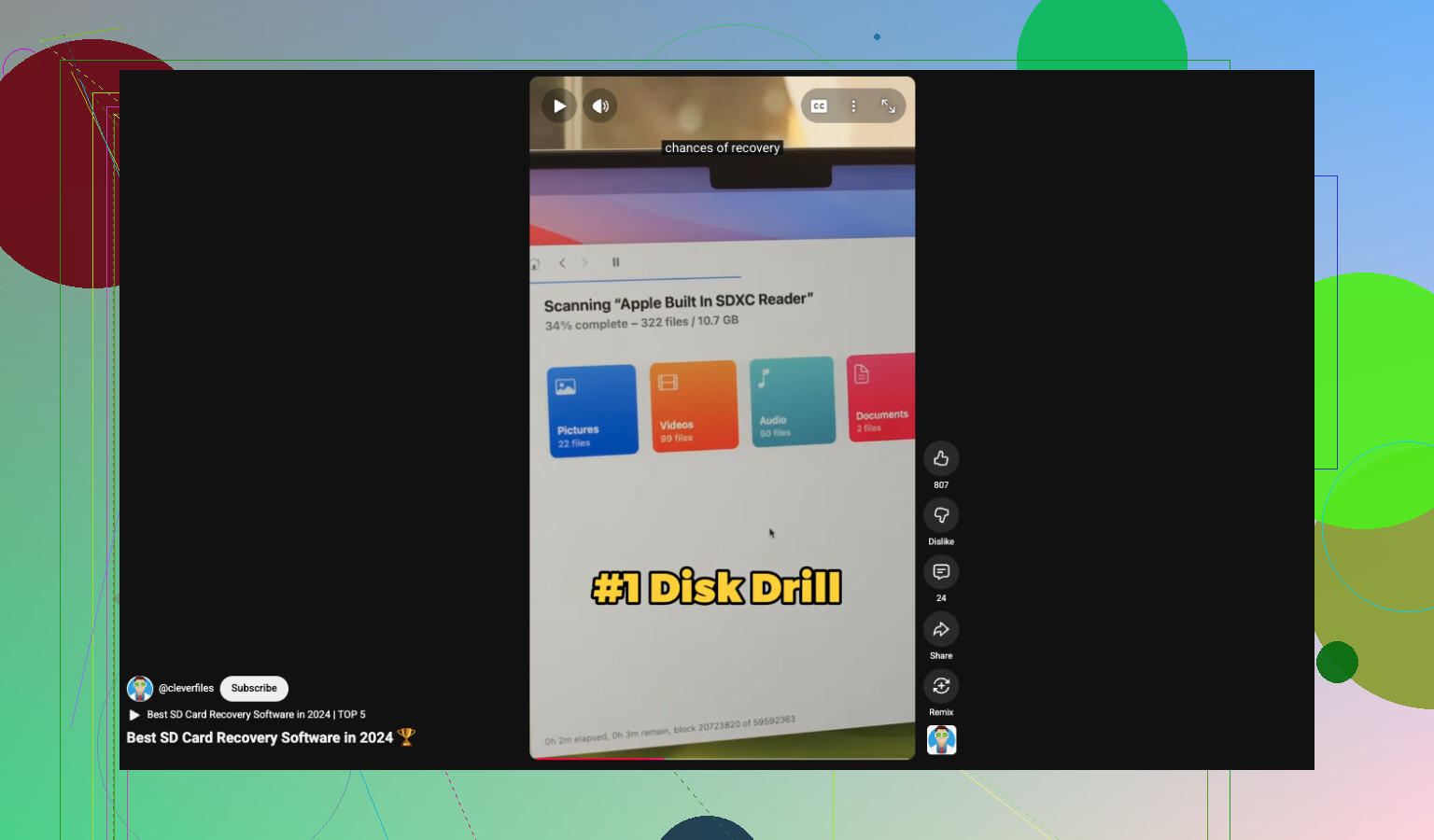
If you want a quick video rundown on YouTube SD card recovery software recommendations, this short is decent: best SD card video recovery tools on YouTube.
Short version, image the card first, then scan. Disk Drill first, PhotoRec second. Test recovered vids right away.
I’d add one thing neither @mikeappsreviewer nor @vrijheidsvogel really stressed enough: check whether the videos were deleted normally, or if the card was actually formatted by the camera. That changes the odds a lot.
If it was just delete, recovery is often pretty solid. If the camera did a quick format, still possible. If it was a deep/full format or you kept recording after, yeah… not great.
Also, before jumping into recovery tools, flip the little lock switch on the SD adapter if you have one. Not foolproof, but it can help prevent accidental writes while you’re poking around. Small thing, but worth doing.
I slightly disagree with the “always try multiple tools right away” approach. Sometimes people panic, run 4 different apps, and stress the card with repeated reads if it’s already flaky. I’d pick one serious tool first, and Disk Drill is honestly a sensible starting point for deleted video recovery from SD cards because it handles media pretty well and lets you see what’s there before going too far. If that fails, then move to a second option.
Another thing people forget: some recovered video files are fine, but the thumbnail/metadata is broken so they look dead at first. Copy them out and test in VLC, not just Finder or Windows preview. I’ve had “corrupt” clips play perfectly once opened properly. Kinda annoying, but it happens alll the time.
If the card starts clicking, disappearing, or showing the wrong capacity, stop messing with software. That’s where DIY turns into making-it-worse territory.
If you want more examples from people dealing with SD card video loss, this thread is relevant: how to recover videos after accidentally formatting an SD card.
Short version:
- Stop using the card
- Lock it if possible
- Use a card reader
- Try Disk Drill first
- Test recovered files in VLC
- If the card acts weird, go pro lab
That’s probly the safest path without overcomplicating it.
Big thing I’d add to what @vrijheidsvogel, @stellacadente, and @mikeappsreviewer already covered: check whether TRIM is in play. On some newer cards and devices, deleted blocks can get wiped sooner than people expect. Not always, but if the card came from a newer phone, action cam, or internal-storage-like setup, recovery odds can drop even if you stopped quickly. On a plain camera SD card, you usually have a better shot.
I also wouldn’t spend too long sorting scan results by original names. For video recovery, timestamps, file size, and whether the clip actually previews are more useful than the filename.
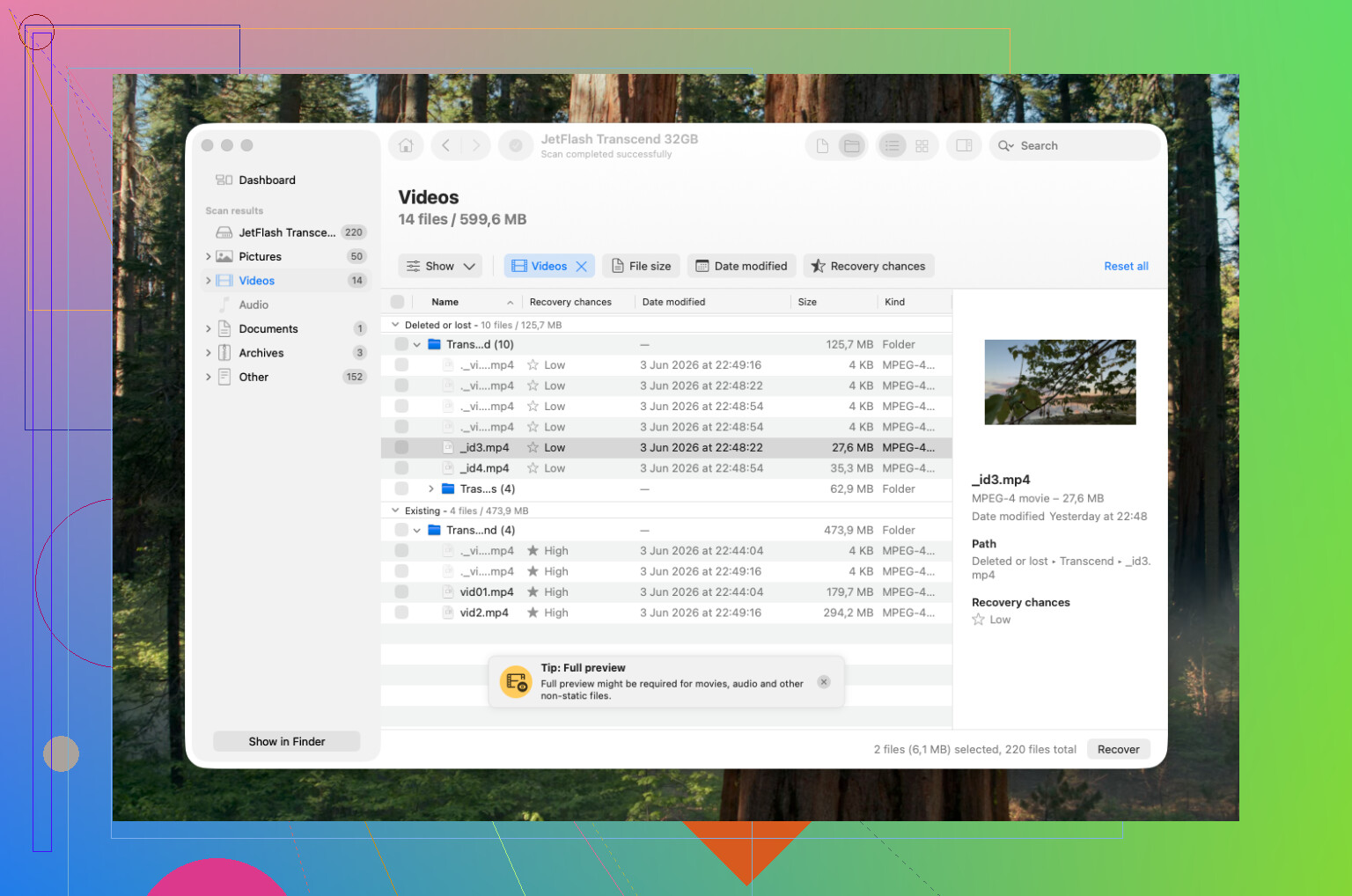
My take on Disk Drill:
Pros:
- very easy to use
- good at finding common video formats
- preview helps avoid saving junk
- decent first pass for deleted SD card videos
Cons:
- free recovery limit on Windows is small
- deep scans can return a lot of clutter
- sometimes finds fragments that look promising but won’t fully play
If Disk Drill finds the clips, recover only the most important ones first to a different drive and test them fully, not just the first few seconds. Some damaged videos start fine and die halfway through.
One minor disagreement with the “scan immediately” advice: if the footage is irreplaceable, I’d spend 5 extra minutes checking the card’s health and connection stability first. A bad reader or loose USB port can make recovery messier than it needs to be. Sometimes the problem is the reader, not the card.
Also, if the videos were shot on a specific camera brand, note the format used. GoPro, DJI, Canon, Sony, dashcams, and drones can store clips in weird ways, and that affects which recovered files are usable.