I accidentally permanently deleted important files on my Windows 11 PC and already emptied the Recycle Bin. I’m trying to recover documents and photos that I really need, but I’m not sure what recovery method actually works. Looking for help with the best way to restore permanently deleted files on Windows 11 before they’re gone for good.
I’ve been there, and yeah, it feels bad when a file vanishes after Shift+Delete or after you empty the Recycle Bin. The part people miss is this. A file marked as permanently deleted is not always wiped at once. On Windows, the system often removes the file’s record and marks the space as free. If new data has not landed there yet, the old file still might be sitting underneath.
First thing I’d do, stop writing anything to the drive. Don’t install apps there. Don’t move files onto it. Don’t download random stuff. I’d even avoid casual use for a bit. Every small write chips away at your odds. On SSDs, this gets ugly faster because of TRIM. Once TRIM clears those deleted blocks, recovery gets a lot harder, sometimes dead end hard.
Before running any recovery tool, I’d check the boring places people forget:
- OneDrive
- File History
- Previous Versions
- Other cloud accounts
- External drives
- NAS boxes
- Old backup jobs you set up once and forgot about
I’ve seen “lost” files turn up in a backup someone made six months ago and never looked at again. Worth five minutes.
If none of those pans out, I’d move to recovery software.
The one I’d start with is Disk Drill. I used it a few times because it’s less annoying than a lot of the others. It usually keeps filenames and folders when the file system info is still there, which saves a ton of cleanup later. Preview helps too. If you’re trying to pull back one doc or one photo set, preview cuts down the guesswork a lot.
What I’d do:
- Install it on another drive if you have one.
- Pick the drive where the deletion happened.
- Run the scan.
- Use search or filters to narrow results.
- Preview the file if the option shows up.
- Recover to a different drive, not the same one.
On Windows, you get unlimited scanning and previewing, and the free recovery limit is 100 MB. For one missing document or a few photos, sometimes tht’s enough.
A couple other tools are worth a look.
PhotoRec is free and pulls a lot of data, no recovery cap. The downside is messy output. It leans hard on file signatures, so names and folder paths are often gone. After a bigger run, you might end up with a mountain of files named like noise. If you’ve got time and patience, it works. If you want clean organization, it gets rough fast.
DiskGenius is the one I’d keep in mind when the problem looks bigger than one deleted file. It tends to help more with lost partitions, damaged partitions, RAW drives, and file system trouble. If Windows is acting weird with the drive itself, not only the missing file, this one is worth trying.
I wouldn’t push software too far if the drive is clicking, dropping offline, throwing hardware errors, or holding data you cannot afford to lose. At tht point, I’d stop and look at a professional data recovery service. Software helps with readable drives. Mechanical or hardware failure is a different mess.
If this was a normal delete event and the drive hasn’t been used much since, your odds are still decent. Move quickly, keep writes to a minimum, and recover anything you find onto another disk.
1 Like
Stop using the PC first. That matters more than people think. If your files were on an SSD, every minute of normal use hurts your odds.
I agree with @mikeappsreviewer on checking backups, but I would not spend too long bouncing between built-in Windows stuff if the files are important and recent. Time matters. I’d verify one thing fast, then move to recovery.
My order would be:
- Check OneDrive web recycle bin, not only the synced folder.
- Check if the files were ever emailed, shared, or exported somewhere else.
- If no hit, run recovery software right away.
For software, Disk Drill is a solid first pick on Windows 11 because the scan is easy to read and preview saves time. For docs and photos, file preview matters a lot. You want to confirm the file opens before recovering a pile of junk. Install Disk Drill on another drive if you have one, then recover to an external drive or USB. Do not save recovered files back to the same disk. Peolpe do this all the time and wreck the result.
One small disagreement with the usual advice. PhotoRec is not my first move for documents if you care about names and folders. It recovers a ton, sure, but cleanup is a pain.
Also, this helped one of my relatives learn the process fast, easy Windows file recovery walkthrough for beginners.
If the drive is making noises, freezing, or vanishing from File Explorer, skip software and go to a lab. If it’s a normal delete case, Disk Drill is where I’d start. Fast, simple, less mess.

Big thing I’d add to what @mikeappsreviewer and @ombrasilente said: check whether the files are on an SSD or HDD before you get too optimistic. People talk about recovery like it’s all the same, but it really isn’t. On a Windows 11 SSD, deleted files can become unrecoverable stupidly fast, especially after normal use, updates, browser cache writes, all that background junk.
Also, I would try one Microsoft option they didn’t really mention much: Windows File Recovery from the Microsoft Store. It’s command line, kinda ugly, and not beginner-friendly, but it’s free. If you only need docs/photos and don’t want to pay before testing anything, it’s worth a shot. Downside is the syntax annoys the hell out of most peolpe.
That said, if you want the easier route, Disk Drill for Windows is probly the more practical option because preview is faster and sorting results is less miserable. I don’t agree with waiting too long on backup hunting if the deletion was recent. Quick check, then scan.
One more thing people skip: look in temp export folders from apps like WhatsApp Desktop, Telegram, Adobe, Office autosave, and browser downloads. I’ve seen “deleted” files still sitting there like nothing happened.
If the drive is healthy:
- stop using it
- scan from another drive if possible
- recover to external storage only
If it’s clicking/freezing, do not keep poking it.
For more user experiences on Windows 11 deleted file recovery, this thread is pretty relevant: how to recover permanently deleted files on Windows 11 without File History
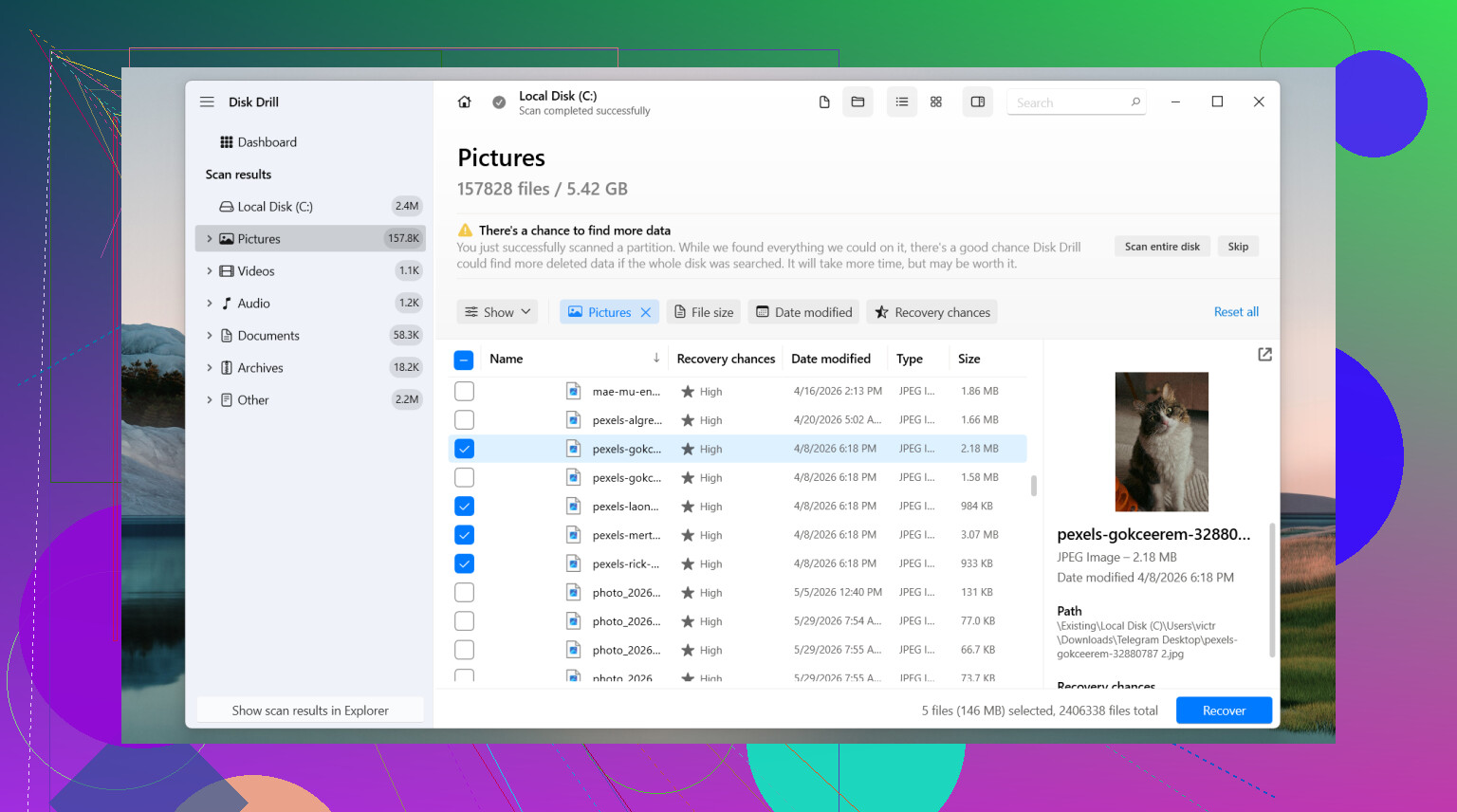
Small add-on to what @ombrasilente, @viaggiatoresolare, and @mikeappsreviewer covered: if this happened on your system drive C:, I would actually avoid doing a full deep scan there first unless you have another machine or can attach the drive externally. Windows 11 writes to C: constantly, so scanning from inside the same running OS can keep changing the disk while you work.
What I’d do differently:
- If possible, shut down the PC
- Boot from another drive or use another computer
- Attach the affected drive as a secondary disk
- Then scan it
That gives recovery tools a cleaner shot.
About Disk Drill, it’s a reasonable choice here.
Pros
- easy interface
- good preview for photos/docs
- usually better file organization than raw carvers
- fast to sort through results
Cons
- free recovery is limited
- on heavily overwritten SSD data, it won’t perform miracles
- deep scans can return lots of old clutter, so results still need checking
One mild disagreement with the usual advice: I would not spend too much time trying lots of different recovery apps one after another on the same disk. That often means more installs, more temp files, more writes, more confusion. Pick one solid option, recover what you can to another drive, then reassess.
Also check whether the missing photos were ever imported through the Windows Photos app, phone sync, or camera SD card workflow. Sometimes the originals are still on the card or in an import cache even when the desktop copy is gone. For documents, Office may have a local autorecovery copy that is separate from the deleted file itself.
If the files are truly critical and irreplaceable, the best move is sometimes to stop DIY early instead of doing ten “maybe” attempts.