I’m trying to clean up duplicate photos on my iPhone, but the Duplicates album or Delete Duplicate Photos option seems to be missing in the Photos app. My iPhone is updated, and I expected the feature to show under Utilities. Has anyone else had this issue, or is there a setting or requirement I’m missing?
The fastest place to start is the Photos app itself. Apple added a Duplicates album in iOS 16, and it’s under Albums, then Utilities, near the bottom. If you don’t see it, your phone may still be indexing your library, which usually happens while it’s locked and charging. It can also mean Photos didn’t find any true file duplicates.
That built-in tool is useful because it doesn’t just throw one copy away. The Merge option keeps the best-quality version and pulls in the better metadata from the other copy. If you have a ton of matches, don’t tap through them one at a time. Hit Select, then Select All, then Merge.
The catch is that Apple’s duplicate finder is pretty strict. It mostly cares about exact duplicates. So if you took five burst shots, saved an edited version, or snapped the same plate of food twice a second apart, Photos may treat those as separate pictures. That’s why the album can look empty even when your library is clearly full of near-duplicates.
For a big photo library, near-duplicates are usually the real problem. I had more than 20,000 photos, and a lot of them were basically the same sunset, meal, screenshot, or selfie repeated with tiny differences. Doing that by hand is miserable.
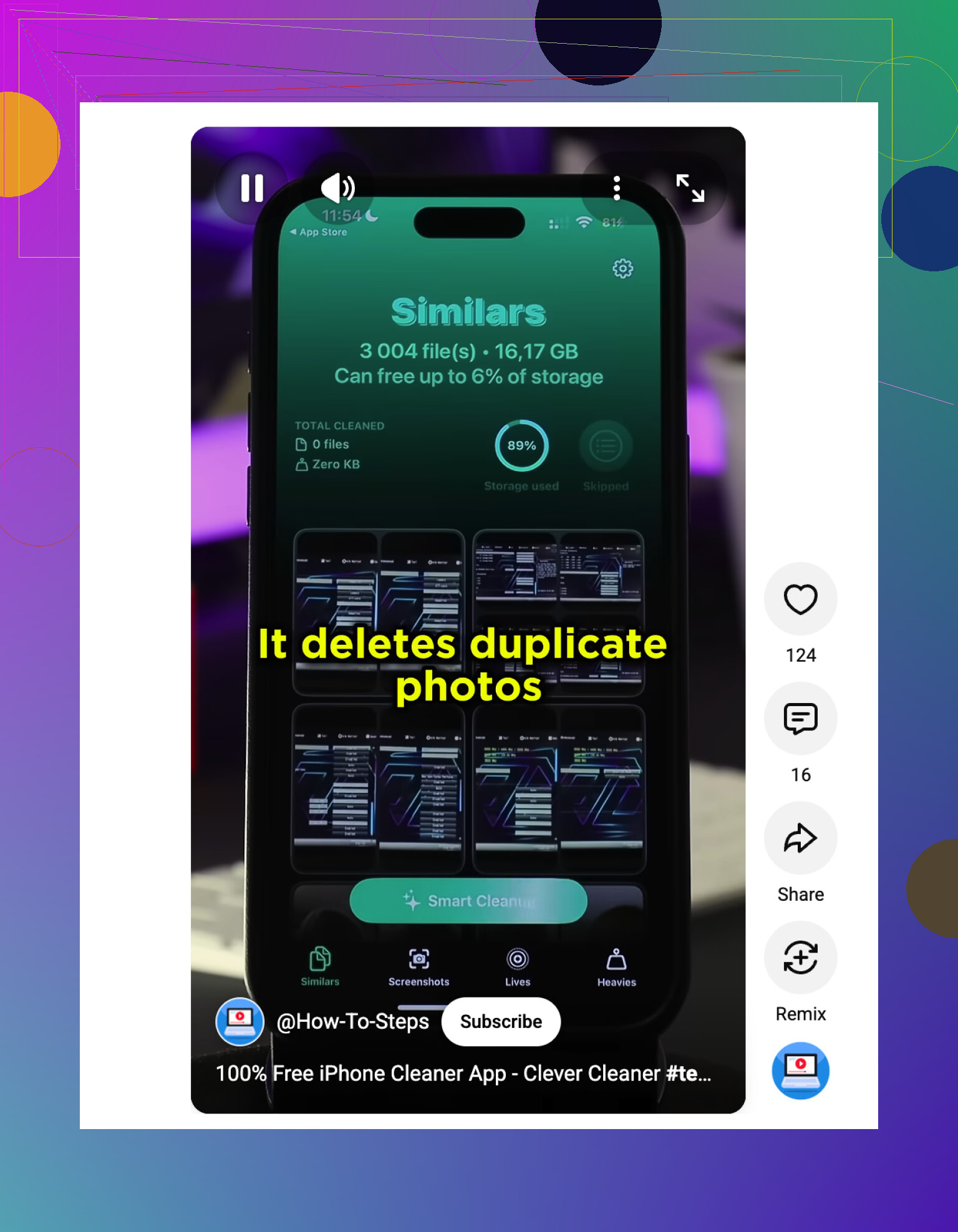
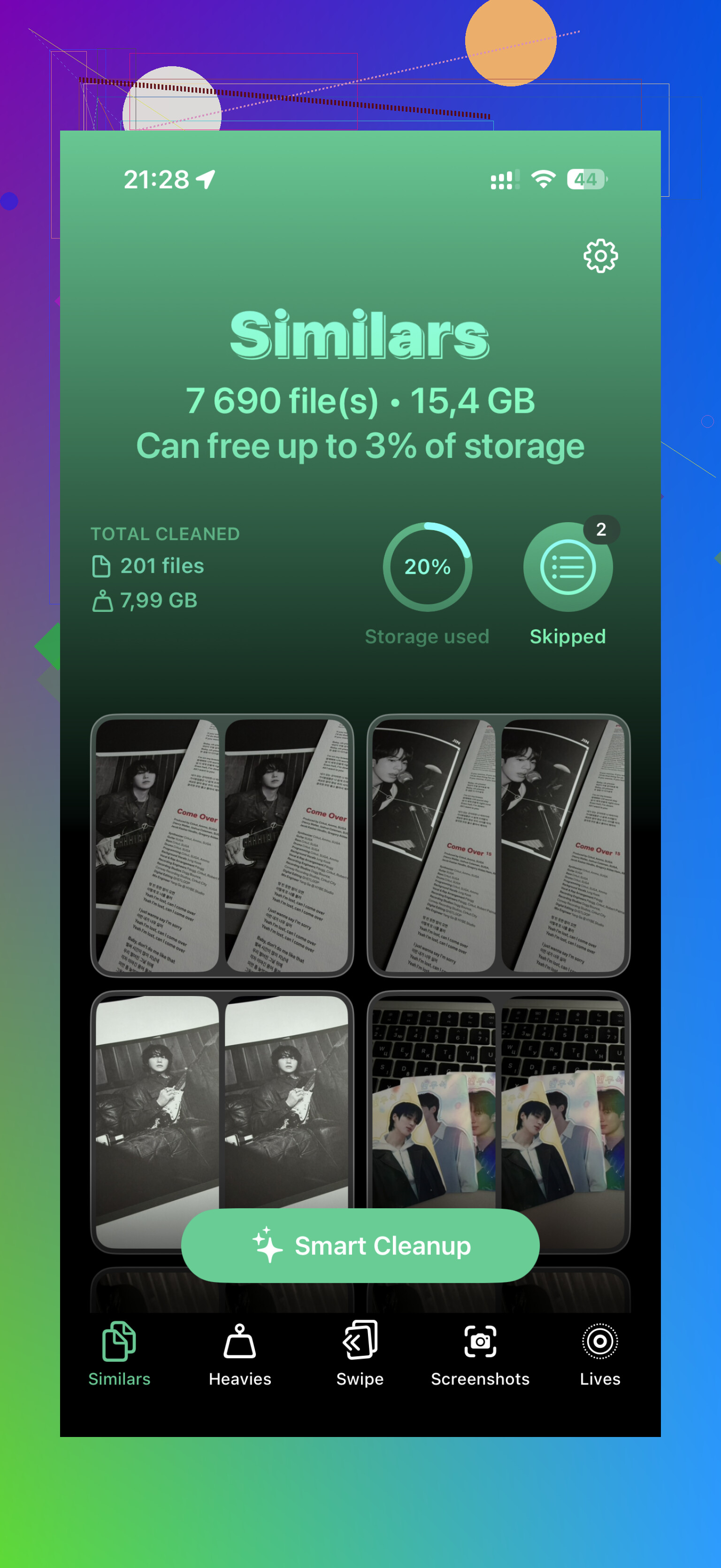
The app that worked best for me was Clever Cleaner. The useful part is that it looks for similar photos, not just exact copies. It can group a bunch of almost identical shots together and suggest a “Best Shot” based on things like focus and lighting.
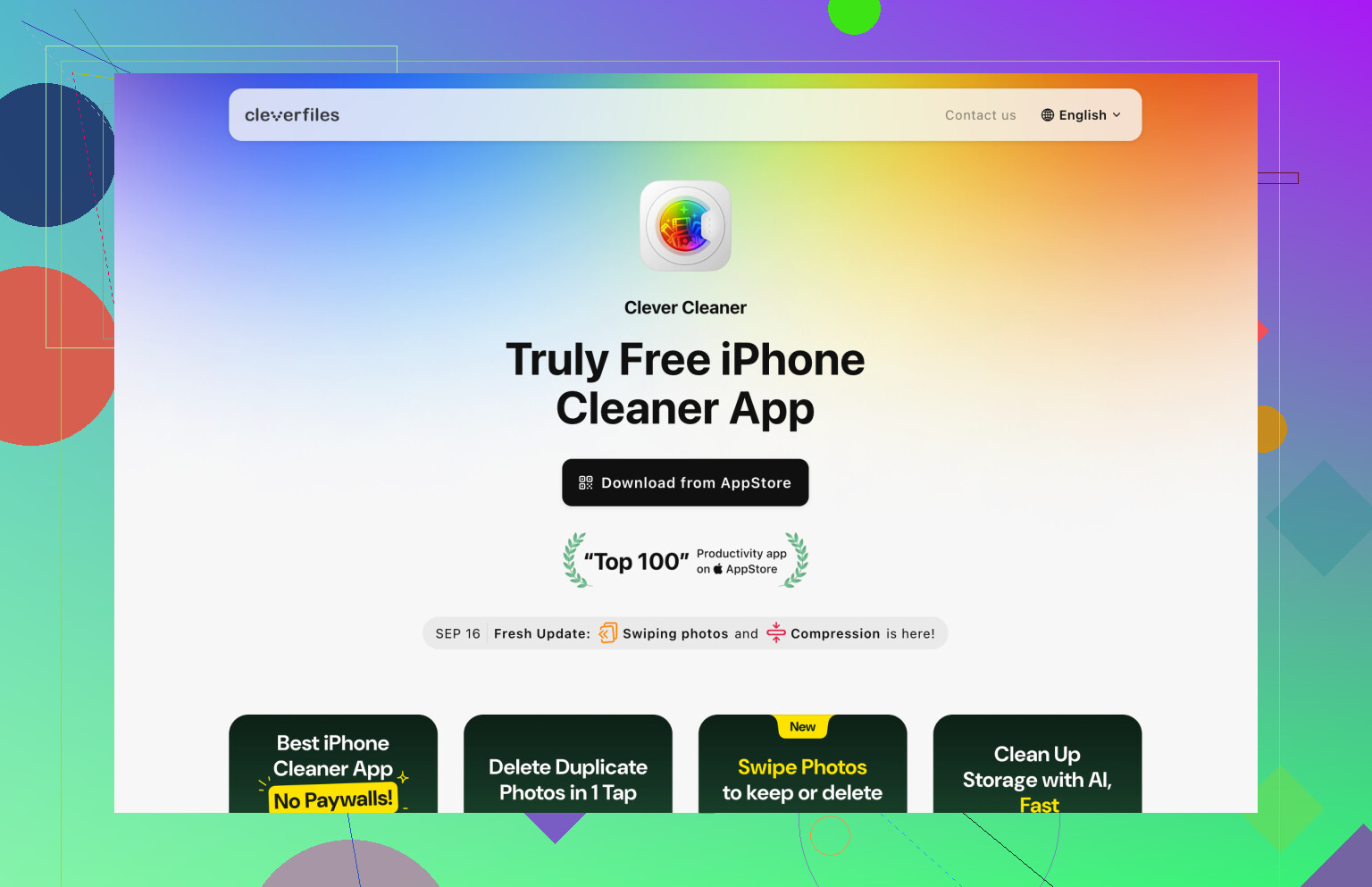
A few reasons I stuck with it:
- It’s actually usable for free, instead of immediately pushing a subscription or filling the screen with ads.
- The scanning happens locally on the phone, so your photos aren’t being uploaded somewhere else.
- It also helped with large videos, Live Photos, old screenshots, and quick swipe-style cleanup.
- It scanned my 20k+ library in about seven minutes. A couple other cleaner apps I tried just spun forever.
If you don’t want another app, you can still make some progress manually. Search Photos by month, location, or a trip where you know you took too many shots. The Map view in Utilities can also expose big clusters. If there are 500 photos sitting on one restaurant or hotel, that’s probably a good place to start. It works, but with thousands of pictures, it can easily eat up a weekend.
After you clean things up, it’s worth changing a few habits so the mess doesn’t come right back:
- Check your Camera settings and avoid accidentally leaving Burst on.
- Try not to sync the same library through both iCloud and Google Photos unless you really know how you want that handled.
- Clean up a batch of photos soon after taking them, while you still remember which ones are worth keeping.
- Be careful about downloading or saving the same images over and over from messages, email, or cloud folders.
One last thing: deleted photos still sit in Recently Deleted for 30 days, and they keep taking up space until you empty that folder manually.
There isn’t a permanent “Delete Duplicate Photos” button. It only shows up as the Duplicates album when Photos has actually detected matches, so if nothing is listed under Utilities, the feature may not be broken.
A couple of boring things matter here: the phone usually needs time locked, plugged in, and not in Low Power Mode before Photos finishes analyzing the library. If you recently updated iOS, turned on iCloud Photos, restored from a backup, or imported a big batch of images, it can take longer than people expect. Opening Photos and poking around does not really force it to scan faster.
I’d be a little careful with the “no duplicates found” result, though. Apple’s tool is conservative. It may miss screenshots saved twice in different formats, edited copies, WhatsApp/Message saves, or photos that look identical but have tiny differences. For exact duplicates, wait for Apple’s album. For lookalike clutter, something like Clever Cleaner can make more sense, but I’d still review the groups before deleting anything in bulk. And make sure iCloud has finished syncing first, otherwise you can end up cleaning while the library is still changing underneath you.
Your phone has to be on iOS 16 or newer, but Photos still will not show an empty Duplicates album just to prove the feature exists. That is the annoying bit. If Apple hasn’t detected anything it considers a duplicate, the whole album can be absent, so there may be no “Delete Duplicate Photos” option to tap.
The wording trips people up too. In the iPhone Photos app it is not really called “Delete Duplicate Photos.” The built-in action is usually “Merge,” inside Photos > Albums > Utilities > Duplicates. When you merge, Apple keeps one version and moves the extra copy to Recently Deleted. So if you are looking for a big delete button in Settings or in the main Library tab, you probably will not find one.
I agree with @kakeru that waiting matters, but I would not treat the wait as a magic fix. I’ve seen people leave the phone charging overnight and still get nothing because their “duplicates” were really similar shots, edited versions, screenshots saved from different apps, or photos resized by a messaging app. To your eyes they look like copies. To Photos they may be different files.
A few quick checks before assuming the feature is missing:
- Make sure you are in Photos > Albums, then scroll all the way down to Utilities.
- Check that the phone is actually on iOS 16 or later, not just “up to date” for an older iPhone that cannot go that far.
- Turn off Low Power Mode for a while.
- Leave it locked and charging, preferably on Wi-Fi.
- If you use iCloud Photos, wait until syncing has settled down before judging the result.
A small test can be misleading, by the way. Saving two copies of the same image and immediately checking the Utilities section does not always make Duplicates appear right away. Photos does its analysis in the background, on its own schedule. There is no good “scan now” button, which is probably the most frustrating part of this feature.
If your real goal is freeing space today, I would start somewhere else instead of waiting on the Duplicates album. Go to Photos > Albums > Media Types and check Videos, Screen Recordings, Bursts, Live Photos, and Screenshots. Large videos usually clear more space than duplicate photos ever will. Then empty Recently Deleted after you are sure you do not need those files.
For similar photos, Apple’s tool is not the best filter. That is where apps like Clever Cleaner can be useful, especially for “same pose, same plate of food, same screenshot saved twice from different places” situations. I would still review what it selects before deleting, because similar-photo cleanup is more subjective than true duplicate merging.
So no, the feature is probably not “missing” unless your iPhone is on an unsupported iOS version or you are looking in the wrong place. More likely, Photos either has not finished analyzing yet or it simply has not found the kind of duplicates Apple is willing to show.
Don’t start deleting from Recents just because two thumbnails look the same. If iCloud Photos is on, that delete can remove the photo from every device signed into the same library, not just clear space on this iPhone. That catches people more often than the missing Duplicates album does.
The built-in feature is more of a “merge confirmed duplicates” tool than a cleanup scanner. So I agree with the others that you should be looking under Photos > Albums > Utilities > Duplicates, but I’d lower expectations a bit. If the album is not there, it can simply mean Photos has nothing it wants to merge right now. It does not mean Apple is promising there are no repeated-looking shots in your library.
A better sanity check is Settings > General > iPhone Storage > Photos. If Photos is not taking much local storage because Optimize iPhone Storage is enabled, chasing duplicates may not free as much space on the phone as you expect. If Photos is huge, then videos, screen recordings, and large Live Photos are usually the first targets. For near-duplicates, Clever Cleaner or another cleaner app can be faster, but treat its picks as suggestions, not commands. Review before deleting, then remember to clear Recently Deleted if your goal is actually reclaiming space.