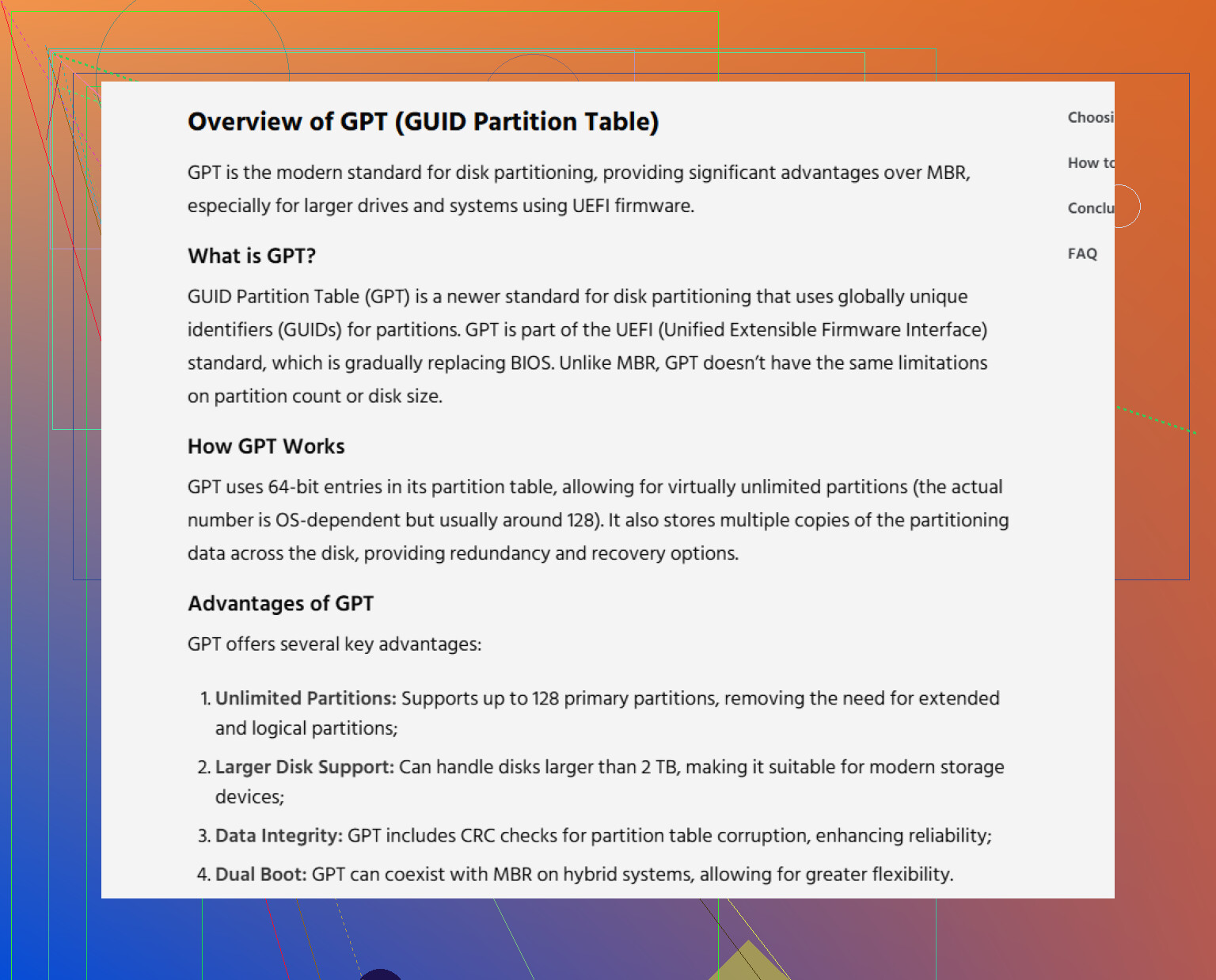
My drive’s GPT partition table appears to be corrupted, and Windows/Linux no longer shows the partitions correctly. I’m trying to recover the lost GPT partitions without formatting or overwriting data. What tools or steps can safely rebuild the partition table and restore access to my files?
I’d treat that drive as recoverable until proven otherwise. When a GPT disk suddenly shows up as “Unallocated,” “RAW,” or even as a “GPT Protective Partition,” it doesn’t always mean the files are gone. A lot of the time Windows just can’t read the partition info correctly anymore, while the actual data may still be sitting there.
The big thing is: stop touching the drive. Don’t format it. Don’t make a new partition. Don’t run Diskpart clean. Don’t copy anything to it. Any write to that disk can land on top of old file system data and make recovery worse.
If the data matters, the safest move is to image the disk first. Make a full sector-by-sector copy with something like dd or ddrescue, then work from that image instead of experimenting on the original drive. That way, if a recovery attempt goes sideways, you still have the original source to go back to.
After that, I’d focus on getting the files back before trying to “fix” the partition table. Partition repair can work, but it can also make a mess if the wrong structure gets written back.
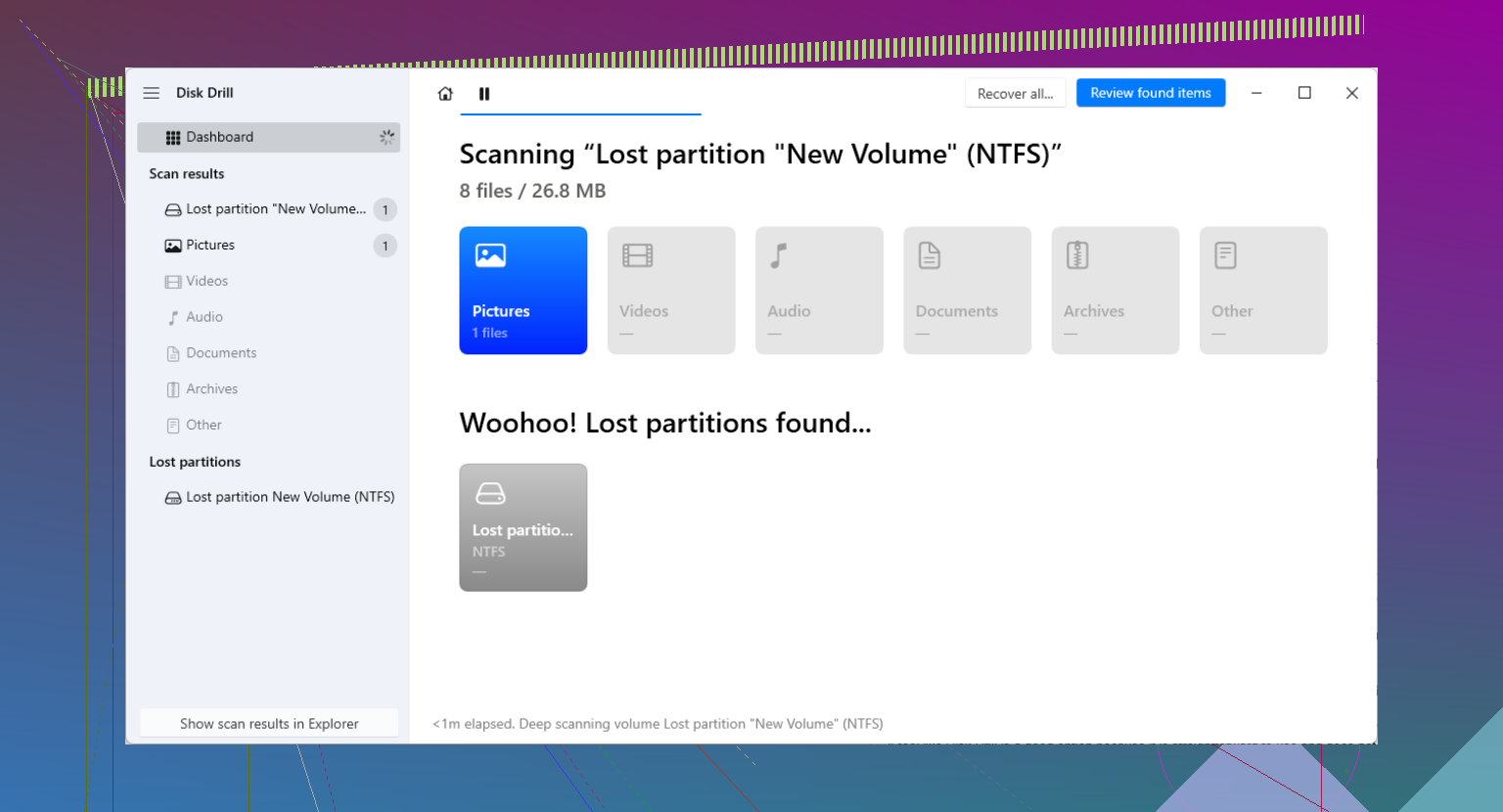
For a less command-line-heavy approach, something like Disk Drill can scan for lost partitions, damaged GPT info, and recognizable file types without writing to the problem drive during the scan. Once the scan is done, preview what it finds and recover the files to a different physical drive. Don’t save recovered files back onto the same damaged disk.
Once the important stuff is copied somewhere safe, then it makes more sense to look at partition repair tools.
TestDisk is commonly used for this. It can search for lost partitions and write a corrected partition table if it finds the right one. Just be careful with the “Write” step, because writing the wrong partition layout can make the situation harder to untangle.
There’s also gdisk. Since GPT keeps a backup header at the end of the disk, gdisk may be able to rebuild the primary GPT header if that’s the only part that got damaged.
If Windows is calling it a “GPT Protective Partition,” I still wouldn’t jump straight to wiping it. That can be caused by an older system, a flaky USB enclosure or adapter, or Windows simply not reading the GPT layout correctly. Scan it first, recover what you can, and only use Diskpart clean if you’re completely done with the data.
Check the disk through a different cable/port/enclosure before you start repairing anything. GPT weirdness is sometimes caused by a USB-SATA bridge reporting the drive with a different sector size, especially on larger drives, and then the partitions look “gone” even though the table is fine when connected another way. If you can, attach it directly to SATA or use the same enclosure it was originally partitioned in, then inspect it read-only with TestDisk or gdisk. If the backup GPT is still valid, gdisk can often tell you that without needing a full file recovery scan. I agree with the no-writing advice above, but I’d check the connection path first because fixing a partition table while the disk is being misreported can create a new problem on top of the old one.
Don’t run chkdsk on it just because Windows suggests it. On a missing or wrongly detected GPT layout, chkdsk can “repair” the wrong thing and leave you with a file system that is harder to recover. I’d first check whether the disk size and sector size look correct in Linux with lsblk -o NAME,SIZE,LOG-SEC,PHY-SEC,TYPE or in Windows with a read-only tool. If the reported size is smaller than expected, stop there and fix the adapter/enclosure issue before using TestDisk, gdisk, or Disk Drill. If the size is correct, then scan and image as already mentioned, but don’t let Windows initialize, format, or check the volume while you’re still figuring out what happened.