My iPad Photos app found some duplicates, but I’m still seeing repeated images that don’t show up in the Duplicates album. I’m trying to free up iPad storage and clean up my photo library without deleting anything important. What’s the best way to find and remove duplicate photos the Photos app missed?
I’d treat this as two separate problems: true duplicates and “why do I have eight versions of basically the same photo?” Apple’s built-in duplicate finder is mostly for the first one. A cleaner app is usually better for the second.
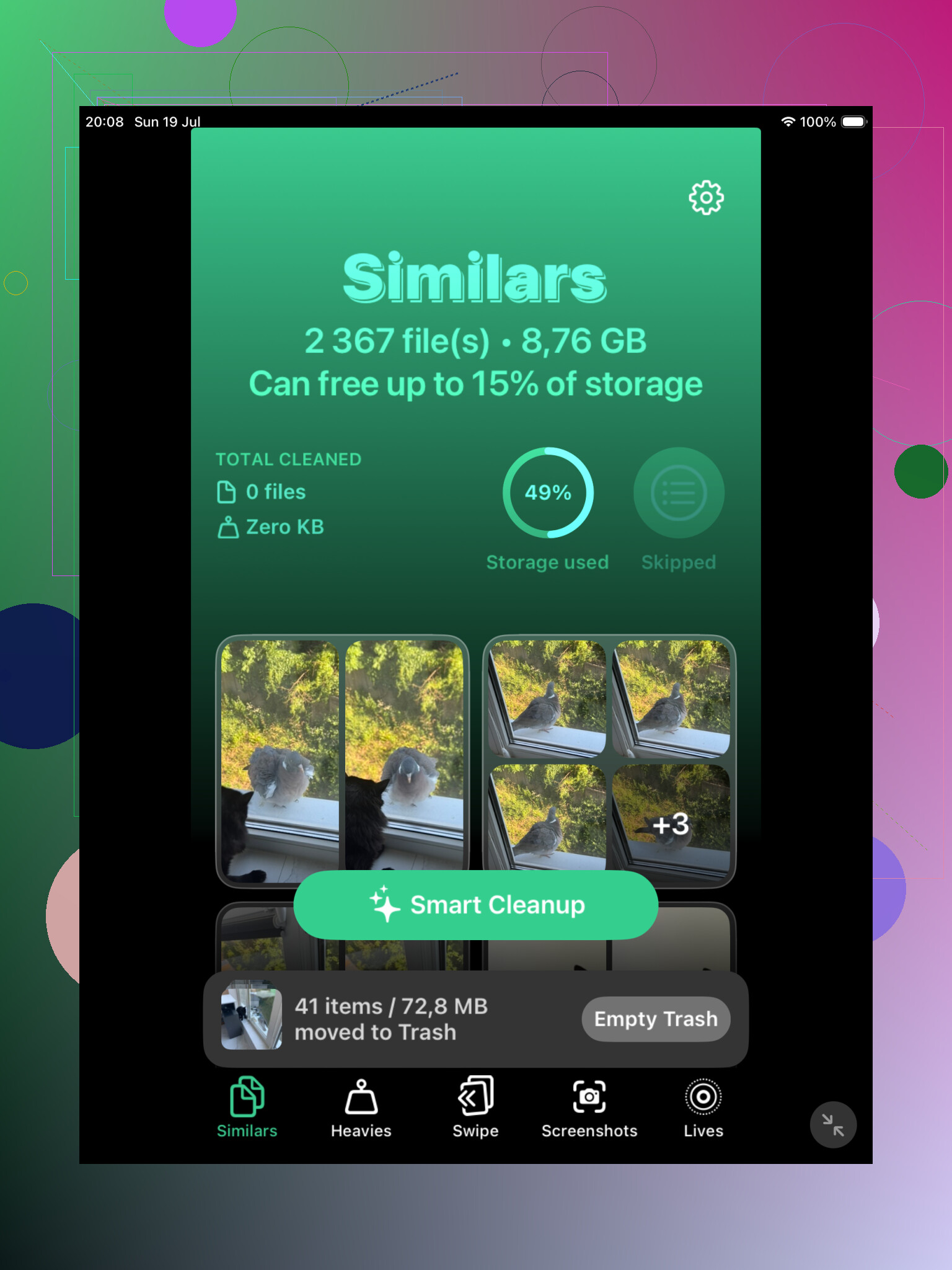
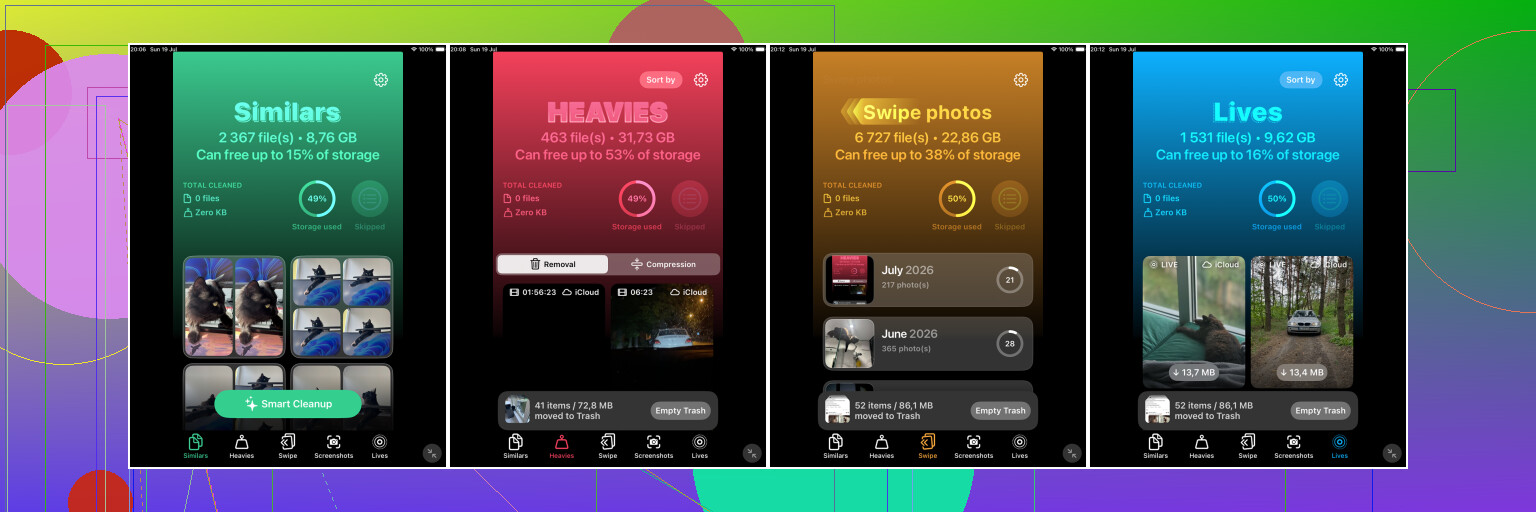
If your photo library is big, I’d start with Clever Cleaner. The useful part is the Similars section, because it catches photos that look almost the same but are not technically identical files. Think repeated selfies, several shots of the same view, burst-like groups, or saved/edited copies from other apps.
It also picks a Best Shot for each group, but I wouldn’t just blindly trust that. Open the group, look through the photos, and keep the one you actually want. Still, it’s a lot quicker than bouncing around inside the Photos app and zooming into every image one at a time.
Clever Cleaner can find exact duplicates too, so it makes sense as a first pass if your library has been building up for years. The main reason to use it is that it looks for both exact copies and near-copies, which Apple’s tool does not really handle as broadly.
After that, check Apple’s Duplicates album anyway.
On iPadOS 16 or newer, go to Photos, scroll down to Utilities, then tap Duplicates. Apple will group matching items and show a Merge option. When you merge, it keeps the version with the best quality and useful metadata, and sends the extras to Recently Deleted.
Just don’t expect it to catch everything that looks repeated to you. Apple is pretty strict here. If one image was cropped, edited, compressed, saved from Messages, or taken a second later, it may not show up as a duplicate at all. That’s why the Duplicates album can look almost empty even when your library feels packed with repeats.
If you don’t see the Duplicates album, it may still be processing your library. This can happen after a big iCloud sync, a large import, or an iPadOS update. Leave the iPad plugged in and locked for a while. With a large library, it can take a day or two. Also, this feature is not available on iPadOS 15 or older.
For a small library, Apple’s tool might be all you need. If you only copied the same photos a few times, there’s no need to install another app. But if you have thousands of photos and lots of “almost the same” shots, Clever Cleaner will usually surface more of the clutter.
You can also do it manually if you’d rather avoid extra apps. Use Search in Photos for things like “screenshots,” “dog,” “beach,” or a city name. Browsing by Months or Years also helps for trips, events, and places where you probably took several versions of the same scene. It’s slower, but it works.
One last thing: deleted or merged photos sit in Recently Deleted for up to 30 days, and they still use storage while they’re there. Check that album before emptying it, especially if you’re trying to free space right away.
And if iCloud Photos is turned on, deleting photos on your iPad also deletes them from your iPhone, Mac, and any other devices using the same iCloud library. Make sure you’re okay with that before you remove anything permanently.
Sorting matters more than people think. In Photos, switch to Albums > Recents and look at the date/time around the repeated images, because edited or re-saved copies often land far away from the original in Library view. Apple may miss those, so manual cleanup by date clusters is usually safer than trusting the Duplicates album alone.
Don’t start by deleting a bunch of “duplicates” until you know whether they are actually separate photos or just different versions of the same thing synced from somewhere else.
The built-in Duplicates album is pretty conservative. That is annoying, but it is not totally a bad thing. If Apple treated every similar-looking photo as a duplicate, people would lose the edited copy, the uncropped original, the Live Photo version, or the one with better resolution. A photo can look identical on the iPad screen and still be different in a way that matters.
The storage angle is where this gets confusing. If iCloud Photos is on and “Optimize iPad Storage” is enabled, deleting repeats may not free as much local iPad space as expected, because some originals may already be mostly in iCloud. You might clean up the library, but the iPad storage number may move slowly or not immediately. If your real goal is storage, check Settings > General > iPad Storage > Photos first so you know what you are trying to reduce.
The manual trick I use for this kind of cleanup is not Library view. Go after categories:
Photos > Albums > Media Types > Screenshots
Photos > Albums > Media Types > Videos
Photos > Albums > Media Types > Bursts, if you have any
Photos > Albums > Recently Saved or Imports, if those show up for your library
Screenshots are usually the easiest win because they create lots of “same enough” images that Apple may not call duplicates. Same with saved images from Messages, Safari, Instagram, WhatsApp, etc. They may have different file sizes, different timestamps, or small compression changes, so they won’t always land in Duplicates.
I agree with the earlier point about similar-photo apps, but I’d use them as a sorting tool, not as a delete button. Clever Cleaner or any similar cleanup app can be useful for grouping near-identical shots, especially if you have ten versions of the same dog photo or five attempts at one document scan. But the final decision should still be yours. The app does not know that the blurry one is the only photo where someone is smiling, or that the cropped version is the one you actually posted somewhere.
Another place people miss is edited photos. In Photos, open a suspected repeat and tap the info button. Look at the date, source app, file type, and size if shown. If one says it came from another app or was saved on a different day, that explains why Apple did not merge it. It is not seeing “same picture,” it is seeing “different asset.”
For a safer pass, I’d do it in this order:
- Check iCloud Photos status first, because deletion may sync to every device.
- Make sure anything important is backed up somewhere outside the same Photos library.
- Clean obvious junk categories first, especially screenshots, screen recordings, and downloaded images.
- Use Apple’s Duplicates album for exact matches.
- Use a similar-photo cleaner only for the messy groups Apple misses.
- Leave Recently Deleted alone for a few days unless you urgently need the space.
That last step matters. Recently Deleted is your undo button. If you empty it right away and then realize you deleted the wrong version, there is no easy fix.
The other small annoyance: the iPad may need time to recalculate storage after a large delete. Sometimes Photos storage looks unchanged until the device finishes syncing, indexing, or clearing the local cache. So if you remove a bunch of items and the number does not drop instantly, don’t assume it failed. Check again later, preferably after the iPad has been plugged in and idle for a bit.
If some of the repeats came from a camera import, an editing app, or a RAW+JPEG setting, the Duplicates album may never flag them because they are not really duplicates to Photos.
This is the place I’d be more careful than just running a cleanup sweep. A RAW file and a JPEG can look like the same photo in the grid, but one may be the original high-quality file and the other may be the easy-to-share version. Same with an edited export from Lightroom, Snapseed, Canva, etc. To your eyes it is the same image. To the iPad, it is a different file with a different purpose.
A faster way to hunt these down is to use Photos search for file types or sources. Try searching for things like “RAW,” “JPEG,” “PNG,” “screenshot,” or the name of the app you usually save from. Then open a suspected pair and check the info panel. If one is huge and one is tiny, don’t automatically delete the huge one unless you’re sure you don’t need the original. For freeing storage, those large originals are tempting, but they are also usually the files you can’t recreate.
I agree with @mike34 about Recents being useful, but I would not rely only on the date order. Exported copies often show up on the day you saved or edited them, not the day the photo was taken. That makes them look unrelated when they are really just a second version. Search plus the info panel is usually better for catching that pattern.
Clever Cleaner or a similar app can still be handy for finding the “visually the same” groups Apple skips, but I’d use it after checking for RAW/JPEG and edited-export pairs. Otherwise it may show you a bunch of photos that look redundant, and you might delete the version that was actually the master copy. The safe rule is: delete obvious junk first, merge true duplicates second, and be suspicious of anything where the file size or format is very different.