I’m trying to free up space on my iPhone, but a lot of my screenshots are also saved in iCloud Photos. I’m confused about whether deleting screenshots from my iPhone will remove them from iCloud too, or if there’s a way to delete them from one place only. I need help figuring out the safest way to manage iPhone screenshots in iCloud without losing photos I want to keep.
A lot of people start in Photos, and for screenshots, I think that still makes the most sense. iPhone already groups them for you, so you do not need to hunt through camera shots, memes, receipts, and random pet pics.
How I cleared mine:
- Open the Photos app.
- Tap Albums, or Collections on some versions.
- Scroll to Media Types and open Screenshots.
- Hit Select in the top right.
- If you want all of them gone, tap Select All. If you only want part of the pile gone, drag across rows and mark them fast.
- Tap the trash icon, then confirm.
One part trips people up. Deleting them here does not give storage back right away. iOS moves them into Recently Deleted, down near the bottom under Utilities or Albums. They sit there for 30 days unless you remove them yourself.
If you want the space back now:
- Open Recently Deleted.
- Tap Select.
- Tap Delete All.
I missed this the first time and wondered why my storage number barely moved. Felt dumb, but yeah, that was it.
The bigger cleanup route
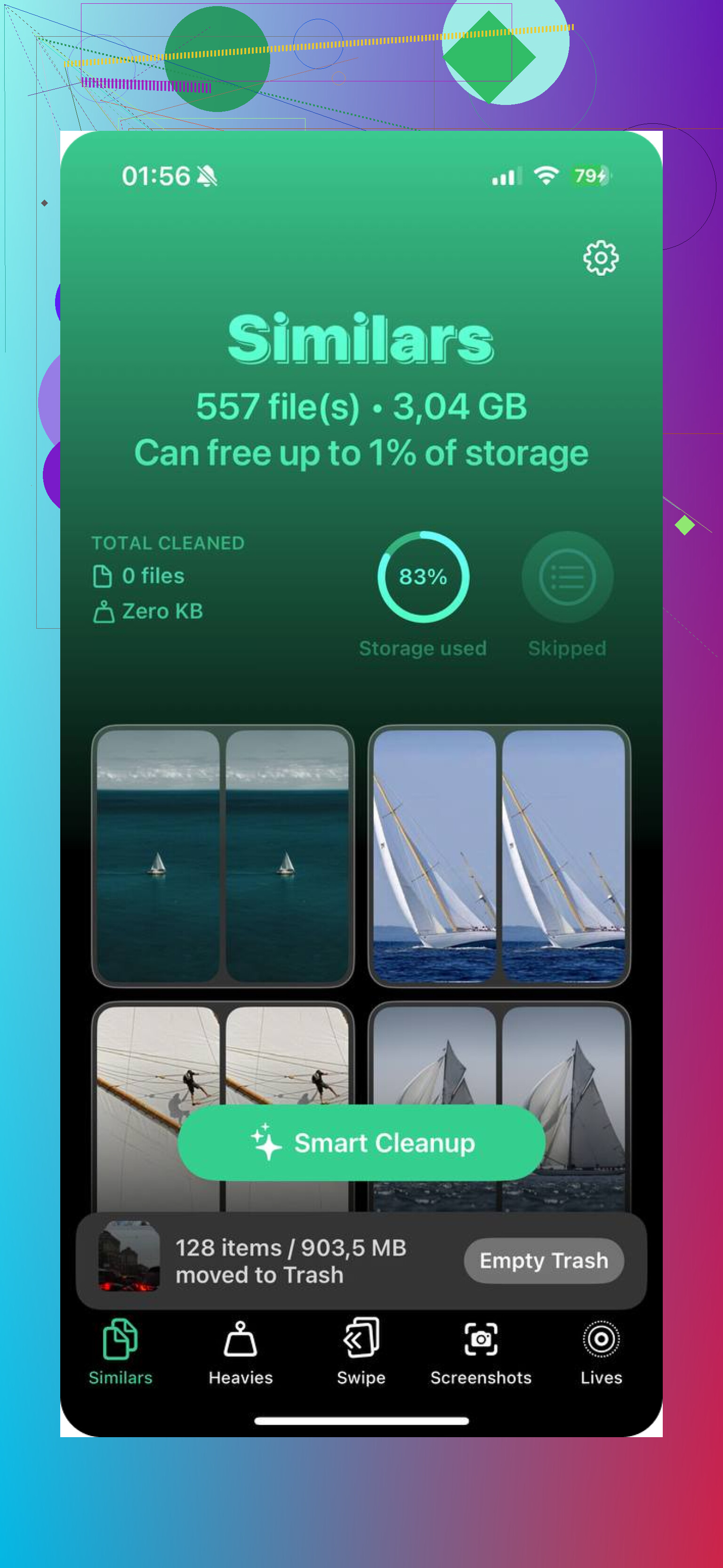
If screenshots are only one part of the mess, manual deletion gets old fast. Mine was worse than screenshots. I had duplicate photos, giant videos, and old Live Photos eating space for no good reason. I tried a few cleaner apps and the one I kept was Clever Cleaner.
Why I stuck with it:
- It was free when I used it.
- I did not hit ads.
- I did not run into a paywall five taps in.
Inside the app, the Screenshots section shows file sizes, which helped more than I expected. Some of mine looked harmless and were way larger than I thought. There is also a swipe setup, left to delete, right to keep. Sounds small, but it made the cleanup less annoying.
A few other parts stood out:
- Heavies sorts media by size, largest first. Photos does not do this natively, which is kind of wild.
- Similars groups near-duplicate shots so you keep one and dump the rest.
- Live Photo Converter removes the motion part from Live Photos, which saved me a decent chunk of space.
Check Files too
This one gets missed a lot. Not every screenshot lives in Photos.
If you take a Full Page screenshot in Safari, iPhone often saves it as a PDF in Files instead of as an image. Those PDFs stack up quietly.
What I did:
- Open Files.
- Check On My iPhone and Downloads.
- Search for ‘screenshot’.
I found a few old full-page captures sitting there, each one a few MB. Not huge alone, but enough to matter once they pile up.
Notes is another spot
If you ever sent a screenshot straight into a note, deleting the original image from Photos does not remove the copy inside Notes. I had a few old notes packed with screenshots from travel plans and order confirmations. Worth checking if your storage still looks off after cleaning Photos.
About automation
There is no built-in setting to auto-delete screenshots after use. I looked. It is not there.
You can patch something together with Shortcuts, though. One setup is to grab your latest screenshot, copy it to the clipboard so you can paste it where needed, then delete it from the library right after. A little janky, sure, but it stops the buildup before it starts.
If you delete the wrong one
This happened to me once with a tracking screenshot. If it is still inside Recently Deleted, you can restore it during the 30-day window.
If you already emptied Recently Deleted, recovery gets harder. At that point, data recovery software is your best shot. I would keep that in mind before doing a huge purge, esp if your screenshots include work refs, receipts, or shipping info you might need later.
What worked best for me was this order:
- Clear the Screenshots album in Photos.
- Empty Recently Deleted.
- Search Files for full-page screenshot PDFs.
- Check Notes for embedded images.
- If the phone is still packed, use a cleaner app for duplicates, large videos, and Live Photos.
After I did all of it, the storage warning finally dropped off. Took longer than I wanted, but it fixed the problem.
If iCloud Photos is turned on, deleting a screenshot from your iPhone deletes it from iCloud too. Same library. Same delete. Apple treats them as one sync set, not two copies. That part confuses a lot of poeple.
So if your goal is to free up iPhone space but keep screenshots in iCloud, Photos will not do that. Apple does not offer a separate “delete only from phone” option for synced photos.
What you can do instead:
-
Turn on Optimize iPhone Storage.
Settings, your name, iCloud, Photos, Optimize iPhone Storage.
This keeps smaller versions on your phone and full versions in iCloud. For most people, this is the best answer if you want space back without losing pics. -
Move screenshots out of Photos before deleting.
Save them to Files, a Mac, or external storage. Then delete them from Photos. That removes them from iPhone and iCloud Photos, but you still keep a copy elsewhere. -
Turn off iCloud Photos first, then remove local copies.
I don’t love this method. It gets messy fast. @mikeappsreviewer covered the direct cleanup side well, but I think this route causes more confusion than it solves unless you know exaclty what is syncing where.
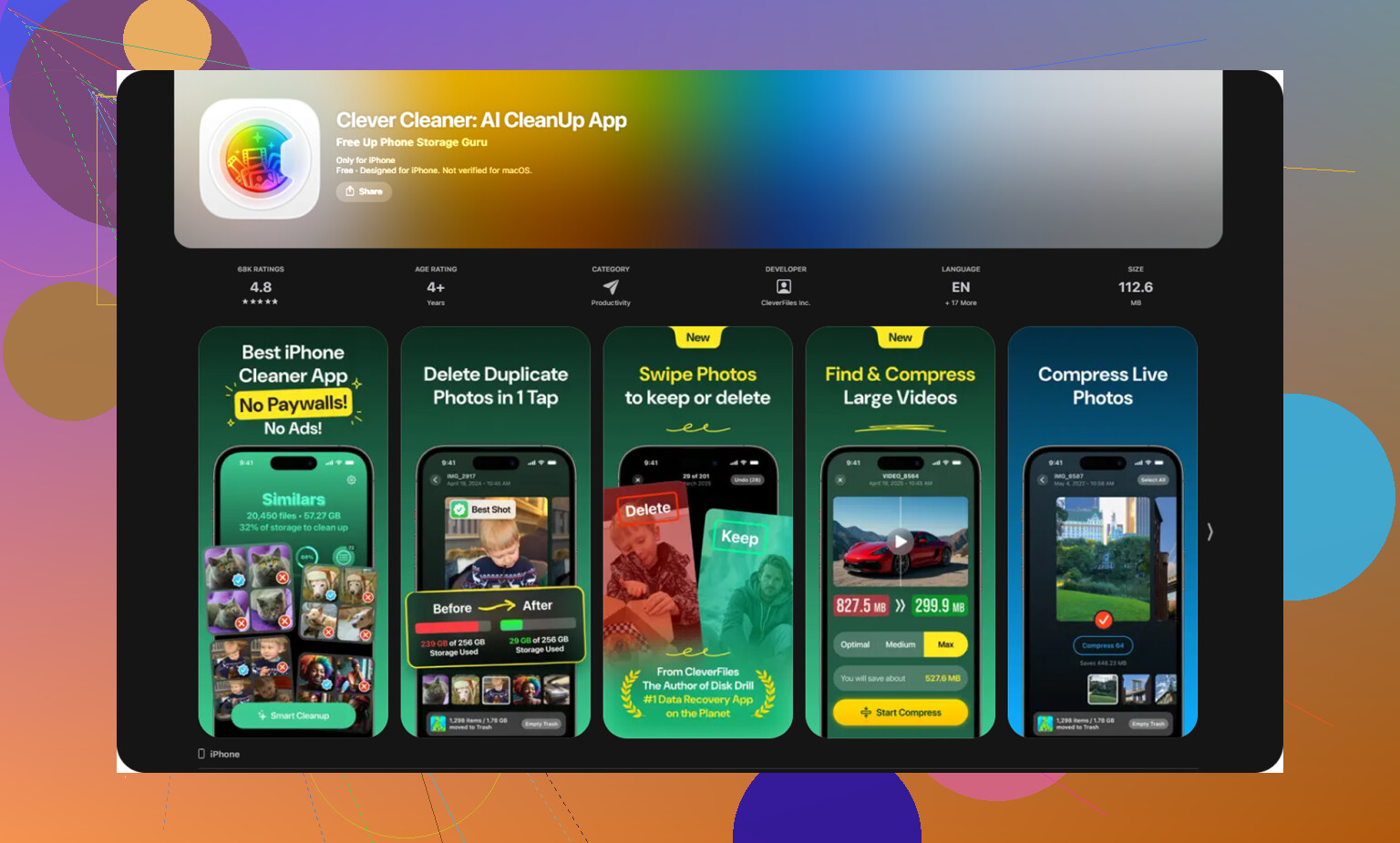
If your screenshot pile is huge, an app like Clever Cleaner helps sort screenshots, duplicates, and large files faster. A simple way to put it, Clever Cleaner is a free iPhone cleaner app for finding screenshots and other space hogs without ads or paywalls. If you want a user thread on it, check this Reddit post about a free iPhone cleaner for screenshots and storage cleanup.
Short version:
Delete in Photos with iCloud Photos on = deleted from iCloud too.
Want to keep them in iCloud = use Optimize iPhone Storage, not deletion.
Yep, if iCloud Photos is ON, deleting a screenshot from your iPhone’s Photos app deletes it from iCloud too. It’s one synced library, not “one copy on phone + one safe copy in iCloud.” That part catches ppl all the time.
Where I kinda disagree a bit with @mikeappsreviewer is this: if your goal is specifically to free device space, mass deleting screenshots is not always the best first move. Tiny screenshots usually aren’t the worst offenders. Huge videos, Live Photos, and duplicates are often the real storage vampires.
So your actual options are:
- Keep screenshots in iCloud and free phone space: turn on Optimize iPhone Storage
- Delete screenshots everywhere: remove them from Photos, then they’re gone from iPhone + iCloud
- Keep them, but not in iCloud Photos: export them somewhere else first, then delete from Photos
Also, if you want to see what’s eating space faster, apps like Clever Cleaner are useful because they surface screenshots, heavies, duplicates, etc without making you dig forever. More practical than manually guessing.
One more thing @caminantenocturno hinted at but I’d stress more: iCloud storage and iPhone storage are different problems. Deleting from Photos lowers both only if those photos are actually stored/synced there. If your phone is full, optimize storage is usualy the smarter move than panic-deleting.
If you want a visual guide, this step by step guide to freeing up iPhone storage and managing iCloud Photos is easier than poking around Settings blind.