My iPhone storage keeps filling up even after I delete unused apps and old photos. I’m looking for a safe, regular routine to clear junk files, caches, and temporary data without losing anything important.
Start with Settings > General > iPhone Storage and wait for it to finish calculating. That gives you a much better idea of what needs attention than randomly deleting files.
In most cases, the problem isn't mysterious “junk files.” iPhones don't collect junk the same way Windows PCs can, and cleanup apps can't remove iOS system files anyway. The space is usually being used by forgotten downloads, duplicate photos, screenshots, large videos, app data, and caches.
Photos are usually my first stop because that's where I tend to recover the most space. Going through thousands of pictures manually is tedious, so I use Clever Cleaner. It scans for duplicate and similar photos, screenshots, Live Photos, and large videos. Processing happens locally, there aren't any ads, and the free version covers normal cleanup pretty well.
My usual process looks like this:
- Download Clever Cleaner and give it access to the photo library.
- Go into Similars and check the duplicate or near-duplicate groups. It suggests which photo to keep, but you can change its selections before deleting anything.
- Look through Videos for old recordings and unusually large files.
- Check Screenshots and Live Photos. Both can quietly use a surprising amount of storage.
- Use Smart Cleanup if you want to move quickly. If you prefer deciding on each photo yourself, use Swipe mode.
- Open the regular Photos app afterward and empty Recently Deleted. Until you do that, the deleted photos and videos still occupy storage.
Once the photo library is under control, there are a few other places worth checking. I offload or delete apps I haven't touched in a while, remove downloaded shows and music from streaming apps, and clear old files from the Files app. Messages can also hold some huge attachments, and you can delete those without wiping entire conversations. For apps such as Telegram that include their own cache controls, clearing the cache can help too.
The Recently Deleted album is easy to miss. The first time I removed around 500 photos, my available storage barely changed because everything was still in there. Emptying the album gave me several gigabytes back right away.
A quick cleanup every few weeks is much less annoying than waiting until the phone has no room left. Spending 10 or 15 minutes on it has kept the “Storage Almost Full” warning away for me, and I no longer have to delete things in a hurry before recording a video or installing an iOS update.
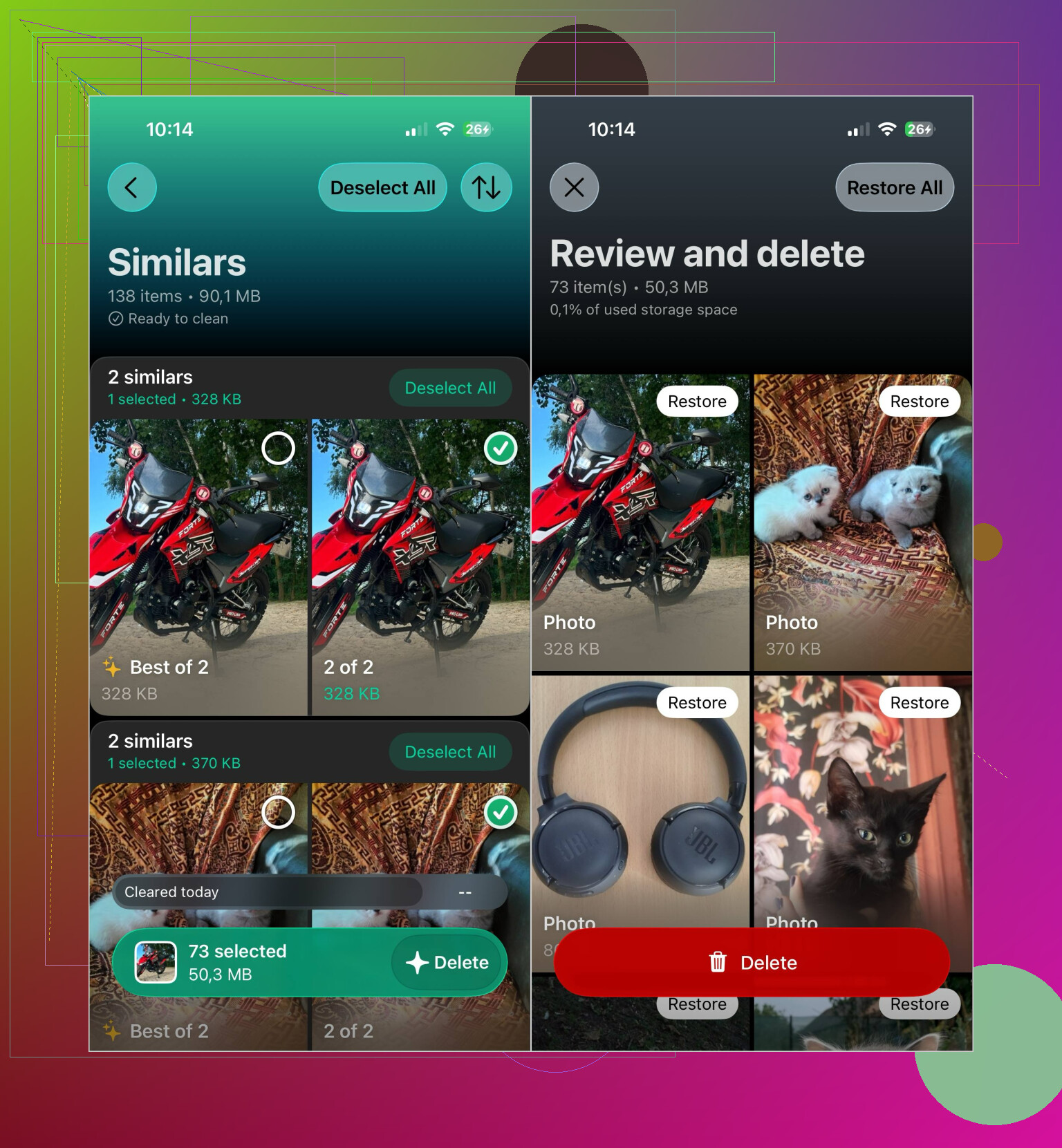

If iCloud Photos is turned on, treat photo cleanup as a library-wide deletion, not a phone-only cleanup. Removing a photo from the iPhone removes it from your other synced Apple devices too. Check that anything important is backed up somewhere separate before emptying Recently Deleted.
@neonguru is right that there usually isn’t a hidden pile of “junk” waiting for a cleaner app to erase. The bigger issue is app data that keeps growing. Social media, podcast, video, browser, and messaging apps can accumulate several gigabytes even when the app itself looks small.
A routine every three or four weeks is enough for most people:
- Check Settings > General > iPhone Storage and pay attention to Documents & Data, not only the app size.
- Open streaming, podcast, map, and music apps and remove offline downloads from inside each app.
- Review large Messages attachments. Videos and repeated group-chat images are common storage hogs.
- Clear Safari website data if you do not mind signing back into some sites. You can find it under Settings > Apps > Safari.
- Check Files, especially Downloads and On My iPhone, then empty Recently Deleted in Files.
- Restart the phone and give the storage screen time to update.
There is an important difference between offloading and deleting an app. Offloading removes the app program but preserves its documents and data. That is safer, but it may recover very little space if the documents and cache are the actual problem. Deleting and reinstalling can clear more, but only do that after confirming the app stores your information in an account or cloud service. Some games, recording apps, authenticator apps, and editing tools may have local data you cannot recover.
Clever Cleaner can make sorting a large photo library less tedious, but review similar-photo groups instead of accepting every suggested deletion automatically. Near-duplicates may include different expressions, edits, resolutions, or exposure settings that you intended to keep. No third-party cleaner should need access to unrelated data or claim it can scrub iOS system files.
I would avoid making cache clearing a daily habit. Caches often return because they help apps load faster, so repeatedly wiping them creates work without saving much storage long term. A monthly check, plus keeping roughly 10% of the phone free when possible, is more practical. If “System Data” stays unusually large for days after a restart and an iOS update, the safer escalation is a full encrypted backup followed by restoring the phone, rather than installing increasingly aggressive cleaner apps.

Honestly, the smarter move is stopping the buildup in the first place instead of running a cleanup ritual every few weeks. If you turn on Optimize iPhone Storage under Settings > Photos, the full-resolution shots live in iCloud and your phone keeps lighter versions. That alone kills a big chunk of the problem @neonguru is solving manually. It only works if you actually have iCloud space, and it plays into the exact warning @hacker7627 gave, so back things up before you lean on it.
The thing everyone here is dancing around is System Data. It swells with logs, streaming buffers, and mail attachments, and no cleaner app touches it. Mail is the sneaky one. If you use the built-in Mail app with a big account, it caches attachments quietly and there’s no clean button for it. Removing and re-adding the account often shrinks it more than any photo purge.
Clever Cleaner earns its spot for the duplicate and near-duplicate slog, since doing that by hand is miserable. But treat it as one tool for one job, not a full storage fix. I’d also push back a little on the strict monthly schedule. Set up Optimize Photos, keep offline downloads in check, and you barely need a routine at all. The phone stops filling up on its own, and you only dig in when the storage screen actually says so.