I’m trying to use FTP to access my WordPress files on GoDaddy, but I can’t figure out the correct host, username, or settings. I need to update files and troubleshoot my site, and GoDaddy’s instructions are confusing. Looking for help connecting with FTP and finding the right WordPress directory.
I ran into this when a WordPress theme was too big for the dashboard uploader. The admin screen threw the file size error and that was the end of it. FTP was the cleaner route. I used FileZilla, but the same steps work in other FTP apps too.
Grab your GoDaddy FTP login first
Before connecting, pull the FTP details from your GoDaddy hosting area. I had to log in, open the hosting dashboard, then look around the FTP users or file settings section. You need these four items:
- Hostname, often your domain or a server IP
- Username
- Password
- Port, usually 21 for standard FTP
If no FTP user exists yet, create one there first. Took me a minute, nothing fancy.
Connect with FileZilla
Open FileZilla. At the top, enter the hostname, username, password, and port. Hit Quickconnect.
If the login works, your server files show up on the right side, the Remote Site panel. Your own computer stays on the left, Local Site. If it fails, I usually recheck the port and username first because those are easy to mistype.
Find the theme folder in WordPress
In the server panel, go to the folder where WordPress is installed. Then open:
/wp-content/themes
That directory is where WordPress keeps every installed theme. If you're in the wrong site root, the folders usually look off fast, so it's not too hard to notice.
Upload the theme
On your local side, browse to the theme file on your computer. If you only have the theme archive, you'll see a .zip file. Drag it from the left panel into /wp-content/themes on the right.
Small theme, quick upload. Bigger one, give it a bit. I had one stall once because my connection dipped for a sec, so I restarted the transfer and it finished fine.
Extract it on the server, or do it before upload
This part depends on what your GoDaddy plan gives you.
If your hosting control panel includes a file manager with extract support, upload the zip and unzip it on the server.
If it does not, unzip the theme on your own computer first. Then upload the full extracted theme folder into /wp-content/themes instead of the archive. I ended up doing it this way more than once. Less guessing.
Turn the theme on in WordPress
After the folder is in place, go back into WordPress and open Appearance → Themes. The uploaded theme should appear there. Click Activate.
If it doesn't show up, I usually check whether the folder structure is wrong. A common mess is uploading a parent folder that contains the real theme folder inside it. WordPress won't read it right if the nesting is off.
Other FTP apps people keep bringing up
For one upload, FileZilla is fine. I used it for years because it was free and easy to grab. Still, once I started moving heavier folders, it got annoying. Large transfers slowed down, some queues dragged, and the app felt clunky. That lines up with what people mention here: slows down considerably.
Commander One on Mac
Commander One felt more polished to me on macOS. It uses a dual-pane layout, so the file movement part feels familiar if you've used old-school file managers before. One thing I liked was the archive handling. I packed a group of files inside the app, moved the archive, then unpacked it on the server side. Fewer loose files, less waiting.
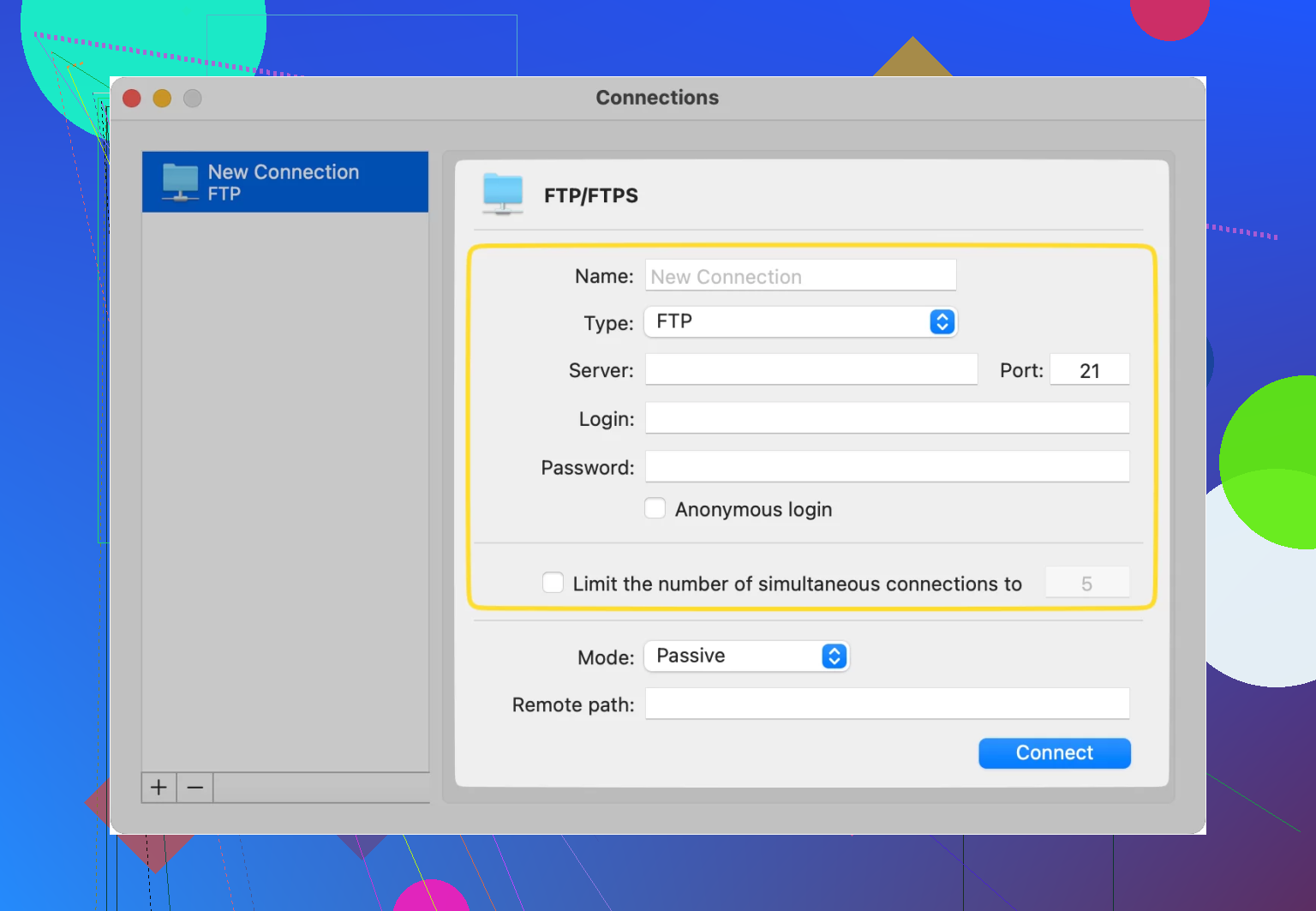
It costs money, so it won't fit everyone. Still, if you're doing repeated FTP or SFTP work on a Mac, it felt steadier than FileZilla in my use. Less hanging, less babysitting.
Cyberduck on Mac and Windows
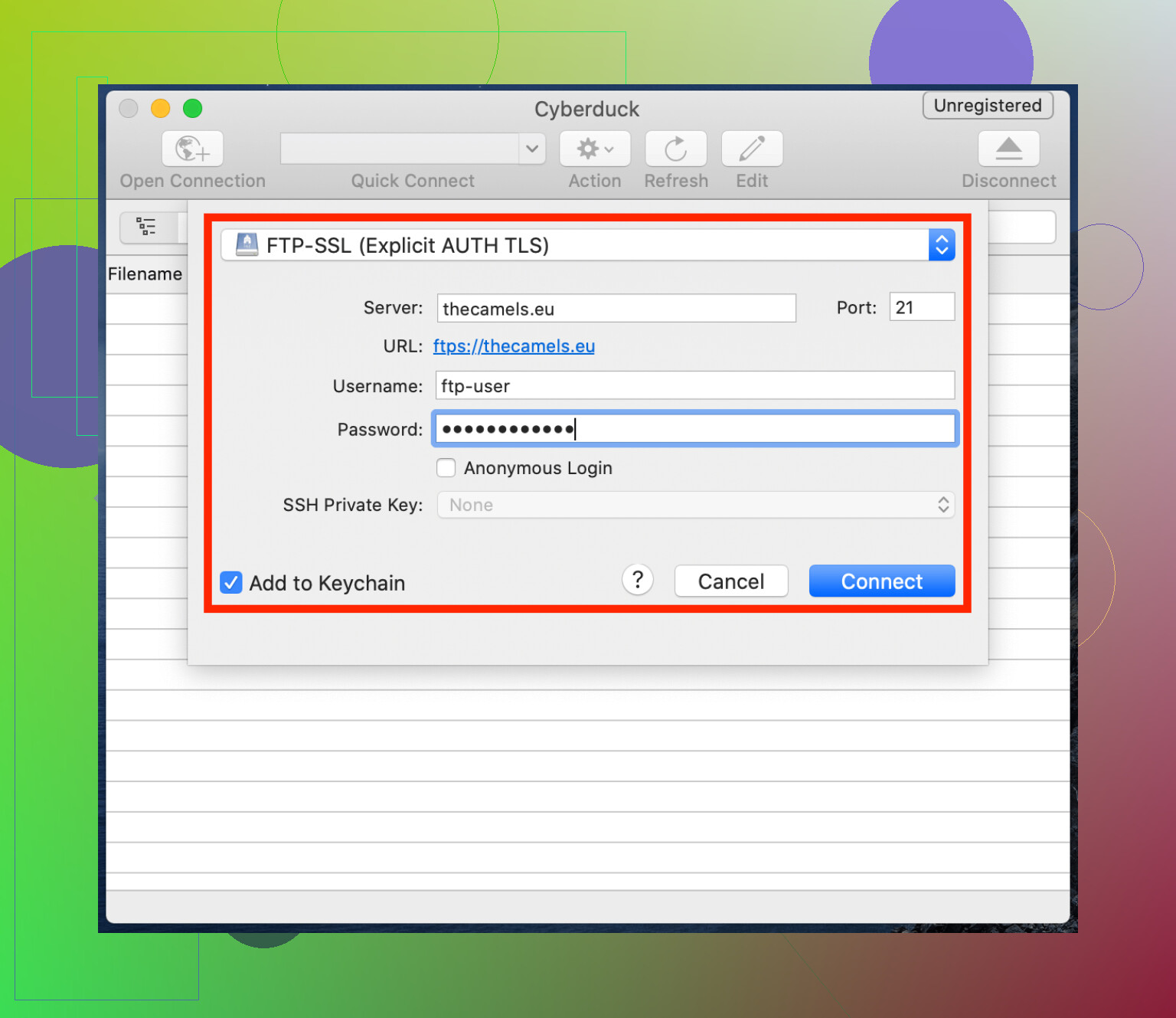
Cyberduck goes the other direction. Free, open-source, less clutter on screen. Some people like it for exactly that reason.
My experience was mixed. Straight uploads were okay. Once I started doing file renames or trying to recover from interrupted transfers, it got a bit shakey. Not unusable, just the kind of app where a simple job stays simple, and an annoying job gets more annoying.
CloudMounter on Mac and Windows
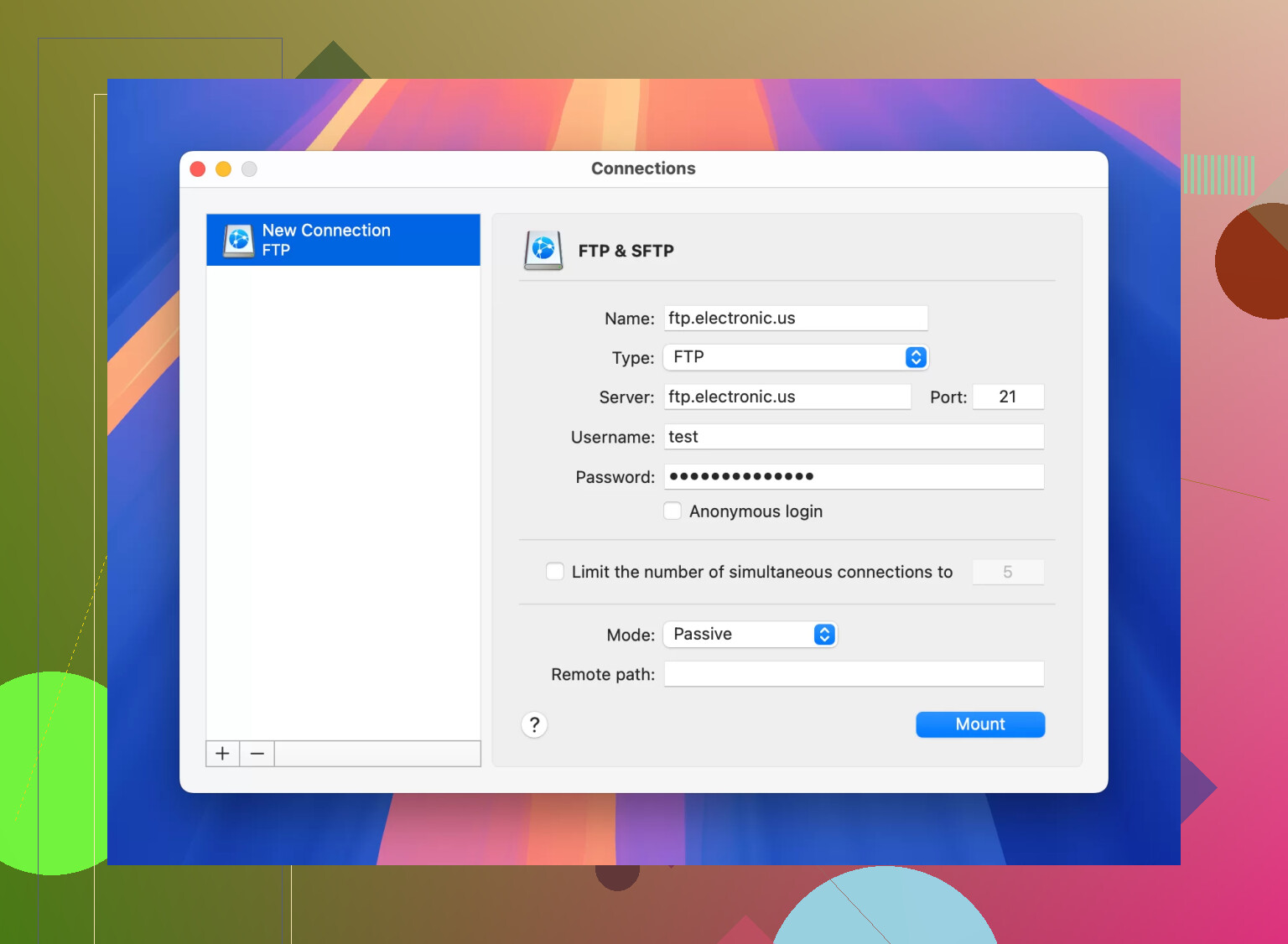
CloudMounter doesn't feel like a normal FTP client. It mounts the remote server like a local drive in Finder or File Explorer. So instead of juggling two panes and transfer queues, you work with the remote files the same way you work with folders on your machine.
For people who hate FTP interfaces, this setup makes more sense fast. I found it easier for occasional site edits and quick uploads. It supports FTP, SFTP, and other storage services too, so it covers more than one use case.
If you're uploading one theme and moving on, any of these apps will do the job. Once you start pushing big folders often, the differences show up fast. I learned this the annoyng way.
1 Like
The part GoDaddy hides is this. Your FTP login is often not your main GoDaddy account login.
Check these in GoDaddy first:
Hosting, Settings, FTP Users.
If no FTP user exists, make one.
Use the server name listed there as Host. It is often your domain, ftp.yourdomain.com, or a temp hostname from GoDaddy.
Username is the FTP user you created.
Port is 21 for FTP, 22 for SFTP.
I’d skip plain FTP if your plan supports SFTP. Safer, less dumb. GoDaddy sometimes supports SSH or SFTP on certain hosting plans, sometimes not. Their setup is messy.
If FileZilla keeps failing, test this:
Host, exact hostname from GoDaddy
Protocol, try SFTP first, then FTP
Port, 22 for SFTP, 21 for FTP
Mode, Passive for FTP
Common gotchas:
Your domain DNS is not pointed at the hosting account yet
You made the FTP user for the wrong folder
You are trying the GoDaddy account password instead of the FTP password
Firewall blocks port 21
You are on Managed WordPress, where normal file access is more limited
Also, if you only need edits, GoDaddy File Manager is faster than messing with FTP creds. I disagree a bit with @mikeappsreviewer there. For one file change, browser file manager is less pain.
If you’re on Mac, Commander One is solid for GoDaddy FTP or SFTP. Cleaner than older FTP apps, less janky with file moves. Worth a look if Finder-style access fits how you work.
Your WordPress files are usually in:
public_html
or
/html
Then:
wp-content
themes
plugins
uploads
If connection fails, post the exact error text. The wording matters. GoDaddy error msgs are annoyng, but they do point to the problem half the time.
A lot of the confusion is because GoDaddy has like 3 different hosting setups that all handle file access differently. That’s the part I’d check first, more than the FTP app itself.
If you’re on Managed WordPress, regular FTP can be limited or disabled depending on the plan, and sometimes the “right” answer is actually use SFTP/SSH or the built-in File Manager. I slightly disagree with @mikeappsreviewer on always jumping straight to FTP for file work. For quick edits, the browser file manager is sometimes less of a headache.
What I’d do:
-
In GoDaddy, confirm the hosting type
- cPanel/shared hosting
- Web Hosting
- Managed WordPress
-
Then look for:
- FTP Users
- SSH/SFTP
- IP address / hostname
- Primary domain
-
Your login is usually:
- Host: the server hostname or hosting IP, not your GoDaddy account page URL
- Username: FTP user you created in hosting
- Password: FTP user password, not your main GoDaddy password
- Port: 21 for FTP, 22 for SFTP
One thing people miss: if ftp.yourdomain.com doesn’t work, try the raw server IP or the specific hostname from hosting settings. On GoDaddy that often works when the domain DNS is a little wonky or not fully pointed yet.
Also, if your site is broken and you need to disable a plugin fast, you don’t even need to “fix FTP” perfectly. Just get into the file system any way you can and rename:
wp-content/plugins/plugin-name
to something like:
plugin-name-off
That forces WordPress to deactivate it.
If you’re on Mac, Commander One is honestly a nice option for GoDaddy FTP or SFTP access because it feels less crusty than older clients. If you’re on Windows, FileZilla is still fine, even if it’s kinda ugly.
@stellacadente is right about one thing though: the exact error text matters. “Authentication failed” means one thing. “Connection timed out” means somthing else entirely. If you post that, it gets way easier to pin down.
Big shortcut: if GoDaddy says your FTP host is your domain and it still fails, use the hosting account’s actual server name or IP instead. That’s the part that trips people up most.
I mostly agree with @stellacadente and @cazadordeestrellas, but I would not keep retrying plain FTP for long. If your plan offers SFTP, switch early and save yourself the weird timeout/auth issues.
A quick way to identify what you should use:
- cPanel hosting: usually normal FTP/SFTP access exists
- Managed WordPress: file access can be restricted or hidden behind hosting tools
- VPS/dedicated: usually SSH/SFTP is the cleaner route
Another thing not mentioned enough: your WordPress files might not be in public_html if you have multiple sites or an addon domain. Check which directory your domain is mapped to in GoDaddy first, otherwise you connect successfully and edit the wrong install.
Also watch for this:
530 Login authentication failed= wrong FTP username/passwordconnection timed out= wrong host, DNS issue, firewall, or blocked portECONNREFUSED= wrong port or service not enabled- connects but no WP files = wrong root folder
If you just need to disable a bad theme/plugin, file access via GoDaddy File Manager is honestly faster than setting up a desktop client.
If you do want an app, Commander One is nice on Mac.
Pros:
- cleaner dual-pane layout
- supports FTP and SFTP
- feels more like Finder than old FTP clients
- easier for drag and drop edits
Cons:
- not free for full features
- Mac-focused, so not ideal cross-platform
- overkill if you only need one quick file edit
FileZilla is still fine, ugly but functional. @mikeappsreviewer focused more on the upload workflow, while @stellacadente and @cazadordeestrellas were more right about checking hosting type and exact error wording first. That’s usually where the answer is.