I’m trying to clean up my iPhone Photos app because my storage is almost full, but deleting pictures one by one is taking forever. What’s the fastest way to select and delete multiple photos at once on an iPhone?
If you’re staring at something like 15,000 photos, don’t try to clean it up by tapping one photo at a time. That’s the slowest possible way to do it, and it’s how people give up after five minutes.
The easiest wins are usually screenshots, screen recordings, bursts, and duplicate-looking shots. Start there before you mess with normal photos you might actually care about.
Start inside the Photos app
If you want to do this without installing anything, use the Photos app a little differently. Don’t stay in the All Photos view scrolling forever. Pinch inward on the library so you can zoom out into Months or Years. Months is usually the sweet spot because you can still tell what you’re deleting, but you’re not stuck looking at every single day.
From there, tap “Select” and drag your finger across groups of photos instead of tapping each one. This is good for wiping out a specific trip, a weekend full of random videos, or an old chunk of stuff you know you don’t need anymore.
Clear the obvious junk first
For screenshots and similar clutter, go to the Collections tab and scroll down to Media Types. Apple already separates things like Screenshots, Bursts, and Screen Recordings, which makes this part much less annoying.
Open Screenshots, tap “Select,” then use “Select All” if you really want to clear the whole album. That button doesn’t show up everywhere in Photos, but it does in places like this, so it’s useful for getting rid of a lot of junk fast.
Use Clever Cleaner for duplicates and near-duplicates
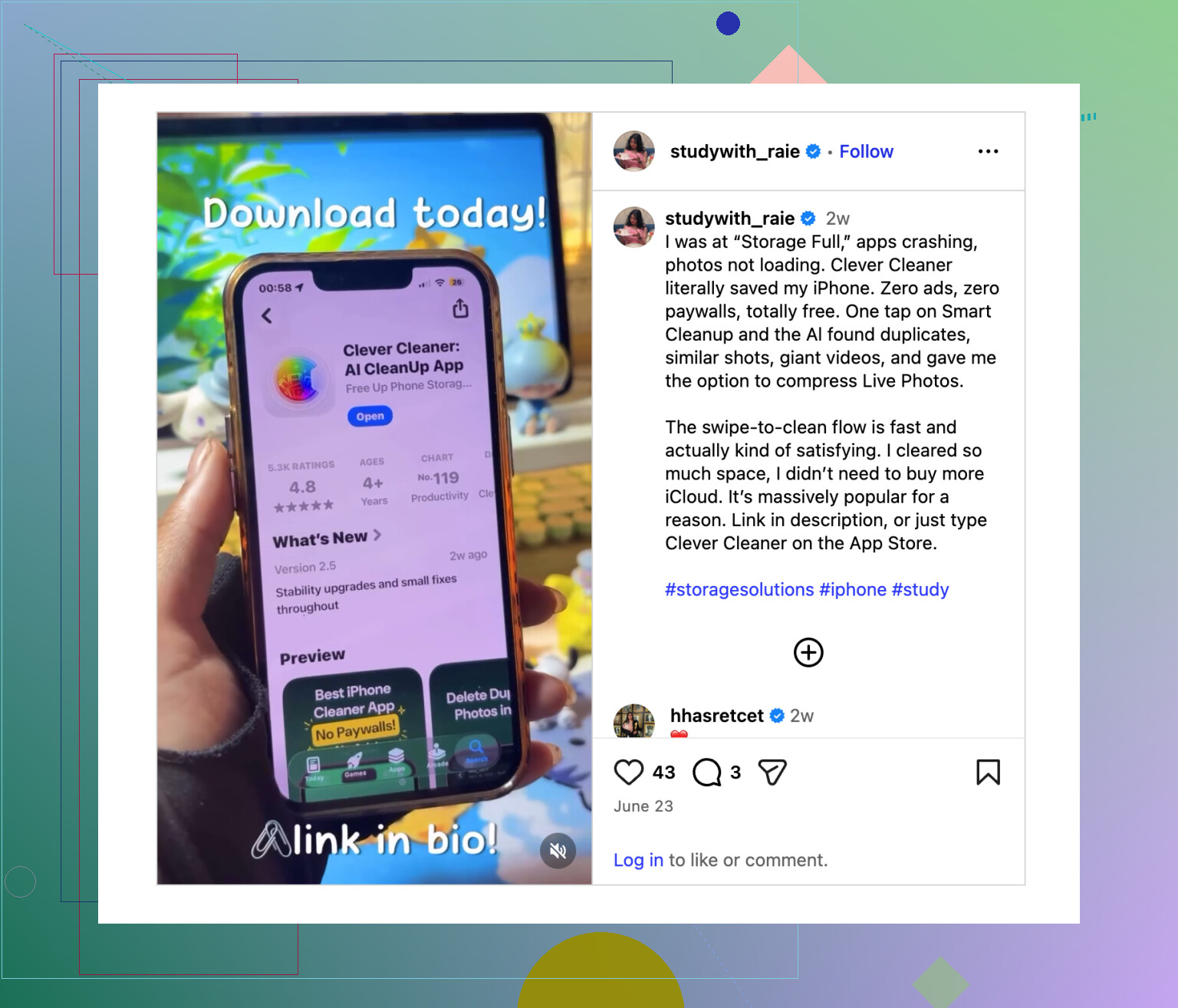
If the problem is ten versions of the same photo, doing it manually gets old fast. For that, Clever Cleaner is worth looking at. A lot of cleaner apps are annoying with ads or subscriptions, but this one is free and does a decent job with similar photos.
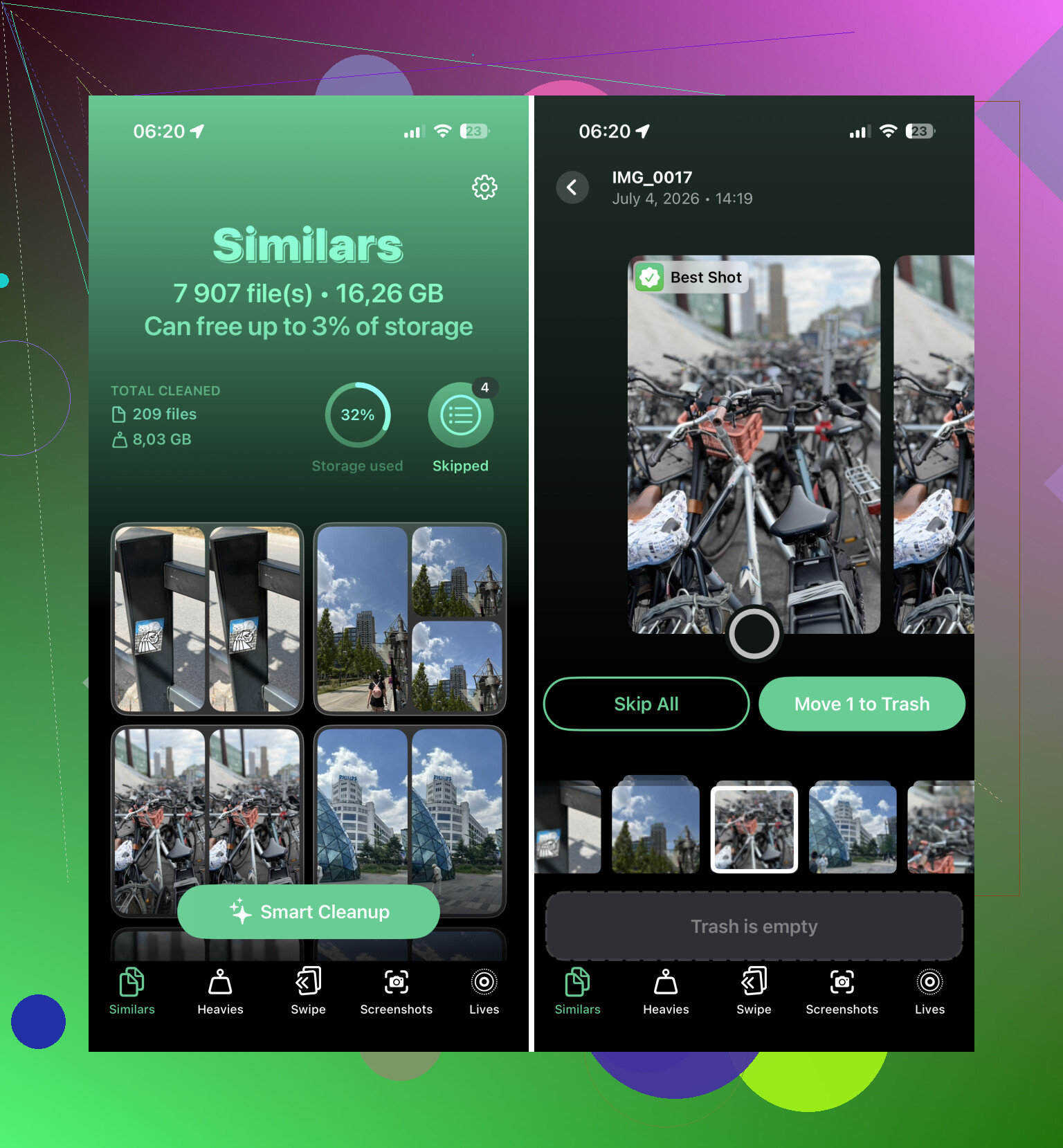
The Similars feature is the useful part. It groups photos that look almost the same, like several shots of the same people or the same sunset, then picks what it thinks is the best one. You still review everything before deleting, so you’re not just blindly trusting the app. After that, you use “Slide to Delete” to remove the extras.
Use a computer if the library is huge
If you’re deleting thousands of photos, the phone screen is probably the wrong tool. If your photos are in iCloud, go to iCloud.com on a desktop browser instead.
Using a keyboard and mouse makes bulk selection much easier. You can hold Shift, select a large range of photos, and delete them way faster than dragging around on a small screen. The deletions should sync back to your iPhone afterward.
Empty Recently Deleted or you won’t get the space back yet
One thing people miss: deleting photos doesn’t immediately free the storage. They go into Recently Deleted first, which is under Utilities near the bottom of the Collections tab.
Photos stay there for 30 days unless you remove them yourself. So if you’re trying to free up space right now, open Recently Deleted, tap “Select,” then “Delete All.” That’s the step that actually clears the storage.
A good order is: screenshots first, then screen recordings and bursts, then let Clever Cleaner deal with duplicates and similar shots. That usually gets most of the mess under control pretty quickly without risking your whole photo library.
Deleting a few bad shots is a Photos app job; freeing serious space is usually an iCloud/settings job too. Use Select, then drag across rows to grab a bunch fast, but be careful if iCloud Photos is on because deleting from the phone deletes them from iCloud and your other Apple devices as well. If you just need room, check Settings > Photos > Optimize iPhone Storage before you start nuking everything.
You don’t need a cleaner app just to bulk-delete regular photos. In Photos, tap Select, drag across a row of thumbnails, then keep your finger near the bottom edge of the screen and it will keep scrolling while selecting more. That’s the fastest built-in trick for grabbing a big range. If storage is the real problem, delete videos first from Albums/Media Types because a few long videos usually free more space than hundreds of photos. Then go to Recently Deleted and clear it, or the space won’t come back right away.
You can’t hit one magic “Select All” for your entire main Library on iPhone, so don’t waste time hunting for that button. Mike’s drag trick is the fastest built-in method, but if you know what you’re removing, search by date/place first, then tap Select in that smaller result set and delete from there.