My hard drive suddenly stopped opening, and I’m worried I may lose important photos, work files, and personal documents. I’ve never done hard drive data recovery before, so I need beginner-friendly advice on safe recovery steps, good software, or whether I should stop using the drive and get professional help.
Sorry you’re stuck with this. I’ve been there, and the first thing I learned was to stop touching the drive.
If you keep using it, you raise the odds of overwriting files you still might get back. So don’t copy stuff onto it. Don’t install tools there. Don’t save recovered files back onto it either. Even normal use chips away at your chances.
Before doing recovery, check whether the drive is failing in a physical way. I’d pay attention to stuff like clicking, grinding, beeping, random disconnects, or a drive which shows up one minute and vanishes the next. If I heard or saw any of that, I’d stop the scans and unplug it. Pushing a damaged drive harder is how people turn a bad situation into a dead one. A recovery lab is the safer route at that point.
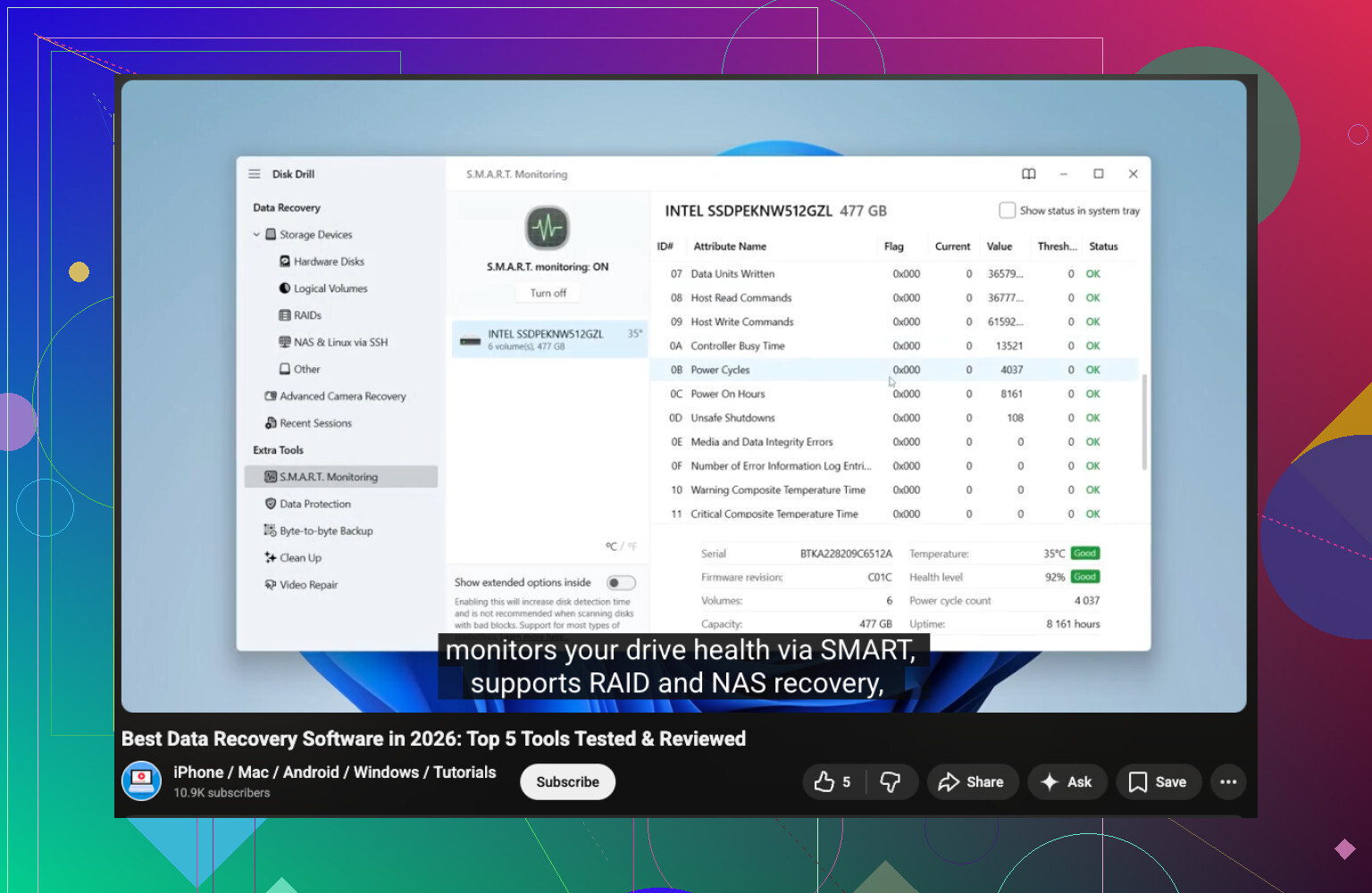
If the drive still shows up normally, check its S.M.A.R.T. health first. I used tools like CrystalDiskInfo or the S.M.A.R.T. monitor in Disk Drill. If you see warnings or bad health flags, grab the important files first and keep the drive’s workload low.
What I’d do for the recovery itself:
- Install Disk Drill on a different drive.
- Hook up the problem drive.
- Open the app and pick the affected drive.
- Hit Search for lost data.
- Let the scan run to the end. Stopping early cost me results once.
- Use search or filters to narrow the list.
- Preview a few files, so you know you’re not pulling back junk.
- Recover the important stuff first.
- Save everything to another HDD, SSD, or USB drive. Do not write it back to the same disk.
One thing people skip, and I did too the first time, is checking backups before hammering the drive with scans. Look in Recycle Bin. Check File History, OneDrive, Time Machine, or an old external backup if you have one. Sometimes the fast answer is sitting there and you save yourself hours.
If Disk Drill misses files you need, I’d try Windows File Recovery, Data Rescue, or AnyRecover next. If the drive is making noise or barely staying connected, I wouldn’t keep doing DIY stuff. That’s where a pro service makes more sense, even if it hurts a bit.
Short version, stop using the drive, check health first, recover to a different disk, and don’t ignore backups. That order matters.
Start with the simple checks first.
If the drive is external, swap the USB cable. Try a different port. Try a different PC. A bad cable or weak USB port kills access more often than people think. I’ve seen people panic over a dead drive, and it was the enclosure.
One spot where I differ a bit from @mikeappsreviewer, I would test the enclosure early if it’s an external HDD. Sometimes the disk inside is fine, but the USB bridge board failed. If you have a desktop or a SATA-to-USB adapter, connecting the bare drive directly is often the fastest way to tell. Do this carefully.
If the drive shows up in Disk Management but has no letter, assign one. If it says RAW, stop writing to it and move to recovery.
For beginners, I’d avoid command line stuff first. Too easy to make a bad click or typo. Use a simple recovery app with preview. Disk Drill is a solid pick for hard drive data recovery for beginners because the layout is clean and you can preview photos, docs, and videos before saving them.
Big tip, recover by file type first. Photos like JPG, PNG, and RAW. Docs like DOCX, PDF, XLSX. Grab the irreplaceable stuff before giant video folders. Saves time if the drive gets worse mid-scan.
Also check file system issues. On Windows, do not run CHKDSK on a shaky drive right away. People love to suggest it. I don’t. CHKDSK fixes structure, but it also changes data on disk, which is not what you want before recovery. That part gets skipped too often.
If the files matter a lot, make a byte-for-byte image of the drive first, then scan the image instead of the original. It takes longer, but it’s safer. Search for a beginner video like watch this hard drive recovery walkthrough.
If you’re comparing tools, look for easy hard drive recovery software with preview, SMART info, and image backup support. That matters more than flashy ads tbh.
First thing I’d add to what @mikeappsreviewer and @kakeru said: figure out what “stopped opening” actually means, because that changes the move a lot.
- If the drive powers on and appears in File Explorer but says “access denied,” “you need to format the disk,” or opens super slow, that’s often logical corruption.
- If it does not appear at all, or freezes the whole PC when connected, that’s more serious.
- If it’s an external drive and the light comes on but nothing mounts, I honestly check the enclosure before I assume the actual disk is toast. I know @kakeru touched on that, and I’d push that even harder for beginners because enclosures fail allll the time.
One thing I slightly disagree on: I would not jump between a bunch of recovery apps right away. That can mean multiple full scans on a weak drive, which is rough on it. Pick one decent tool, do one careful pass, recover the must-have files, then reassess. For a beginner, Disk Drill is probly one of the easier options because the preview is simple and the interface is not a total mess.
Also, if the drive is readable even a little, copy the most critical folders manually before doing anything fancy. Family photos, tax docs, work stuff. People sometimes overcomplicate recovery when some files are still accessible.
Two more beginner traps:
- Don’t “initialize” the drive if Windows asks.
- Don’t run repair tools first just because YouTube says so.
If you want a simple comparison from regular users, this Disk Drill review for hard drive recovery beginners is worth a read.
If the drive clicks, disappears, or gets crazy hot, stop DIY. That’s the point where a lab is cheaper than making it worse.
One extra beginner move nobody mentioned enough: check whether the drive is encrypted or permission-locked before assuming it’s “dead.” BitLocker, old Mac-formatted drives, or ownership/permission issues can make a healthy drive look broken. If it suddenly says access denied after a Windows reinstall or moving it to another PC, that’s not classic data loss yet.
I also wouldn’t open the bare drive unless you’re sure it’s just an external enclosure issue. Good advice from @kakeru and @mike34 on testing that angle, but beginners sometimes hear “open the drive” and literally crack the hard disk. Only the enclosure is safe to swap, not the sealed HDD itself.
My order would be:
-
Check if another OS can read it
Try the drive on a second computer, ideally a different OS if possible. Windows might choke on something that Linux can still mount read-only. -
Look at capacity
If the drive shows the correct size in Disk Management or BIOS, that’s actually a useful sign. If capacity is wildly wrong, that points more toward hardware trouble. -
Mount read-only if possible
If a system can see it, avoid anything that writes metadata automatically. -
Recover the folder structure first
I slightly disagree with recovering only by file type at the start. For work documents and organized photo folders, keeping original names and folders can save a massive sorting headache later.
For software, Disk Drill is beginner-friendly.
Pros:
- clean interface
- preview works well
- can scan many file systems
- includes SMART and backup/image features
Cons:
- deeper scans can take a long time
- free recovery limits depend on platform/version
- file-type recovery can return messy filenames in some cases
If Disk Drill doesn’t see what you need, stop and reassess before stacking more scans. That’s where I differ a bit from @mikeappsreviewer. More attempts are not always smarter on a shaky drive.
Bottom line: confirm whether it’s permissions, file system, enclosure, or actual disk failure first. That diagnosis saves beginners from making the wrong “fix.”