My iPhone photo library has gotten out of control after years of duplicates, screenshots, random downloads, and burst shots. iCloud storage is almost full, and scrolling through everything feels impossible. I’m looking for a realistic iPhone photo cleanup workflow, app recommendations, or tips for sorting, deleting, and backing up thousands of photos without getting overwhelmed.
I had this same issue last year and kept ignoring it because cleaning up photos felt like a whole-day project. By the time I actually dealt with it, my library was already past 20,000 photos and videos. It ended up eating most of a Saturday.
What helped was realizing there isn’t one perfect way to clean up an iPhone photo library. The built-in Photos app is fine for obvious junk, but once you’re dealing with duplicates, near-duplicates, old screenshots, Live Photos, and random huge videos, doing everything manually gets old fast.
I’d start with the easy stuff in Photos first. Don’t scroll through your whole camera roll from top to bottom. Go into albums instead. Screenshots, screen recordings, videos, selfies, that kind of thing. Use the swipe-to-select gesture so you’re not tapping one item at a time, and if an album gives you a Select All option, use it when you’re sure the stuff can go.
After that, I’d let an app do the boring sorting. I used Clever Cleaner for this part.
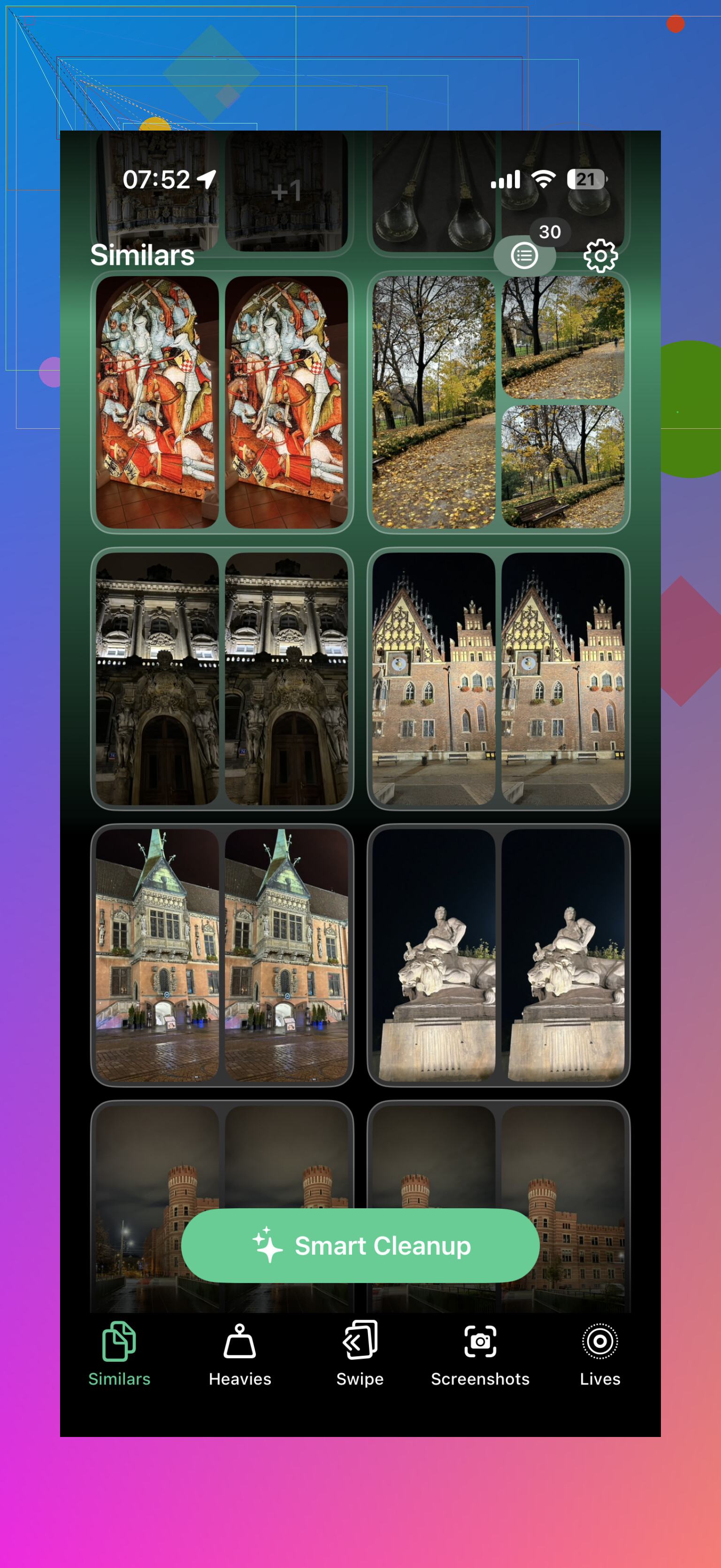
The useful thing was that it grouped the mess into categories, so I wasn’t staring at thousands of photos one by one. I could review similar shots together, delete duplicates, clear out old screenshots, remove the largest videos, and convert Live Photos to still photos when I didn’t care about keeping the motion. That saved way more time than trying to compare everything myself.
Also, don’t forget Recently Deleted. A lot of people delete a bunch of photos and then wonder why the storage didn’t come back right away. Open Recently Deleted, check that nothing important is in there, then empty it. Otherwise those files can keep taking up space for a while.
One thing to be careful about if this is because your iCloud storage is full: iCloud Photos is one synced library. If you delete photos from your iPhone, they’re deleted from iCloud too, and from other Apple devices using the same Apple Account. That may be what you want, but it’s worth remembering before you wipe out thousands of pictures.
The better long-term fix is to stop letting it pile up again. After doing the big cleanup, I started spending about ten minutes a week deleting new screenshots, blurry shots, and duplicates. That’s way easier than saving it all for one giant cleanup later.
If your library is small, the Photos app is probably enough. But once you’re in the tens of thousands of items, using something like Clever Cleaner for duplicates, similar photos, screenshots, Live Photos, and large videos makes the job a lot less painful.
The annoying catch is that “similar photo” cleanup can delete the better shot if you rush through the suggestions. I’d do a quick backup/export of anything important first, then use Clever Cleaner or Photos albums for bulk junk, but treat portraits, trips, and old family photos as manual-review only.
Turning on “Optimize iPhone Storage” will not fix a full iCloud Photos library. It only saves space on the phone itself. If iCloud is full, you have to delete items from the library, move them somewhere else, or pay for more iCloud storage.
For thousands of photos, I would not try to solve it by scrolling the Recents view. That is the worst possible view for this job. Use filters and make decisions by category, because the goal is to remove obvious junk first, not lovingly judge every picture from 2017.
A realistic order would be:
-
Check videos first.
Videos are usually the biggest storage hogs. A few old 4K clips, screen recordings, concert videos, or accidental pocket videos can take more space than hundreds of photos. If you only have 20 minutes, start there. -
Then hit screenshots and screen recordings.
Most people can delete a huge percentage of these without much emotional risk. Receipts, memes, confirmation pages, directions, app errors, chats you no longer need, random QR codes, all that stuff piles up fast. -
Then deal with duplicates and near-duplicates.
This is where I agree with @nachtdromer: don’t blindly accept every “best photo” suggestion. Apps are useful for grouping similar shots, but they do not know that the slightly blurrier one is the one where your kid is smiling or your dog is looking at the camera. Use the app to gather the candidates, then make the decision yourself. -
Leave sentimental albums for last.
Family trips, old pets, weddings, kids, holidays, anything you would be upset about losing should not be part of the first big purge. By the time you get to those, you may have already freed enough space from junk that you do not need to be aggressive.
Clever Cleaner or similar apps can be useful, but I’d treat them like a sorting assistant, not a shredder. Let the app find duplicate-looking batches, huge videos, Live Photos, screenshots, and blurry stuff. Then review in chunks. If you try to clean the whole library in one sitting, you’ll get tired and start making sloppy choices.
The missing step a lot of people skip is doing part of this on a bigger screen if you can. If you have a Mac, Photos on macOS is much less miserable for this kind of cleanup than doing everything with your thumb. You can use search terms, albums, dates, and a keyboard. Even iCloud Photos in a browser can be easier for quick scanning than the phone. The phone is fine for deleting obvious screenshots while watching TV, but it is not great for judging 40 nearly identical vacation photos.
Before deleting thousands of items, make a basic archive somewhere outside iCloud Photos. That could be an external drive, Google Photos, OneDrive, Dropbox, a Mac export, whatever you trust. The important part is that it is not just another view of the same synced iCloud library. If the backup is synced to the same deletes, it is not really a backup.
A simple rule that keeps cleanup from turning into a giant emotional project: delete by confidence level.
Delete immediately:
blurry photos, accidental screenshots, screen recordings you will never watch, duplicate downloads, pictures of parking spots you no longer need, old shopping screenshots, temporary documents
Review quickly:
bursts, selfies, food photos, multiple shots of the same view, Live Photos, memes, random saved images
Slow down:
people, pets, old trips, family events, anything tied to a specific memory
After deleting, empty Recently Deleted only when you’re sure. That part matters because it is the point where “oops, restore that” stops being easy. If you are trying to free iCloud space urgently, yes, you eventually need to empty it, but I would not do that five seconds after a massive purge unless you have a separate backup.
For preventing the mess from coming back, the best trick is boring: delete screenshots the same day you take them. Screenshots are like laundry. If you wait six months, they become a whole separate chore. I’d rather spend two minutes deleting junk from this week than spend another weekend sorting through five years of “temporary” images.
Do not assume the copy sitting on your phone is the full-quality original if iCloud Photos is using optimized storage. That setting can leave you with thumbnails or reduced local copies, so if you plug the phone into a computer and drag things off, you may not be archiving what you think you are. Before doing a big “delete thousands” session, make sure your backup/export is actually pulling originals from iCloud, a Mac Photos library set to download originals, or another proper export method.
I agree with the others that categories beat scrolling, but I’d make the first pass a storage pass, not a photo-quality pass. Sort by what frees space fastest: long videos, screen recordings, Live Photos you don’t care about, and huge downloaded images. You can spend an hour deleting 900 tiny screenshots and barely move the iCloud meter, then delete three ridiculous videos and suddenly make room.
Clever Cleaner or Apple’s duplicate tools can help, but I would keep the job boring and mechanical: 15 minutes a night, one category only, stop before you get annoyed. Photo cleanup gets risky when you’re tired and trying to “finish.” And don’t empty Recently Deleted the same day unless you have a real backup and you’re sure. That folder is annoying when you need space, but it’s also the safety net when you realize you deleted the wrong version of something.