My SD card suddenly stopped working, and now my phone, camera, and computer all say it needs to be formatted before I can use it. I have important photos and files on it, so I’m trying to figure out how to repair a corrupted SD card or recover the data without formatting it first. What should I try next?
I found out the ugly way that an SD card can seem normal, then fail out of nowhere. I’ve had this happen after a camera froze, after a file copy got interrupted, after a battery died mid-recording, and once from pulling the card too fast. The worst part is the error shows up before you move anything off the card.
What I noticed, though, is corruption does not always mean your photos, videos, or docs are gone. A lot of the time the mess is in the file system, while the data is still sitting there.
First thing, do not accept the repair prompt right away. If Windows, Android, or your camera asks to format the card, stop there. I did this once in a hurry and regretted it. Formatting belongs later, not at the start, if your files still matter.
Get the data off first.
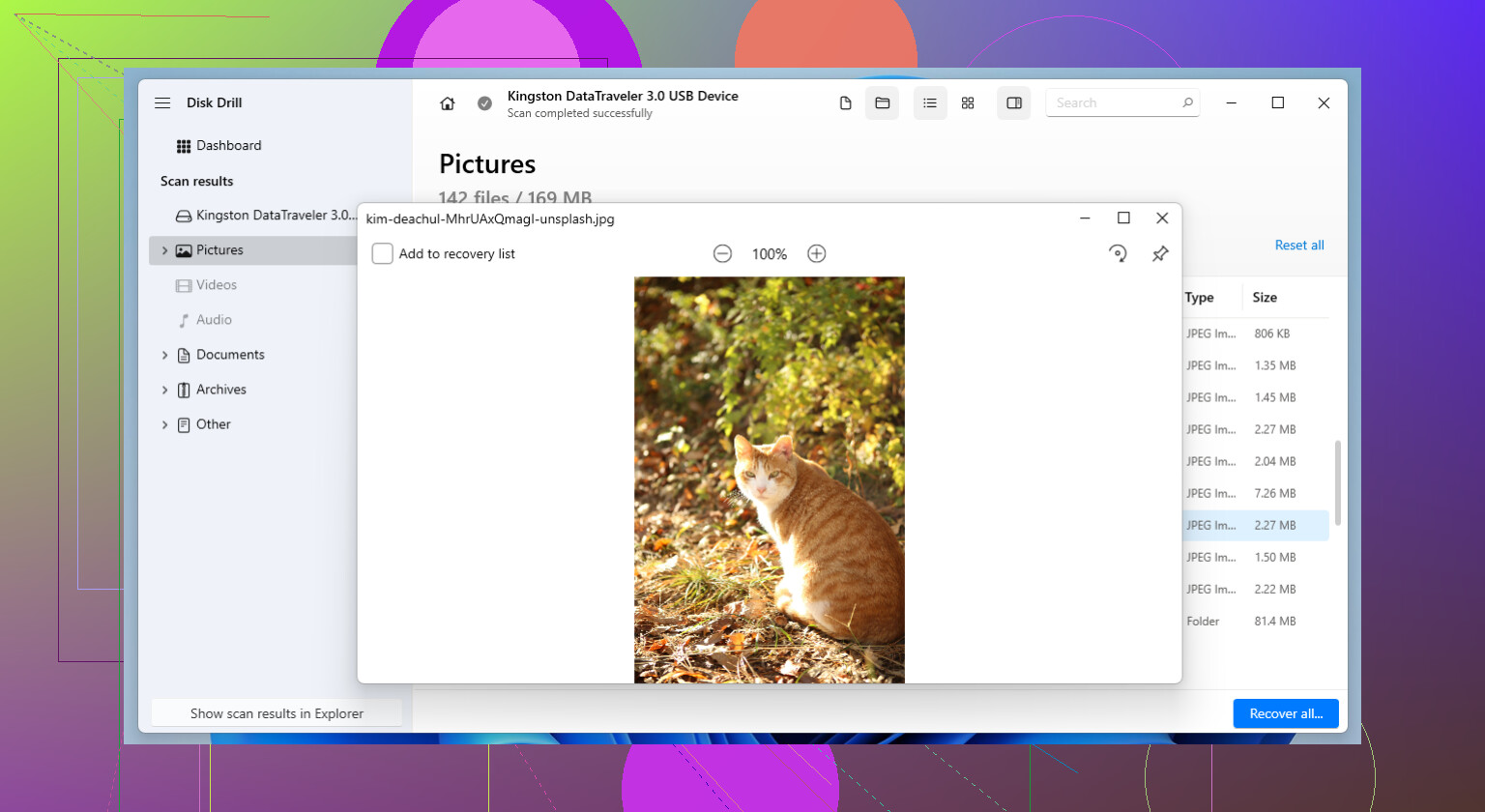
I usually begin with Disk Drill. It worked better for me than most tools when the card looked half-dead, and one part I like is the byte-for-byte backup option. I make an image first, then scan the image instead of hammering the original card over and over. After I recover the stuff I care about and confirm the files open fine from another drive, then I mess with repairing the card.
Method 1: Run CHKDSK on the Card
This is the first repair step I try on Windows. CHKDSK targets file system damage, not worn-out hardware, so it fits cases where the card suddenly goes unreadable, throws errors, or asks for formatting.
Here’s the usual process:
1. Put the SD card into your PC.
2. Open File Explorer and check the drive letter.
3. Search for Command Prompt in Start.
4. Right-click it and open it as administrator.
5. Type chkdsk X: /r, then swap X for the SD card letter.
6. Press Enter and let it finish.
Small cards go faster. Bigger ones can take a while. If the issue comes from damaged file system records, I’ve seen CHKDSK bring the card back without anything else.
Method 2: Use TestDisk to Restore the Partition
If CHKDSK does nothing, or the card shows up as unallocated space or with missing capacity, I move to TestDisk.
This tool goes after partition damage instead of individual files. Sometimes the files are still on the card, but the partition info is broken, so your system no longer knows how to read it.
What I do:
1. Download and open TestDisk.
2. Pick the broken SD card from the drive list.
3. Accept the partition table type it suggests.
4. Choose Analyze.
5. Run Quick Search.
6. Check the partitions it finds.
7. If the missing one looks right, choose Write.
8. Restart if the tool asks for it.
The program looks old. No point pretending otherwise. Still, I’ve had it recover cards I thought were finished. Ugly interface, useful tool.
Method 3: Format the SD Card
If neither CHKDSK nor TestDisk gets the card stable again, formatting is the last repair step I bother with.
By then, your files should already be copied somewhere safe. At this stage, formatting is not about recovery. It is about rebuilding the file system so the card has one more shot at normal use.
Steps:
1. Open File Explorer.
2. Right-click the SD card and pick Format.
3. Select exFAT, unless your device needs something else.
4. Leave allocation unit size on Default.
5. Click Start.
6. Wait for the format to finish.
If the format completes and the card behaves afterward, the problem was likely file system damage. If corruption comes back after formatting, I stop wasting time. In my experience, repeated corruption usually points to failing flash memory, not some small software issue.
Once a card starts doing this more than once, I replace it. You might squeeze a bit more life out of it, but I woudln’t trust it with anything important.
1 Like
If every device wants to format the SD card, stop trying it in diff devices. Each mount attempt writes logs or retry data. On a weak card, that makes things worse.
I agree with @mikeappsreviewer on one big point, recover first. I disagree a bit on repair order for cards with important photos. I would skip repair tools at first and test the card’s health before doing anything invasive.
What I’d do:
-
Use a better card reader.
A lot of “format this disk” errors come from cheap readers, dirty contacts, or weak USB ports. Try a known good USB reader on a desktop rear port. Clean the gold contacts with a dry microfiber cloth. No water, no eraser. -
Check if the card shows correct size in Disk Management.
If Windows shows the full capacity, like 64GB or 128GB, your odds are better. If it shows 0 bytes, no media, or a crazy size, that points more to hardware failure. -
Make a full image first.
Disk Drill is fine for this, and imaging is the part I care about most. Read see why Disk Drill is useful for SD card recovery. If the card drops offline during scans, work from the image, not the original. That saves wear and time. -
Check SMART-like info if your reader exposes it.
Most SD cards do not report much, but some USB readers show I/O errors in system logs. On Windows, Event Viewer often shows disk or ntfs errors. Repeated I/O errors mean the card is dying, not “corrupt.” -
On Linux or Mac, try a read-only mount.
That matters. A read-only attempt avoids file system changes. If it mounts, copy the DCIM folder first, then docs. Photos first, repair later. -
If files matter more than the card, retire the card after recovery.
SD cards fail ugly. If this happened once without an obvious cause, I woudln’t trust it again for trips, weddings, dashcams, or anything important.
One more thing people miss. Fake capacity cards are common. A “128GB” card with real 16GB storage often works for months, then starts asking to format after data wraps around and overwrites itself. Tools like H2testw help check this after recovery.
If the card is not detected anywhere, gets hot, or disconnects every few seconds, stop. That’s not a repair job. That’s data recovery mode.
If every device says “format it,” I’d treat the card as unstable hardware first, not just a messy file system. That’s where I slightly differ from @mikeappsreviewer and @sognonotturno. Repair attempts can wait a bit. First figure out whether the card can still be read consistently.
What I’d do that hasn’t already been covered:
- Try copying with something fault-tolerant, not regular drag-and-drop. On Windows, TeraCopy can sometimes pull readable files while skipping bad sectors. On Linux, ddrescue is even better if the card keeps choking.
- Watch behavior, not just errors. If transfer speed keeps dropping to 0, card vanishes/reappears, or the reader disconnects, that’s classic failing flash.
- Check the write-protect tab if it’s a full-size SD adapter. Sounds dumb, but I’ve seen bad adapters cause weird format prompts.
- If photos are the priority, try recovery by file signatures instead of filesystem repair. Tools like PhotoRec or Disk Drill can find JPG/MP4/RAW files even when the directory structure is toast.
Also, I would not keep testing it in the phone/camera. Those devices are terrible for diagnosis and sometimes they’re way too eager to “fix” stuff.
If you want something visual, this video guide to fix a corrupted SD card and recover lost data is pretty easy to follow.
Short version:
- Stop using the card.
- Use a solid reader.
- Image or recover from it with Disk Drill, PhotoRec, or ddrescue.
- Only format after your files are safe.
- If it works again, honestly… still replace it. These things love to fail twice.