My external HDD was working fine, then suddenly wouldn’t mount on my Mac and now shows a com.apple.diskmanagement.disenter error. I need help figuring out what caused it and how to safely access my files again without making the drive worse.
I ran into this with an external SSD a while back. Disk Utility saw the drive, but it stayed grayed out and threw the com.apple.DiskManagement.disenter error. From what I saw, macOS knew the hardware was there, but something blocked the file system from mounting.
What caused it on my side was one of the usual messes. The drive had been pulled without ejecting, the file system had some damage, or macOS had a background disk check stuck and holding the volume hostage.
This is the order I went through, and it saved me some time.
Start with the stuck repair job
If the drive got unplugged the wrong way, macOS often starts fsck in the background. It is the built in file system checker. Fine in theory. Bad when it hangs, because the disk sits there unmounted and you wait for nothing.
Open Terminal and run:
sudo pkill -f fsck
Hit Enter, type your password, and don’t worry when you see no characters while typing. macOS does that.
If the disk pops up after this, stop messing with it and copy your files off right away. I mean it. If it mounts read only, even more reason to move fast.
Run First Aid on the whole stack
Disk Utility hides stuff by default, which is annoying. Open it, click View, then pick Show All Devices.
After that, don’t start with the volume. Go top down.
- Run First Aid on the physical disk.
- Then run it on the container, if one shows up.
- Then run it on the volume.
I had better luck doing it in this order because the visible volume wasn’t always the real source of the error. Sometimes the mess sat one level higher. I also reran First Aid more than once. It feels dumb, but I have seen repeat passes clear header or directory issues when the first run did not finish cleanly.
Try a clean user session
One time the disk wasn’t the main problem. My login session was. I logged out, signed back in, and the drive mounted. On another Mac, I tested with a second user account and got the same kind of result.
So, log out of your account and back in. If you have another user on the same Mac, test there too. If the drive mounts in the other account, your regular profile is likely stuck on permissions, preferences, or some session glitch.
Check Time Machine
This one caught me off guard. If the drive used to be a Time Machine target, macOS sometimes keeps poking at it in the background.
Go into System Settings, turn off automatic Time Machine backups for the moment, then try mounting the disk again. I would not skip this step if the drive has any backup history.
When it still refuses to mount
At some point, repairs stop being smart and start being risky. If the disk keeps erroring out, I would switch from ‘fix it’ mode to ‘get the data out’ mode.
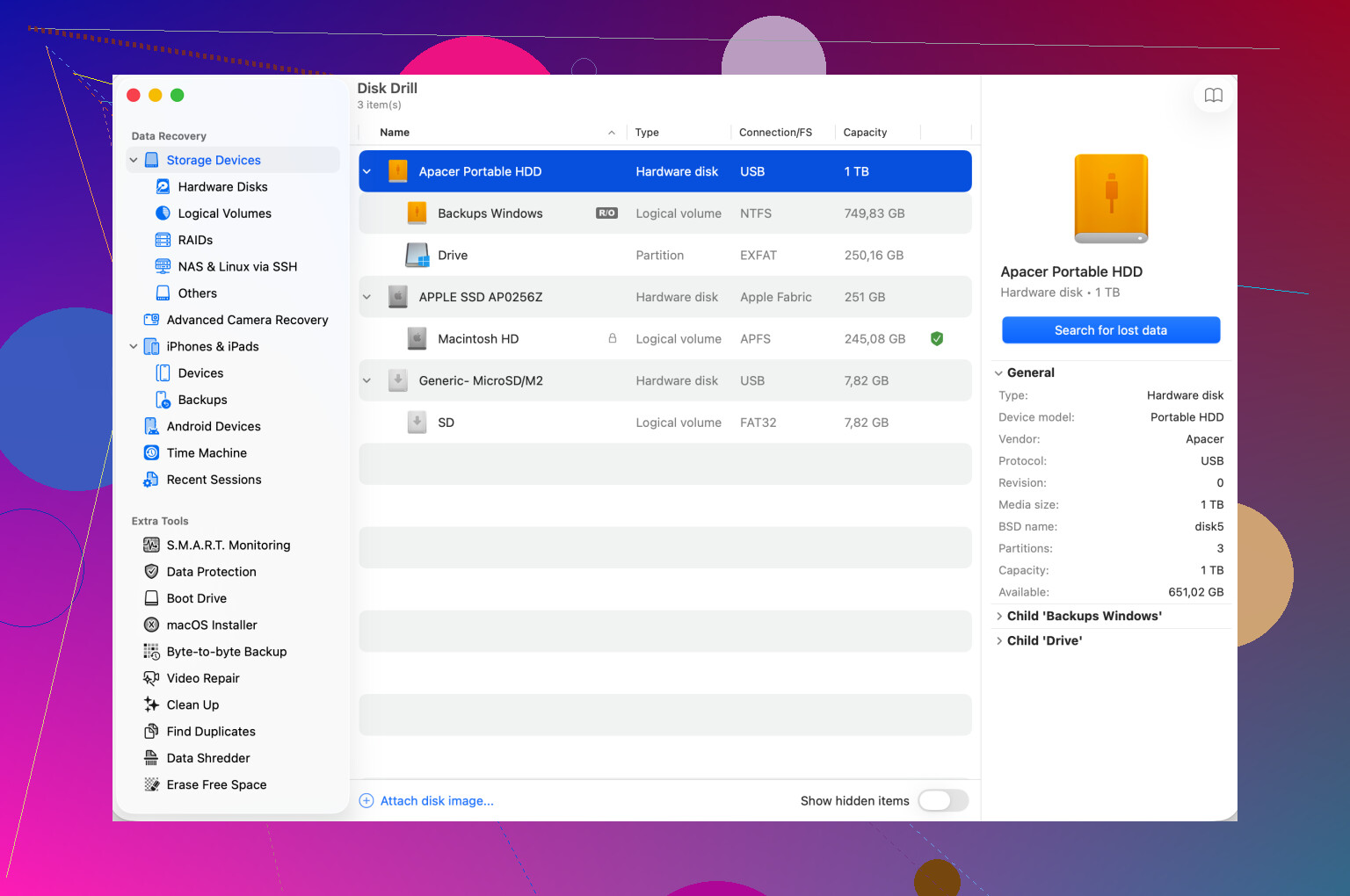
I used tools like Disk Drill for this kind of case. The point is not to wait for macOS to mount the file system normally. It scans lower down and sometimes pulls files or rebuilds a usable view of folders even when Finder gives you nothing.
Important part, recover to a different healthy drive. Don’t write recovered files back onto the same failing disk. That’s how people make a bad day worse. Ask me how I know, lol.
Erase it after your files are safe
Once your important stuff is copied somewhere else, wipe the problem drive and set it up again in Disk Utility.
Pick the physical disk, click Erase, then choose the format based on where you use it:
- APFS for modern Mac only use.
- Mac OS Extended Journaled for older Mac setups.
- exFAT if the drive needs to move between macOS and Windows.
If the drive lives mostly on your Mac, formatting it on the Mac has worked better for me.
The short version
Don’t panic. Don’t keep slamming First Aid over and over for an hour while the drive gets worse. If it mounts, copy first. If it doesn’t, move toward recovery. After your data is safe, erase and reformat the disk.
And yeah, always eject external drives before unplugging them. I got lazy once. The drive made me pay for it.
If the drive shows up in Disk Utility but throws com.apple.diskmanagement.disenter, I’d look at the connection layer first, not fsck first like @mikeappsreviewer did.
A few causes I’ve seen:
- Bad USB cable or weak USB hub power.
- SATA bridge failure inside the external enclosure.
- File system mismatch or damaged partition map.
- macOS blocking mount because the disk reports bad sectors.
Do this in order.
-
Plug it direct into the Mac.
No hub. No dock. No adapter chain if you can avoid it. -
Swap the cable.
This fixes more “dead drives” than people admit. -
Test another port, then another Mac.
If a second Mac sees the same disenter error, the issue is on the drive side. -
Open Terminal and run:
diskutil list
See if the disk and volume identifiers appear. Then run:
diskutil info /dev/diskX
Replace X with your disk number. Check for:
SMART status, if exposed.
File system personality.
Read-only state.
Partition map type.
- Try a manual mount:
diskutil mountDisk /dev/diskX
or
diskutil mount /dev/diskXsY
If it fails, macOS often prints a more useful error than Disk Utility.
- Check system logs:
log show --last 10m | grep -i diskmanagement
This sometimes points to I/O errors, media failure, or partition issues.
If the enclosure is the problem, pull the HDD out and connect it with another SATA to USB adapter or enclosure. I’ve had the enclosure board fail while the disk itself was fine. Annoying, but common.
If your main goal is files first, stop trying random repair writes after a few attempts. Scan the disk with Disk Drill and recover to a different drive. That’s the safer path when the mount error keeps coming back. If you want more buyer feedback first, read Disk Drill user reviews and ratings.
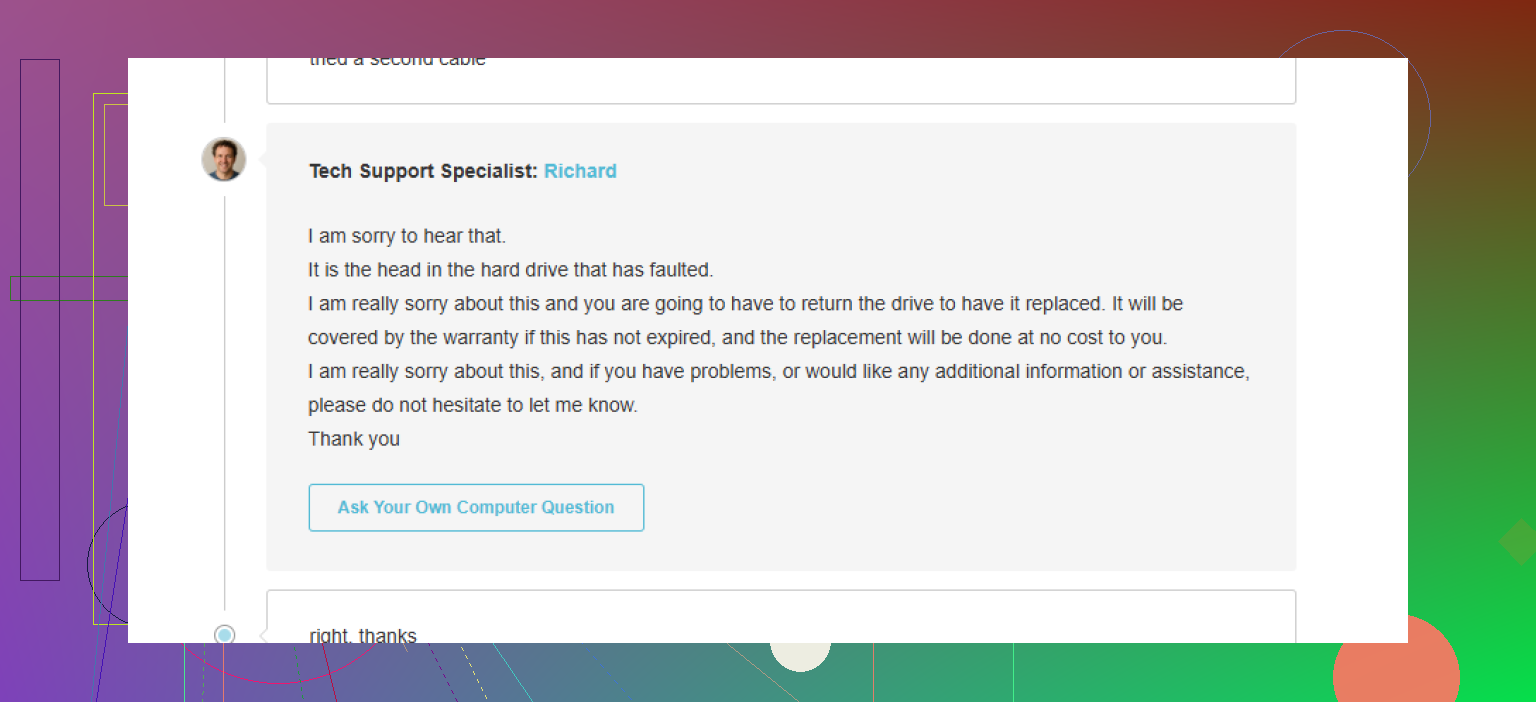
One more thing people miss. If the drive spins up, clicks, spins down, or takes ages to appear, this smells more like hardware than macOS. At thta point, every extra mount attempt is a risk.
I’d add one thing neither @mikeappsreviewer nor @andarilhonoturno really leaned on enough: check whether the drive is mounting but being hidden by Finder, not truly failing. Sounds dumb, but I’ve seen external HDDs show the disenter error, then still appear under /Volumes or in diskutil as mounted read-only.
Try this in Terminal:
ls /Volumes
mount
diskutil apfs list
If you see the volume name there, Finder may be the liar here, not the disk.
Also, don’t rush into erase/reformat unless the data is already safe. People do that way too fast and then act shocked when the files are gone. If the disk has important stuff, make a byte-level clone first if it still reads at all:
sudo dd if=/dev/diskX of=/path/to/healthy/drive/image.dmg bs=4m
Slow? Yep. Boring? Also yep. But safer than poking a dying disk over and over.
Another angle: if this started right after a macOS update, check whether the file system is one your current OS fully supports. Older HFS+ disks, funky exFAT layouts, or third-party NTFS tools can trigger weird mount behavior. I’ve had Paragon and old NTFS drivers cause absolute chaos. Remove or disable those if installed.
If Disk Utility and manual mount both fail, and the drive makes weird noises or takes forever to identify, the issue may be physical disk hardware failure rather than just a macOS mounting glitch. At that point, stop “testing” it to death.
For file access without making things worse, Disk Drill is a solid next move. It’s one of the better Mac data recovery options for external hard drives that won’t mount, especially when Finder is useless but the device still appears at the device level.
If you want another angle on external drive failure symptoms, this is worth a skim:
external hard drive not showing up and what it usually means
Short version: verify whether it’s truly unmounted, avoid writes, clone if possible, then recover files before trying “fixes.” That order matters. A lot.
One angle missing from @andarilhonoturno, @suenodelbosque, and @mikeappsreviewer: check whether the drive is tripping macOS privacy and ownership logic, not just failing electrically or structurally.
In Terminal, inspect the raw mount refusal reason:
diskutil unmountDisk force /dev/diskX
sudo mkdir /tmp/testmount
sudo mount -t auto /dev/diskXsY /tmp/testmount
echo $?
If that throws “Operation not permitted” or ownership-style errors, also check:
sudo diskutil enableOwnership /dev/diskXsY
Another useful check is kernel-level I/O spam:
log stream --predicate 'eventMessage contains[c] 'I/O' or eventMessage contains[c] 'disk'' --info
I actually disagree a bit with the “keep trying First Aid” approach. Repeated repair attempts on a marginal HDD can waste the few good reads you have left. If SMART is bad, the drive is slow to enumerate, or Console shows I/O errors, switch priorities immediately: clone or recover first.
If it was encrypted before, test whether FileVault or APFS encryption metadata is the real blocker:
diskutil apfs list
Sometimes the container is fine, but the volume won’t auto-unlock.
For recovery, Disk Drill is reasonable if the disk is still detected. Pros: easy scan workflow, good for finding files when Finder is useless, decent preview support. Cons: not magic on mechanically failing drives, scan times can be long, and recovery quality still depends on how readable the disk is.
So my order would be: verify permissions/encryption edge cases, watch live logs, avoid repeated repairs on a clicking or slow HDD, then use Disk Drill or a clone workflow before any erase.