I imported photos from my iPhone and then chose the option to delete them after import, but the Imports album still shows those items. I’m trying to understand how the iPhone Photos Imports album works, whether it clears automatically, and if the original photos were actually removed from my device.
If you delete imported photos from an iPhone and the storage barely moves, the missing step is usually Recently Deleted. iOS does not remove the files right away. It moves them into Recently Deleted for 30 days, so the photos are still taking up space until you clear that folder.
After you delete anything, open Photos, go to Albums, then Recently Deleted, and use Delete All. That is the part that actually frees the storage.
Deleting imported photos through Windows
The Windows Photos app has a Delete items after import option, but if iCloud Photos is turned on, that checkbox is often disabled. File Explorer is usually the cleaner way to do it.
- Plug the iPhone into the PC with USB
- Open File Explorer
- Select the iPhone under Devices
- Go into Internal Storage, then DCIM
- Cut the files and paste them into a normal folder on the PC
Using cut and paste moves the files off the phone instead of just copying them. If Windows throws a device busy or unreachable error during the transfer, check this setting on the iPhone: Settings, Photos, Transfer to Mac or PC, then choose Keep Originals. That usually helps with larger transfers dropping halfway through.
If the photos come back, iCloud is probably the reason
With iCloud Photos enabled, the phone is trying to stay matched with the iCloud library. So if the photos are still sitting in iCloud, deleting them locally may not stick. They can sync right back down.
A safer cleanup flow is:
- Turn off iCloud Photos in Settings, Photos before deleting
- Delete the photos from the phone
- Empty Recently Deleted
- Make sure the copies on your computer are actually saved in a local folder and not syncing back through iCloud
- Only then decide whether to turn iCloud Photos back on
Be careful with turning iCloud Photos back on after a big deletion. If the cloud library still has those photos, the phone may merge with it and pull them back again.
The Imports album is not a transfer log
The Imports album only shows items that came onto the phone from somewhere else. It does not mean those files have been safely copied to your computer. Before deleting anything, open the files on the PC and make sure the photos and videos actually work.
Why the phone can still feel slow afterward
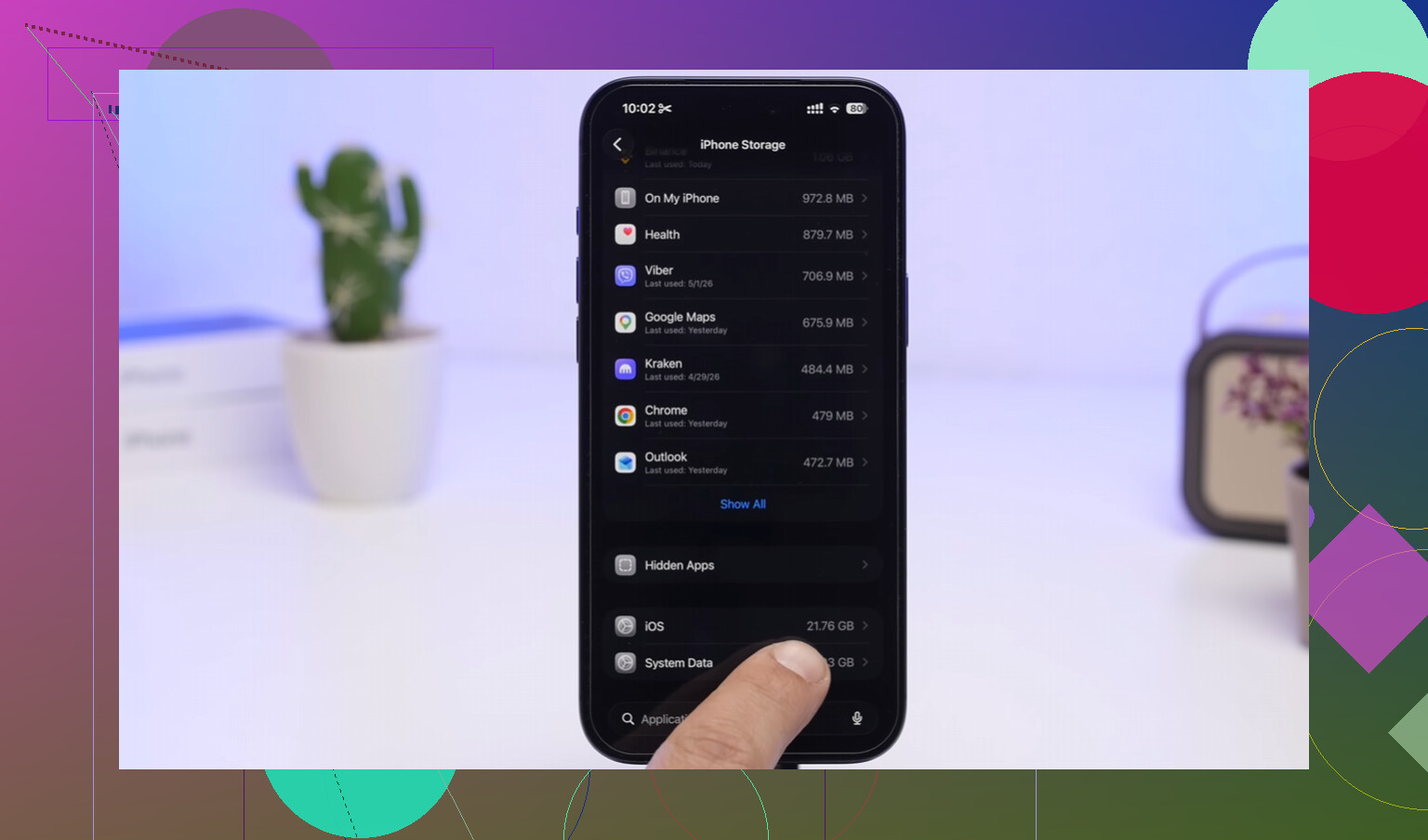
Freeing imported photos helps, but it may not be enough if the whole phone is nearly full. Once storage gets extremely low, around the 1GB range, iOS can start acting rough: camera delays, keyboard lag, random app crashes, that kind of thing.
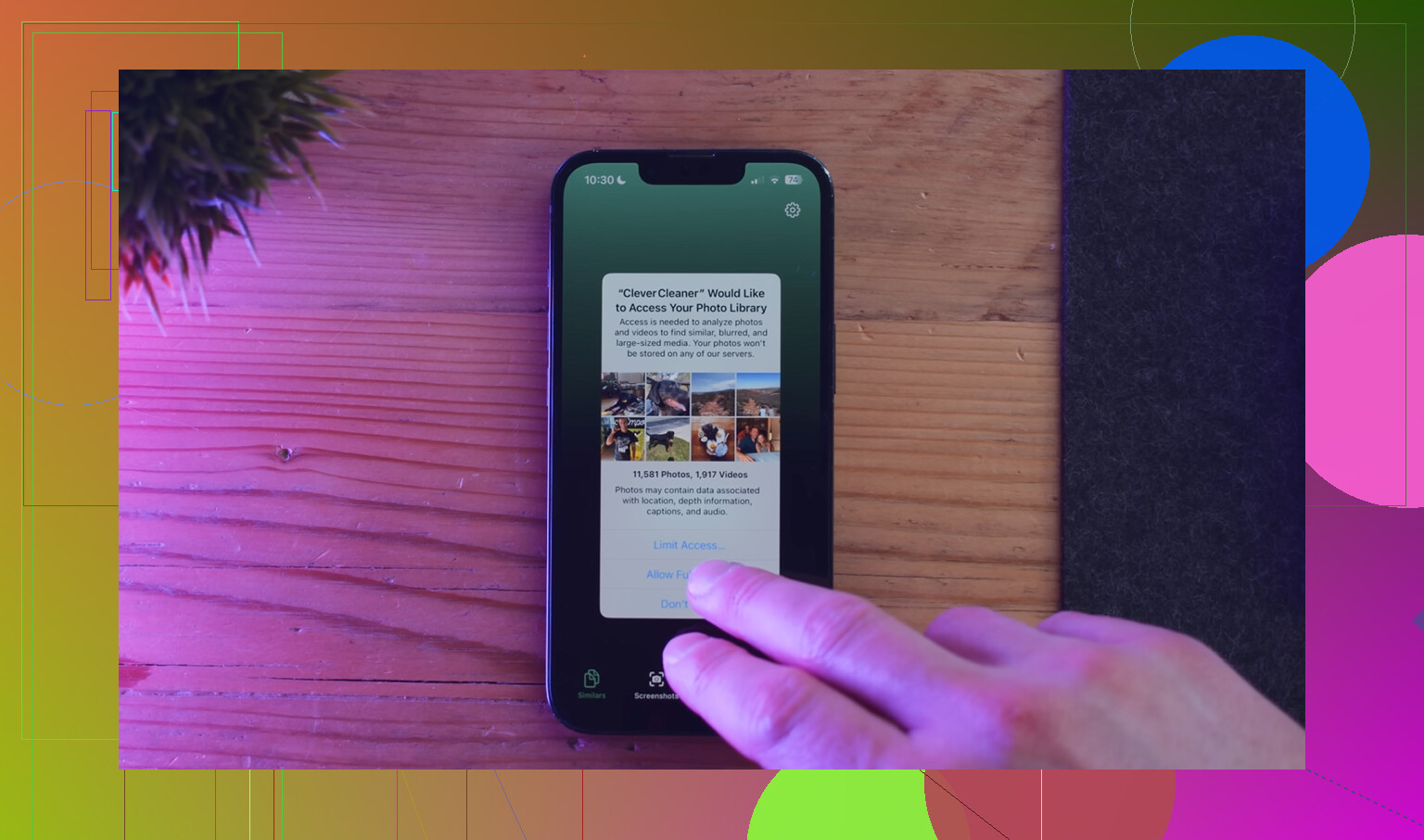
Imports are often not the biggest waste of space anyway. Burst photos, duplicate-looking shots, old screen recordings, and years of screenshots can eat more storage than expected. Clever Cleaner is useful for that because it is free, has no ads or subscription, and works on the rest of the photo library.
The Heavies tab sorts files from largest to smallest and shows the size on each item, so you are not guessing what matters. The Similars tab groups near-identical photos and marks a Best Shot from each set, which makes cleaning up ten versions of the same picture much faster. It also runs on the device, with nothing sent to an outside server.
After clearing imports by hand and then using Clever Cleaner on the rest of the library, about 15GB more was recovered than the import cleanup found on its own. The low-storage lag went away after that.
Check where you are seeing the Imports album first, because that changes the answer. If you mean the Imports album inside Photos on the Mac or PC after you imported from the iPhone, then no, it is not supposed to clear. That album is showing the copies that were just added to that Photos library. Deleting after import only removes the originals from the iPhone side, not the imported copies from the computer’s Photos library.
If you mean the Imports album on the iPhone itself, I would not treat that album as proof that the Windows or Mac import worked. It is just Photos grouping items by how they entered the phone’s library. It is not a “pending import” folder and it is not a transfer receipt. If the same items still open normally on the phone from Library or Recents, then they are still on the phone. If they only show under Recently Deleted, then @mikeappsreviewer’s point applies: they are still taking space until that is emptied.
The easy sanity check is to pick one photo, note its date/time, and search for it in the main Library view on the iPhone. If it is still there, the delete-after-import step did not actually remove it. If it is only on the computer now, then the Imports album you are looking at is probably just the destination library showing what it received, which is normal and not something that clears automatically.
If those photos are still in any normal view like Library, Recents, or search, they were not removed from the iPhone, regardless of what the Imports album says. The key thing people miss is that Photos albums on iOS are usually just views of the same library, not separate folders with their own cleanup rules. “Imports” does not age out or reset after a successful computer import. It keeps showing anything in the phone’s library that iOS considers imported until the actual library item is deleted. I’d ignore the album name and check the photo itself: open one, delete it from the main library, then check Recently Deleted. If it goes there, it was still on the phone. If your goal is storage, watch iPhone Storage after emptying Recently Deleted, not the Imports album count.
Treating Imports like a temporary inbox can make you delete the only copy you still have on the phone. That album is not a queue of “waiting to be imported” items, and it is not cleared when a PC or Mac finishes copying. It is just another Photos grouping based on how the item got into the library.
I agree with @mikeappsreviewer on the important part: test from the actual photo, not from the album name. Open one of the items in Imports, tap the info button if needed, and see whether it behaves like a normal library item. If you can edit it, share it, favorite it, or find it in Library/Recents, it still exists on the iPhone. Deleting it from the Imports album will delete the real photo from the library, not just remove it from that album.
A small caveat: after a big import/delete job, Photos can be slow to refresh its album counts and thumbnails. I would close Photos, reopen it, maybe restart the phone if the count looks stuck, then check again. But if the photo still opens normally after that, assume the delete-after-import step did not remove it. The safe order is boring but worth it: confirm the computer copy opens, confirm Live Photos/videos came across if you care about those, then delete from the phone and empty Recently Deleted if you actually need the space.