I lost my TV remote and need help figuring out how to use my phone as a remote instead. I’m trying to connect it to my smart TV, but I’m not sure which app works, whether I need Wi-Fi or Bluetooth, or how to set it up. Looking for simple steps that work on Android or iPhone.
I stopped using the stock remote a while back. My phone took over, and I never switched back. For typing, app search, and quick volume changes, it felt faster on day one. After a week, the old remote started looking like junk in a couch cushion.
Here’s the setup, split by phone.
iPhone
On iPhone, I had a smooth time with TVRem – Universal TV Remote. It picked up my TV fast and didn’t make me fight through a pile of menus.
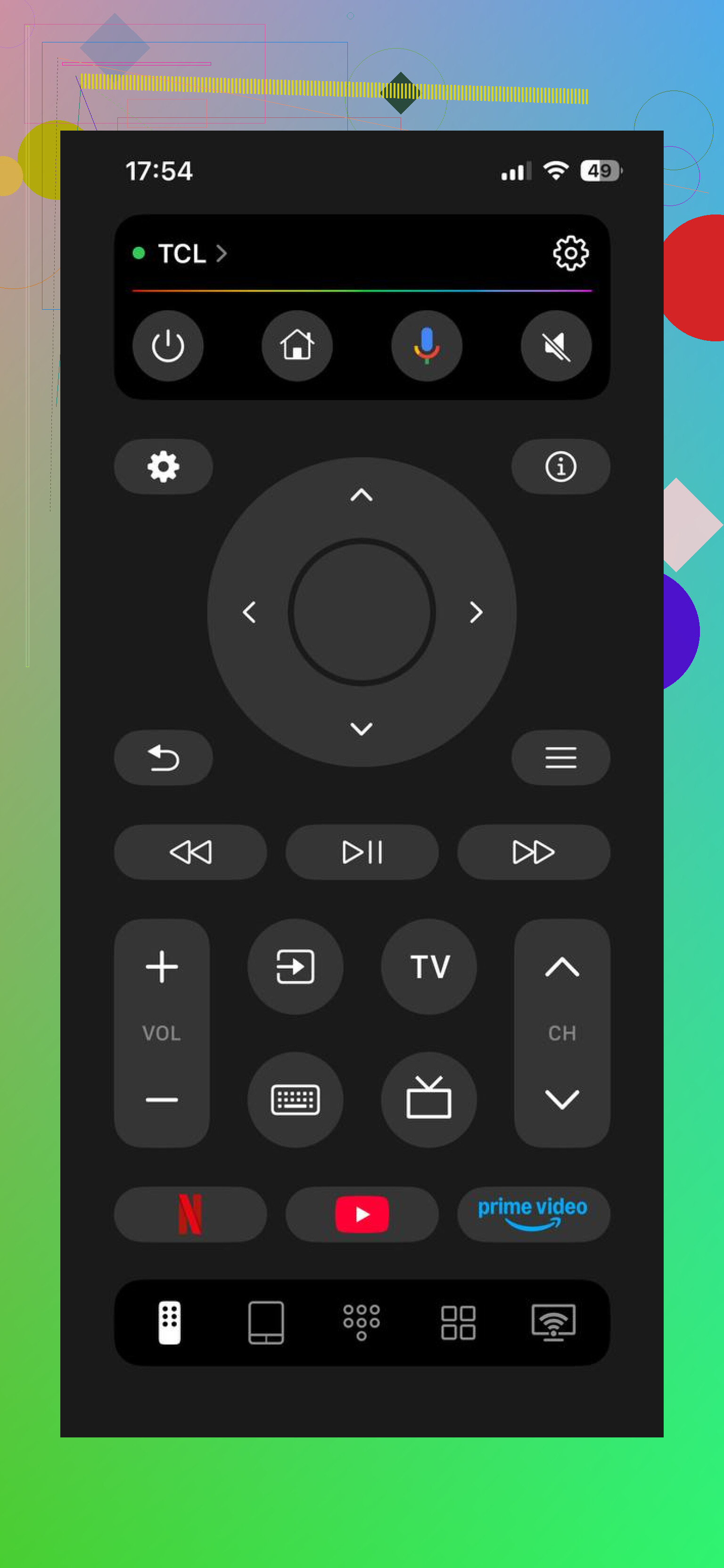
What I did
- Installed the app from the App Store
- Put the iPhone and TV on the same Wi‑Fi
- Opened the app and waited a few seconds
- Tapped my TV when it showed up
Done. No weird pairing dance on my end.
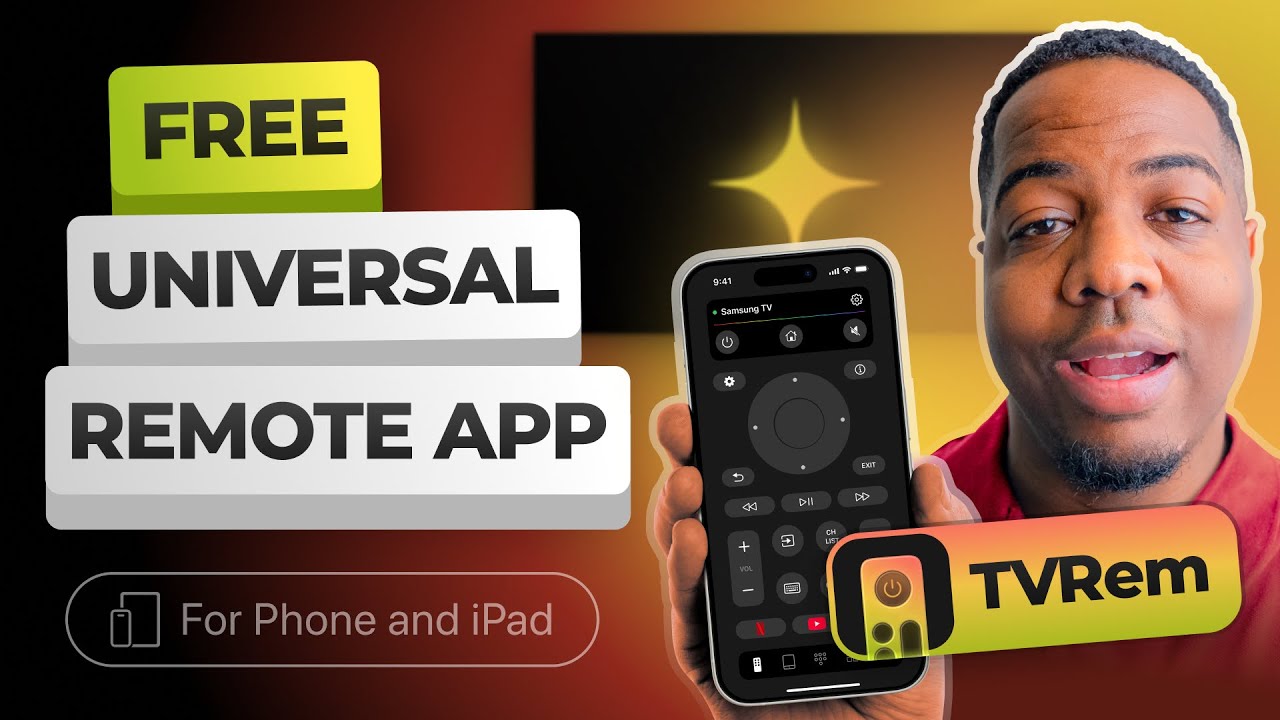
What you get after pairing
- Volume and channel control
- Touch navigation instead of hammering arrow keys
- Text input from the iPhone keyboard
- Voice input for search
The typing part mattered most for me. Entering passwords, YouTube searches, or movie names with a normal TV remote is slow in a dumb way. On a phone, you finish and move on.
Android
On Android, a lot of people use Universal TV Remote Control by Codematics. It supports plenty of TV brands, and if your phone has IR, it also helps with older sets.
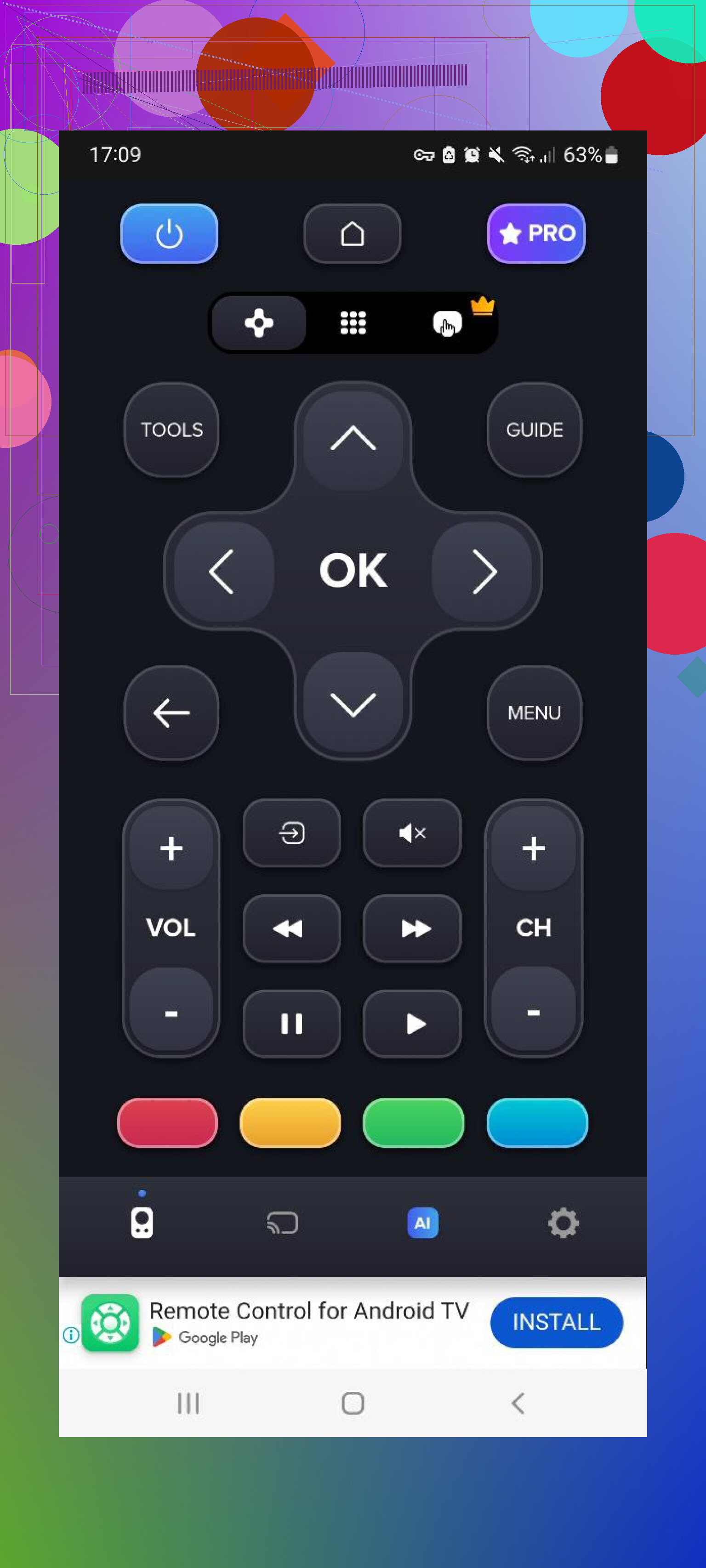
Setup steps
- Install it from Google Play
- Use the same Wi‑Fi network if it’s a smart TV
- If your phone has IR, use it for older TVs
- Choose your TV brand
- Start using it
Usual controls
- Power, volume, channels
- Direction and menu controls
- Keyboard input
- Casting tools on supported setups
IR support is the part people miss. If your Android phone has it, old TVs stop being a pain.
What changed for me
The main gain wasn’t volume control. It was search. Typing on a phone keyboard beats clicking across an on-screen alphabet every single time. Voice input helps too, though I still found myself typing more often.
Another thing, Wi‑Fi control means you don’t need to point your phone at the TV like it’s 2009. I got used to changing stuff from the kitchen doorway. Small thing, but yeah, nice.
My take on the iPhone option
If you’re on iPhone, TVRem stood out for me because it felt less cramped than a lot of remote apps I tried. Faster connection. Cleaner layout. Less poking around to find basic stuff. It also supports more than one TV brand, which saved me some annoynce when I tested it on another set.
Touch controls were useful. Voice search too. Those weren’t filler features in my case, I used them.
So if your remote is missing, busted, or buried somewhere stupid, using your phone is a solid fix. If you’re on iPhone, I’d start there. If you’re on Android, the Codematics route makes sense, esp if your phone still has IR.
2 Likes
Yes, if your TV is a smart TV.
What matters is the TV brand and how it connects.
Wi-Fi is the main method for most smart TVs. Your phone and TV need to be on the same network. Bluetooth is less common for full remote control. Some TVs use it for pairing accessories, not for remote apps.
I’d start with the TV maker’s own app before a universal one. Those tend to work better for power, input switching, and keyboard entry. Examples:
Samsung, SmartThings.
LG, ThinQ.
Roku TV, Roku app.
Fire TV, Amazon Fire TV app.
Android TV or Google TV, Google TV app.
Apple TV, built-in iPhone remote in Control Center.
One place I disagree a bit with @mikeappsreviewer, universal apps are fine, but brand apps usually fail less. Less fiddling. Fewer ads too, tbh.
If your TV is older and not smart, your phone only works if it has an IR blaster. Few phones still do. Most don’t.
Fast check:
- Connect phone and TV to same Wi-Fi.
- Open the brand app.
- Let it scan.
- Enter the code shown on TV.
- Save the TV.
If the TV is offline and you lost the remote, setup gets annoyng. In tht case, borrow any remote for 2 minutes, or use the TV buttons to get it onto Wi-Fi first.
Yes, probably. But I’d split it into 2 cases, because people keep mixing them up.
Case 1: your TV is already on Wi-Fi and set up
Then your phone can usually become the remote in like 2 minutes. I agree more with @sternenwanderer here: the official TV-brand app is usually the least annoying route. Not always prettier, but usually less janky.
- Samsung: SmartThings
- LG: ThinQ
- Roku TV: Roku app
- Fire TV: Fire TV app
- Google TV / Android TV: Google TV
- Apple TV: iPhone Control Center remote
Case 2: TV is not connected to Wi-Fi yet
This is where @mikeappsreviewer’s “just install an app and connect” advice can fall apart a bit. A lot of smart TVs need to already be on the same network before your phone can see them. If the TV is offline, your phone remote app may be useless until you:
- use the TV’s physical buttons
- plug in a USB keyboard or mouse if the TV supports it
- borrow a remote for 5 mins
- use HDMI-CEC from a console/streaming box sometimes
Bluetooth is honestly overrated for this. Most TV remote apps use Wi-Fi, not Bluetooth. Bluetooth shows up more with accessories than full TV control.
Also, tiny reality check: if your TV is not smart, your phone only works as a remote if the phone has an IR blaster. Most newer phones don’t. So check that before wasting an hour rage-tapping apps that were never gonna work lol.
My shortcut:
- Figure out TV brand
- Try the official app first
- Make sure phone + TV are on same Wi-Fi
- If TV is offline, use buttons/USB/borrowed remote to get it online first
That’s the part people always skip, then say the app is “broken.” It usually isn’t, the TV just isn’t reachable yet.