I accidentally quick formatted a drive that had my Outlook PST file, and now I can’t access years of emails, contacts, and folders I still need for work. I’m looking for help with the best way to recover a PST file after a quick format without causing more data loss. If anyone has experience with Outlook PST recovery from a formatted hard drive, I’d really appreciate advice on safe recovery steps and tools.
Outlook says ‘file cannot be found’ after cleanup
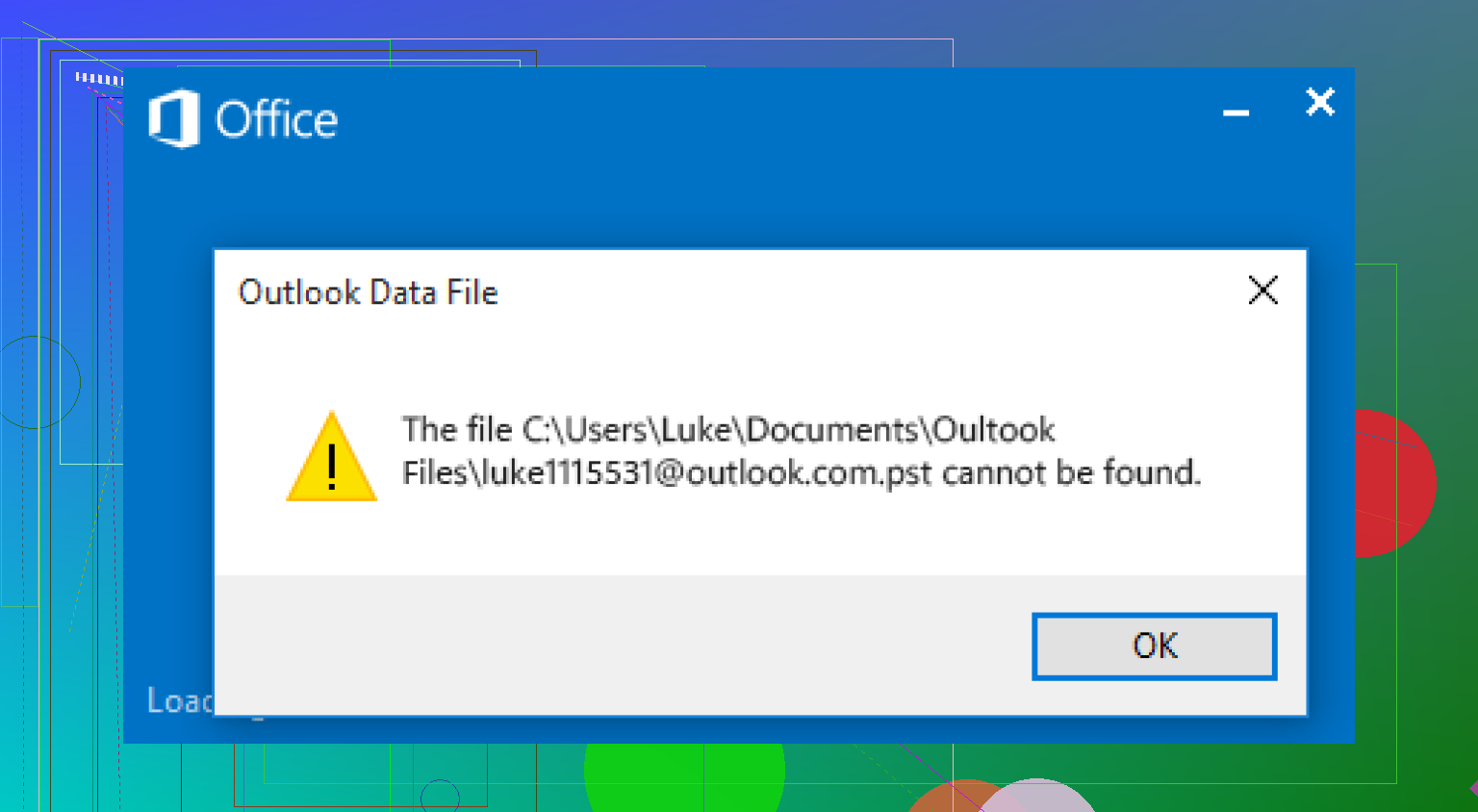
I ran into this once after deleting a pile of old stuff. Outlook still opened, but my folders were gone and it threw the usual ‘file cannot be found’ message. In plain terms, Outlook had lost the PST file. That file was the mail store.
If this happened right after you removed files, stop using the PC for anything extra.
Downloads, Windows updates, app installs, even casual browsing, all write data. If Windows reuses the same disk space where the PST used to sit, recovery gets worse fast. I learned this the annoying way.
What I would do first
1. Check the obvious places
Open the Recycle Bin and look for the PST there. If you see it, restore it.
Then check any sync service tied to your folders:
- OneDrive
- Dropbox
- Google Drive
Look in Deleted files, Trash, Recycle Bin, or Version history. I have seen cloud trash keep a file even after the local copy vanished.
Check for an older Windows copy
Windows sometimes keeps earlier folder snapshots.
The common Outlook PST path is:
C:\Users\YourName\Documents\Outlook Files
Go to that folder, right-click it, then pick ‘Restore previous versions.’
If you get any older entries from before the mess started, open one and copy the PST out to another location. Do not work from the damaged folder if you have another choice.
If nothing turns up, use recovery software
At this point the file might be gone from the file table but still sitting on disk. I used recovery software for this kind of thing before.
Disk Drill is one option. The useful part is the deep scan and the ability to filter for PST files.
What I would do:
- Install it to another drive or a USB stick if you have one
- Scan the drive where the PST was deleted, usually C:
- Search results for .pst
- Sort by size or at least check file sizes closely
- Recover the best candidate to a different folder or drive
Size matters here. A blank PST might be tiny. The one with years of mail is often much larger. When I did this, the file name was not the best clue. Size was.
Open the recovered PST in Outlook
Outlook often makes a fresh empty data file when the old one is missing. That is why the app opens but looks wiped.
To attach the recovered one:
File > Open & Export > Open Outlook Data File
Pick the recovered PST. If you found the right one, your old folders should show up in the left panel.
After you confirm your mail is there, go into Account Settings and switch the default data file if needed.
If your account used IMAP, read this part
This trips people up.
If the account was IMAP, your inbox and synced folders often still live on the mail provider’s server. Adding the account again may pull those back down.
But local-only items are a different story. Stuff like:
- personal archives
- old local folders
- custom folder trees saved only on this PC
Those were often stored only inside the missing PST. If you want those back, you need the original PST.
The short version
- Stop using the computer much
- Check Recycle Bin
- Check OneDrive, Dropbox, Google Drive trash and history
- Try Windows ‘Restore previous versions’
- Run recovery software if needed
- Recover the PST somewhere safe
- Reopen it in Outlook
If your scan finds a large PST, I would look at that one first. In my case, the big file was the real one and the tiny one was the new empty Outlook file.
After you get your mail back, keep a copy of the PST on an external drive or in a folder you already back up. Losing years of mail over one cleanup mistake feels dumb becasue it is dumb, and I say that as someone who did it.
Quick format does not erase the whole drive. It usually wipes the file system records and leaves the data blocks in place until new data overwrites them. For a PST, that matters, because Outlook data files are often large and fragmented. If the drive saw little or no new writes after the format, recovery odds are still decent.
I’d do this a bit differently than @mikeappsreviewer. I would not start by trying to reopen Outlook or repair anything yet. First goal is to recover the raw PST file, or a full image of the formatted drive.
Best path:
- Stop using the formatted drive.
- If it is an external drive, unplug it.
- If it is an internal drive, connect it to another PC as a secondary disk if possible.
- Make a byte for byte disk image first. This gives you one safe source and lets you test recovery without touching the original.
After that, run recovery software against the image, not the live drive. This matters more after a quick format than after a simple delete.
For software, Disk Drill is a solid pick for PST recovery because it handles formatted volumes well and lets you preview scan results by file type and size. Search for .pst, then check the larger results first. A work PST with years of mail is often several GB. If you recover a 265 KB PST, that’s not your mail archive, lol.
Also, don’t jump straight to scanpst.exe. Microsoft’s Inbox Repair Tool only fixes a damaged PST structure. It does not recover a missing file from a formatted drive. People mix those up all the time.
One more thing. Recover to a different disk. Not the same one. If you need options, start with this list of top data recovery software for formatted drives and deleted files.
If Disk Drill or another scanner finds multiple PSTs, sort by:
file size,
original path if shown,
modification date,
recovery status.
Then test the best copy in Outlook through Open Outlook Data File. If Outlook says the file is corrupt, run scanpst on the recovered copy, not on the original source. Small detail, big diffence.
Yes, you can sometimes recover a PST after a quick format, but the answer mostly depends on one thing: how much the drive was used afterward.
I agree with @himmelsjager on one important point: after a format, this is less about ‘fixing Outlook’ and more about file recovery first. I slightly disagree with @mikeappsreviewer only in the sense that checking Outlook paths and app behavior is useful later, not at the start. After a quick format, your best chance is preserving what is still on disk.
A few things that help specifically with PST files:
- PSTs are often big, so partial overwrite can make them open but act weird
- even if recovered, Outlook may say the file is damaged
- that does not always mean it’s useless
What I would do that hasn’t been stressed enough:
-
Check whether the drive is SSD or HDD.
If it was an SSD, TRIM may have wiped recoverable blocks pretty fast. Recovery is still worth trying, but expectations should be lower. -
Recover all PST candidates, not just one.
People usually grab the biggest file and hope. Sometimes the usable one is the second-largest, or an older auto-archive copy. -
After recovery, test the PST in a throwaway Outlook profile.
Don’t attach it to your main mail profile first. Keeps things cleaner and avoids more Outlook nonsense. -
If Outlook refuses it, try
scanpst.exeonly on the recovered copy.
Never on the source drive, obviously.
For actual recovery, Disk Drill is a solid choice for a quick formatted drive because it can scan by signatures and often finds PST files even when the file system is gone. Recover to another disk, not the formatted one. Kinda obvious, but people still do it and then wonder why the file is toast lol.
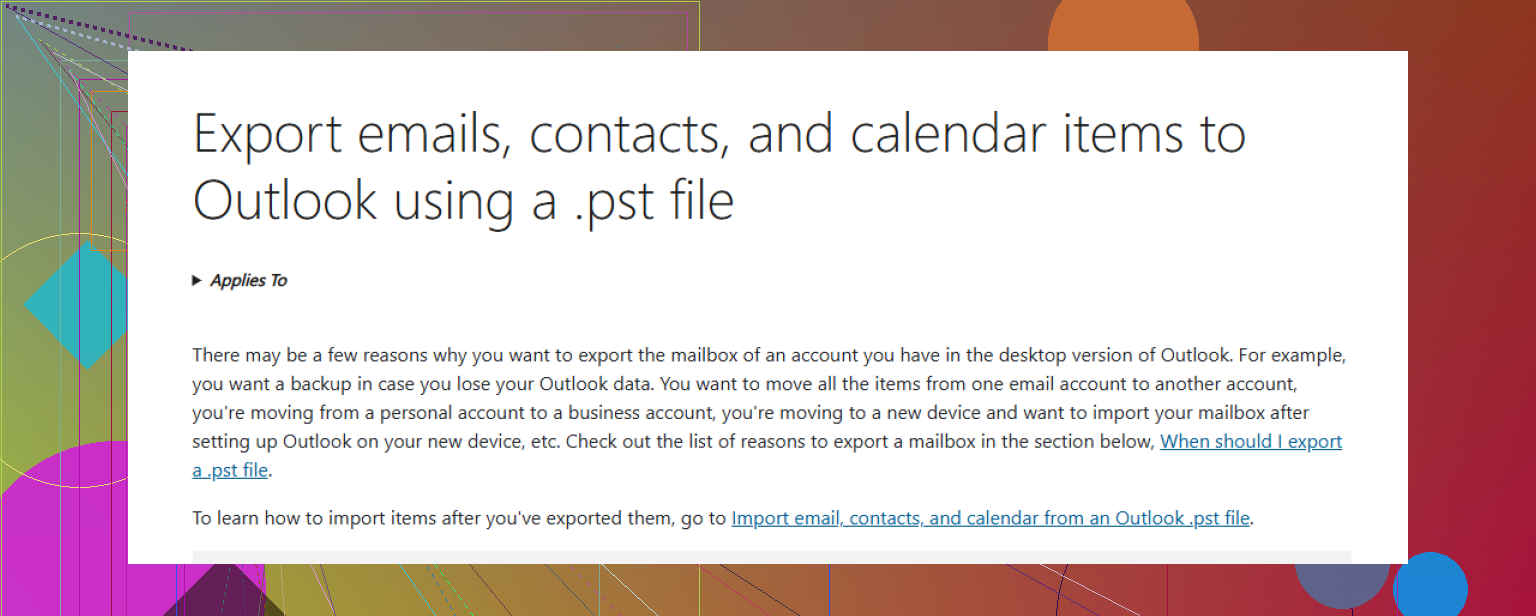
Also, after this mess, set up a real backup habit. Microsoft has the basics here: how to back up Outlook emails, contacts, and calendar items to a PST file.
If the scan finds a PST that is close to the size you remember, there’s still a pretty decent shot. If all you get back are tiny PSTs, that’s usually bad news tbh.
Quick format recovery is really a race against overwrite, but I’ll add one angle the others barely touched: PST fragmentation. @himmelsjager is right about imaging first, and @nachtschatten is right to separate recovery from Outlook repair. Where I differ a bit from @mikeappsreviewer is that “find the biggest PST and open it” is not always enough. A PST can be partially recovered and still look normal in size while missing chunks internally.
What I’d do after recovery is verify the file before trusting it:
- check recovered PST size against what you remember
- duplicate it before testing
- try opening the copy in Outlook
- if it mounts, spot-check old folders, search, contacts, and calendar
- export critical mail out immediately if it opens
For Disk Drill, pros:
- good at finding files after quick format
- easy filtering for PST results
- preview and sorting help narrow candidates
Cons:
- large scans can take a while
- signature recovery may lose original names/paths
- if the drive is SSD with TRIM, results can still be poor regardless of software
Also, recover NST/OST files too if they appear. They are not substitutes for a PST, but sometimes they help rebuild mailbox content or confirm account history.
So yes, recovery is possible. Just don’t assume “recovered” means “fully intact.”