I need to clear all photos from my iPhone, but I still need to use other apps while it’s happening. I’m not sure if deleting a large photo library can run in the background or if I have to stay in the Photos app the whole time. Looking for help on the fastest way to delete all iPhone photos without interrupting the process.
Picking photos for ten minutes, then watching the Photos app hiccup and wipe the whole selection, is one of the more annoying iPhone problems I kept running into. It shows up a lot with huge libraries. Newer iPhones do not fix it in any meaningful way. I saw the same mess on older models and on recent ones with current iOS builds.
Why the selection drops back to zero
From what I saw, the trouble gets worse when two things line up. Big photo library. Low free storage. The phone starts dragging, the screen misses inputs, it warms up, then one bad touch sends you back to nothing. You lose the whole batch and start over. Kinda brutal if you're clearing years of junk.
I stopped doing the long scroll method. This is faster:
- Open the main library in Photos and tap Select in the top right
- Put one finger on the bottom row and drag across photos to start the selection
- Keep that finger down, then with your other hand tap near the clock or the battery area at the top
- The library jumps to the top and grabs everything between those points
It saves time. It still falls apart if your storage is nearly maxed out. The phone needs some empty space left or the process gets flaky again.
iOS 17 and iOS 18
I looked for a difference here and did not find much. Apple moved some interface stuff around, polished a few screens, but the core problem stayed put. There is still no Select All button in the main library. You only get it in certain albums. Most people keep the bulk of their photos in the main camera roll, so this does not help much. On iOS 17, on iOS 18, same story. If you're working in the main library, the manual trick is still the only built-in path.
Why Recently Deleted keeps filling back up
Deleting in Photos does not wipe files right away. iOS moves them into Recently Deleted and leaves them there for around 30 to 40 days. Those files still take up storage the whole time. I missed this once and thought the phone was bugged because the storage graph barely changed.
To free the space for real:
- Open Photos and go to Albums
- Scroll down to Recently Deleted in Utilities
- Tap Select in the top right
- Tap Delete All
If you skip this part, your storage number stays bloated no matter how much you removed from the main library.
Why large deletions stall in the background
The Photos app does a poor job with giant delete jobs if you leave it mid-process. I tried moving a huge batch, then swapped to another app, and the job either froze or died. If you're deleting something like 20,000 photos, stay inside Photos and let it finish. Switching away is where it goes sideways.
If you want a full wipe and you have a Mac
I had better results with Image Capture than with the phone screen. It is less fragile when the library is massive.
- Plug the iPhone into the Mac with a cable
- Open Image Capture from Applications
- Press Command + A
- Click the delete icon
This skips all the touch input nonsense and handles bulk deletion more cleanly. Check your backup first. Once you delete through Image Capture, there is no Recently Deleted buffer there waiting to save you if you messed up. It's done.
Where Clever Cleaner comes in
If your library is big enough for constant resets, lag, and failed selections, using a cleanup app starts making more sense than fighting Photos for an hour. I ended up looking at strongest free option available because the native app kept choking on the basics.
What stood out:
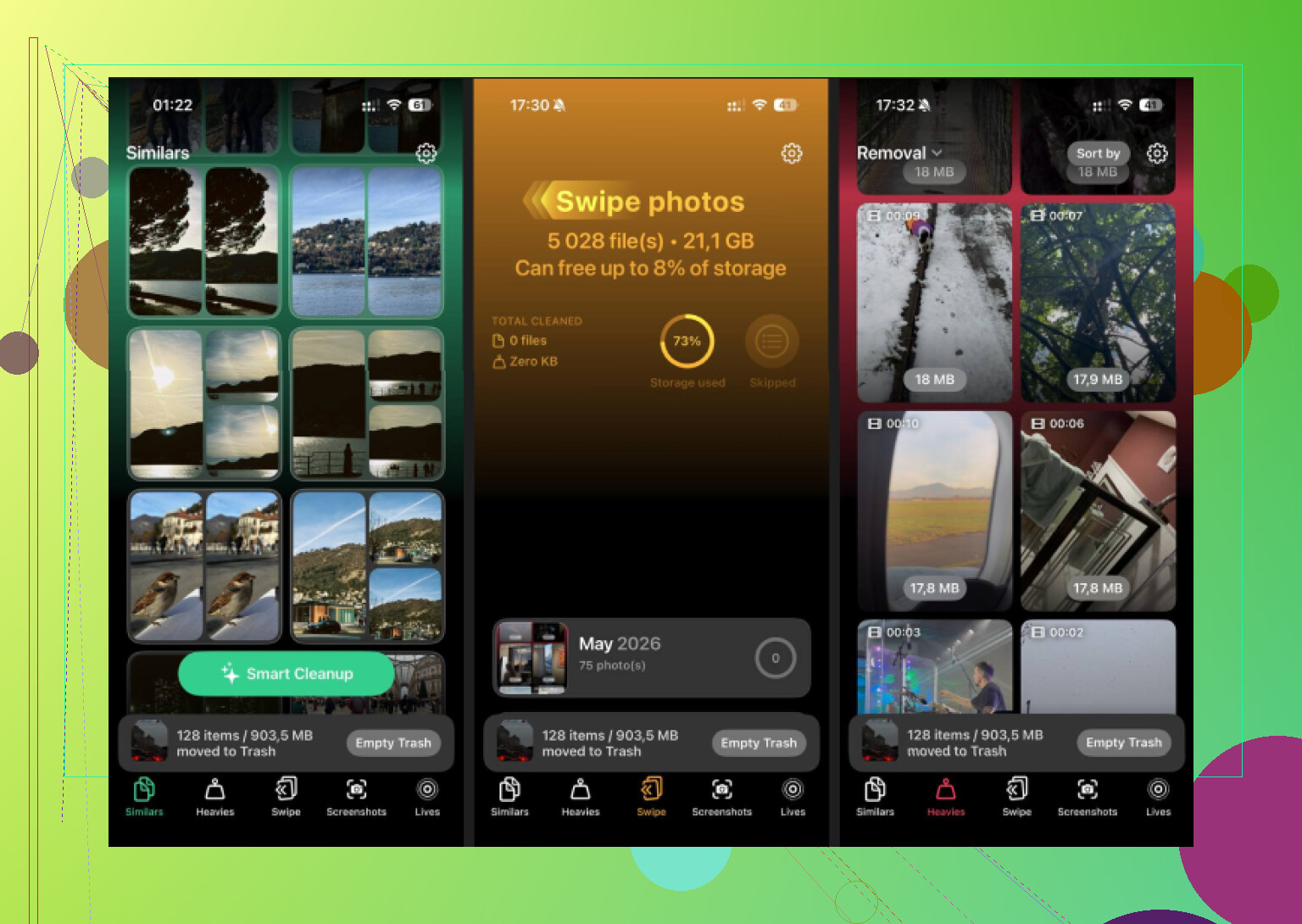
- Heavies shows the largest files first, so the stuff eating your storage is right in front of you instead of buried across years of photos
- Similars groups near-duplicate shots together, like burst runs or five tries at the same picture, so you keep one and trash the rest fast
- Screenshots shows file size on each thumbnail before deletion
- Everything stays on the device, no uploads, no off-phone processing
1 Like
No, I would not count on iPhone photo deletion running cleanly in the background while you use other apps.
For small batches, iOS often keeps working after you leave Photos. For a huge library, it gets unreliable fast. The Photos app has to update the library database, sync iCloud Photos if enabled, and move items into Recently Deleted. If you switch away, lock the phone, or open heavier apps, the job often slows down or pauses. So if your goal is wiping tens of thousands of photos, stay in Photos until the first delete pass finishes. Annoying, but safer.
I slightly disagree with @mikeappsreviewer on one point. Newer iPhones do handle large libraries a bit better if you have plenty of free space and battery, but they still do not make this a true background task you should trust.
If you need to keep using your phone, split it up:
- Delete in chunks, like 2,000 to 5,000 at a time.
- Keep the phone plugged in.
- Turn off Low Power Mode.
- Leave Photos open for a few mins after each batch.
- Empty Recently Deleted after.
If iCloud Photos is on and you want everything gone from the iPhone only, stop first. Deleting from Photos removes them from iCloud too. A lot of peope miss this.
If your library is a mess, Clever Cleaner is worth a look before mass deletion. It is better for sorting duplicates, large videos, screenshots, and similar shots, so you delete less manualy. This is useful if you want storage back without nuking every image.
For more user takes and cleanup options, read this guide on the best free iPhone cleaner app and what users think.
Short version: for a massive delete, no, I would not trust iPhone to do it neatly in the background while you bounce around other apps.
I mostly agree with @mikeappsreviewer and @suenodelbosque there. Where I slightly differ is this: iOS can keep processing some deletes after you leave Photos, but it is not a real ‘set it and forget it’ job. The system may pause, slow down, or just feel weirdly inconsistent, esp if iCloud Photos is on or storage is almost full.
If you need your phone during the cleanup, the safer move is not one giant wipe. Do medium batches, let Photos settle for a minute, then go back to whatever else you need. Annoying? Yep. More reliable? Also yep.
One more thing people forget: if your goal is to free space fast, deleting photos is only half the job until Recently Deleted is cleared. Otherwise your storage can look basically unchanged and you think the phone is lying to you. It kinda is, but also not.
Also, if iCloud Photos is enabled, deleting from iPhone usually means deleting everywhere. That catches people out all the time.
If the library is a total disaster, Clever Cleaner makes more sense than brute-forcing the Photos app. Better for trimming duplicates, large videos, screenshots, and similar junk before you go nuclear. If you want to check it, get Clever Cleaner free on the App Store for faster iPhone photo cleanup.
So yeah, background deletion for a huge library? Technically sometimes. Reliably? not realy.

I’m a bit less pessimistic than @suenodelbosque and @kakeru here: iPhone will often keep chewing through deletions for a while after you leave Photos, but I still wouldn’t trust it for a giant library if you actively need the phone.
The real issue is not just “background or not.” It’s priority. Once you open camera, maps, games, or anything memory-heavy, iOS may deprioritize Photos work. So yes, some deletion can continue, but no, it’s not a dependable background task in the way music uploads or file downloads are.
A different angle if your goal is speed: use the Photos app less, not more. Search filters like screenshots, screen recordings, selfies, bursts, and videos can let you wipe the worst offenders first with less strain than selecting your whole library at once. That often frees enough space without risking a massive all-at-once operation.
On the app side, Clever Cleaner is useful if your library is messy rather than simply huge.
Pros:
- easier to spot duplicates and similar shots
- surfaces large files fast
- less manual scrolling chaos
Cons:
- not ideal if you truly want every single photo gone
- you still need to review results
- another app step before deleting
So I’d say @mikeappsreviewer is right about not relying on background deletion, but I disagree slightly with the idea that it always falls apart instantly. It’s more “sometimes works, rarely trustworthy.”