My USB thumb drive suddenly stopped opening after I moved important work files and family photos onto it. My computer says the drive is corrupted, and I really need help with safe file recovery steps before I lose everything. Looking for advice on recovering files from a corrupted thumb drive without making it worse.
Corrupted USB drive, what I’d do first
Don’t freak out yet. I’ve had USB sticks show up as dead when the files were still sitting there. A busted file system is common. Windows stops reading it right, but the data is sometimes still intact.
My rule was simple from minute one. Recover first. Fix later.
So I would not format it. I would not run CHKDSK. I would not click repair prompts. I would not copy new stuff onto it. Those steps sometimes bring the drive back, sure. They also rewrite parts of the structure recovery tools need. I learned this the annoyng way once.
Check what Windows sees
Before touching anything, I’d open Disk Management and look for three things:
- Does the USB appear at all
- Does the size look correct
- Does it show a normal file system, RAW, or unallocated space
If the drive shows up with the right capacity, I’d take it as a decent sign. DIY recovery still has a shot.
If it does not appear, drops off every few seconds, reports some weird size, or gets hot fast, I’d start thinking hardware problem instead of file system mess.
Also, test another USB port. Then another PC if you have one. This is not a repair step. It only helps rule out a bad port, flaky drivers, or one machine acting weird. If the same bad behavior follows the stick everywhere, the stick is likely the problem.
If the drive is detected, go straight to recovery
If Windows still sees the USB, I’d try recovery software before any repair attempt.
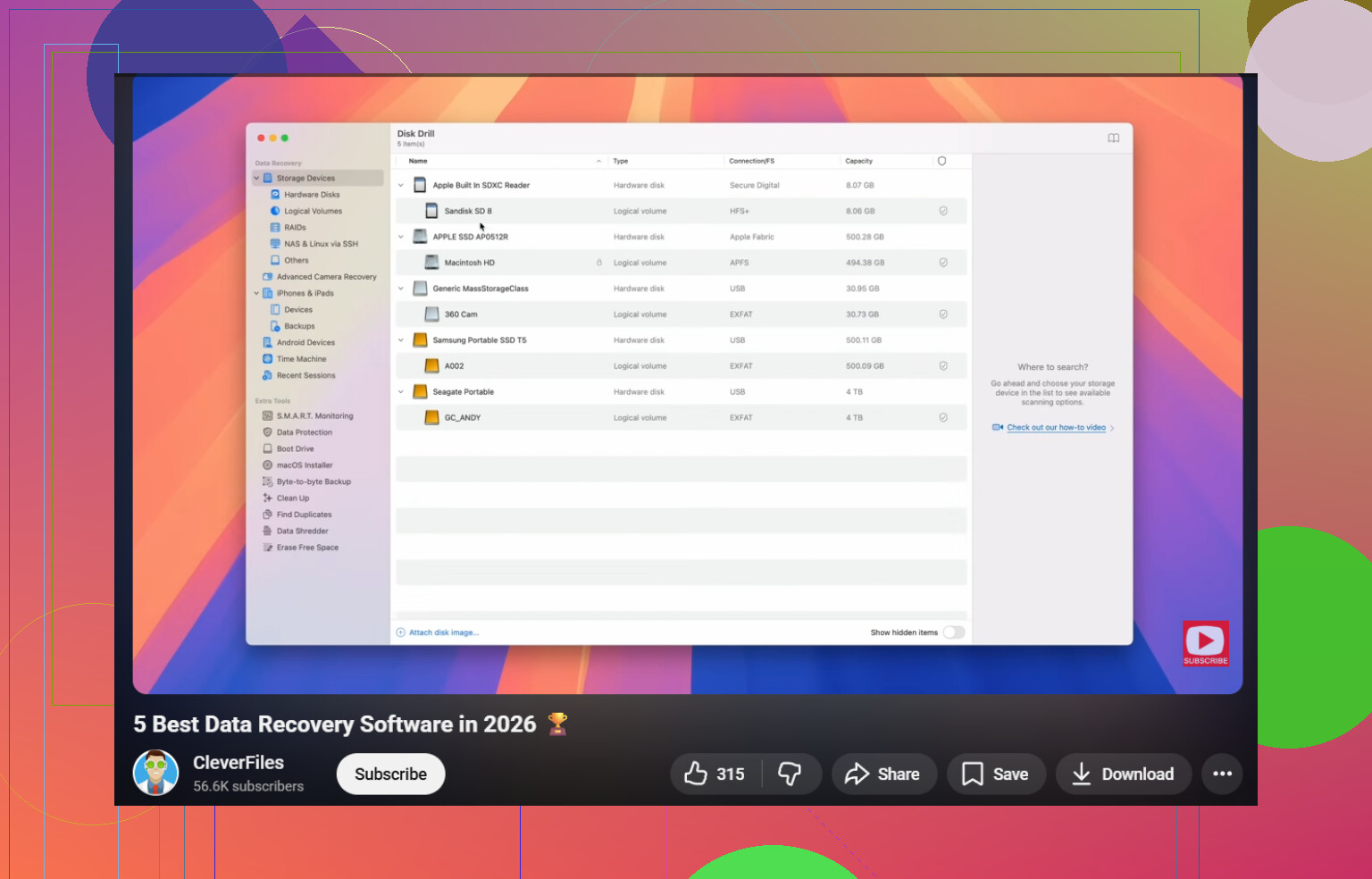
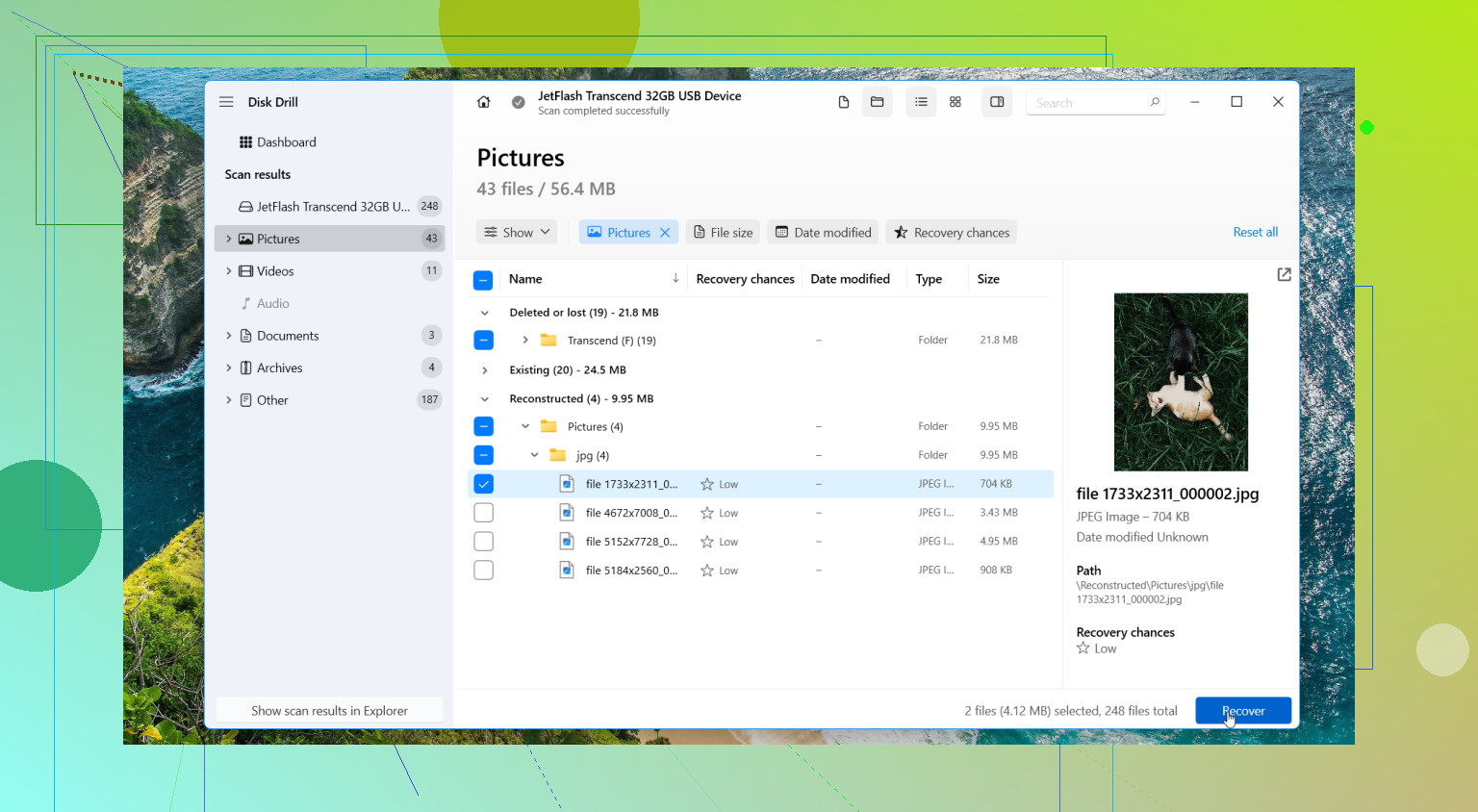
One option is Disk Drill. I’ve seen it handle RAW and corrupted drives better than tools which depend on the damaged file system being readable. The file preview helps too. You get a quick read on whether your files are there before doing a full restore.
The safer route, make an image first
This part matters more than people think. A failing USB sometimes gets worse during long scans. I’d image it first, then work from the copy.
Steps I’d follow:
- Install Disk Drill on your computer, never on the bad USB.
- Plug in the USB.
- Open Disk Drill and pick Byte-to-byte Backup.
- Select the damaged USB.
- Save the image to a different drive with enough free space.
- Go back to Storage Devices after the image finishes.
- Attach the disk image inside Disk Drill.
- Scan the image, not the original USB.
- Preview what it finds.
- Recover files to another drive.
A byte-for-byte image freezes the current state of the stick. If the USB degrades mid-process, you still have the snapshot. I’d take that over hammering the original device for an hour.
Only after recovery, try to make the USB usable again
Once your files are off, then I’d mess with repairs.
Stuff I’d try in order:
- In Disk Management, assign a new drive letter if the device appears there but not in File Explorer
- In Device Manager, reinstall USB drivers if detection is inconsistent
- Run Windows Error Checking or CHKDSK only after recovery
- If nothing changes, format the drive as exFAT or NTFS
- Test it with junk files first, not anything you care about
When I’d stop trusting the drive
I’d replace the USB if any of this keeps happening after a format:
- corruption comes back
- files vanish again
- copy jobs fail
- random disconnects keep happening
- the reported capacity looks wrong
Flash drives wear out. They don’t fail with much grace. Once one starts acting flaky, I stop using it for anything important. Full stop.
When DIY is a bad bet
I’d skip home recovery and look at a recovery service if the USB:
- is bent or physically damaged
- isn’t detected anywhere
- heats up fast
- disconnects nonstop
- holds files you can’t afford to lose
At that point, repeated scans and repair attempts do more harm than good. If the files matter, I wouldn’t push my luck.
1 Like
First, stop using the thumb drive. Every new write cuts your odds.
I agree with @mikeappsreviewer on one big point, skip repair tools at the start. I’d add one thing though. Check SMART or USB health info with a tool like CrystalDiskInfo if the stick even reports it. Many cheap flash drives do not. If it shows read errors or bad health, spend your effort on extraction, not repair.
My order would be:
- Try the drive on a rear USB port, not a front case port.
- Try a different cable or adapter if it uses one.
- In Disk Management, note if it shows RAW, no letter, or unallocated.
- If it mounts for even 30 seconds, copy the most important files first, photos, docs, irreplaceable stuff.
- If it does not mount cleanly, scan it with Disk Drill from your main drive and recover to a different disk.
Small disagreement with the image-first advice. Imaging is safest on a dying drive, yes. But on a cheap slow thumb drive with light corruption, a fast targeted scan in Disk Drill sometimes gets files out sooner with less stress. Depends on how unstable the stick is. If it disconnects, image first. If it stays online, I’d test preview results first.
Also, sort recovered files by type and date. Family photos often come back with generic names. EXIF dates help a ton. For work files, search by extension, xlsx, docx, pdf, psd, whatevr you had.
If you want a quick overview of top USB recovery apps, this is a decent roundup of the best data recovery software for 2026, watch the best data recovery software for 2026 in action.
If the drive drops in and out, gets hot, or shows 0 bytes, stop. DIY gets riskier fast. At tht point, lab recovery is the safer move.
Don’t let Windows “fix” it yet. That’s the one part I’d be stubborn about. @mikeappsreviewer and @codecrafter are right to put recovery ahead of repair, but I’d add one extra thing people skip: check whether the files are just hidden or the partition table got mangled, not necassarily full-on dead.
What I’d do:
- Open Disk Management and note if the volume has a partition but no file system, or if it shows as unallocated
- Open Command Prompt and run
diskpart, thenlist diskandlist volumejust to see whether Windows still reads the device consistently - If it does mount briefly, try copying only the most valuable folders first, not everything
- If it won’t mount properly, use Disk Drill and recover files to your internal drive or another external drive, never back to the USB
I slightly disagree with “copy stuff right away” if the drive is clicking, overheating, or disconnecting. In that case, every extra read is gambling.
Also, for photos, recovery by file signature can work even when folder names are toast. For work docs, preserve recovered files by extension and modified date so you can sort the mess later. It’s annoyng, but it helps.
After the files are safe, then test repair options or reformat. If corruption happened once out of nowhere, I wouldn’t trust that stick again.
For a simple corrupted USB recovery guide, this article on how to fix a corrupt USB drive before you erase it is worth a look too.
One thing I’d add that @codecrafter, @voyageurdubois, and @mikeappsreviewer only touched indirectly: check the Event Viewer logs before you keep retrying the stick. In Windows, look under Windows Logs > System for disk or ntfs errors right after plugging it in. If you see repeated I/O errors, controller resets, or “device not ready,” that usually means the problem is deeper than a simple file system hiccup. Useful clue, because it tells you whether to keep doing DIY at all.
I slightly disagree with the “try lots of ports and PCs” approach if the drive is already unstable. One or two tests, sure. Ten reconnects in a row can make a bad flash controller behave even worse.
My angle would be:
- Check if the USB shows the correct size in Disk Management
- Check Event Viewer for hardware-level errors
- If it stays connected, recover immediately
- If it disconnects during reads, stop before you turn a recoverable case into a dead one
For software, Disk Drill is a reasonable option here.
Pros:
- good at pulling files from corrupted or RAW USB drives
- preview helps you verify photos and docs before recovery
- interface is easier than a lot of old-school recovery tools
Cons:
- deep scans can take a while on flaky media
- recovered files may lose original folder structure
- not magic if the controller or NAND is physically failing
One more tip people skip: after recovery, compare a few recovered photos and documents by actually opening them, not just checking filenames. Corruption can survive the recovery process.
If the stick reports 0 bytes, wrong capacity, or vanishes mid-scan, I’d quit DIY and consider a lab. At that stage, repair tools are usually wishful thinking.